
Venue screen and live audience
Go live, and the audience can follow on their phones, answer polls, react to slides, ask questions and add cards to a board. A venue computer can show your slides from a link, without a cable to your laptop.
Live features need a Cloudflare account. Settings → Cloudflare sets it up from one API token; the steps are in Getting started.
The venue screen
Sometimes you cannot plug your laptop into the projector, but the venue has a computer that is online. Open your published talk’s link with /p on the end in that computer’s browser.
The venue screen is a full-screen copy of your projector window, with no buttons or other controls. It follows your laptop as you move through the talk, including image galleries, polls, the QR code and instant slides.
Before you go live, it shows your title slide; one click makes it full screen. After you end, it shows the title slide with a large QR code labelled “Slides and links”.
The go-live panel has the venue screen link with a Copy button, so you can send it to the host in advance. The panel also tells you when a venue screen is connected.
If your laptop loses its connection, the session carries on and the venue screen shows no sign of trouble. While no laptop is driving, the arrow keys on the venue keyboard move the slides. When your laptop reconnects, the venue screen jumps to your current slide.
Talks published with an earlier version need to be published again to get a venue screen.
Your laptop
Venue computer
Live polls
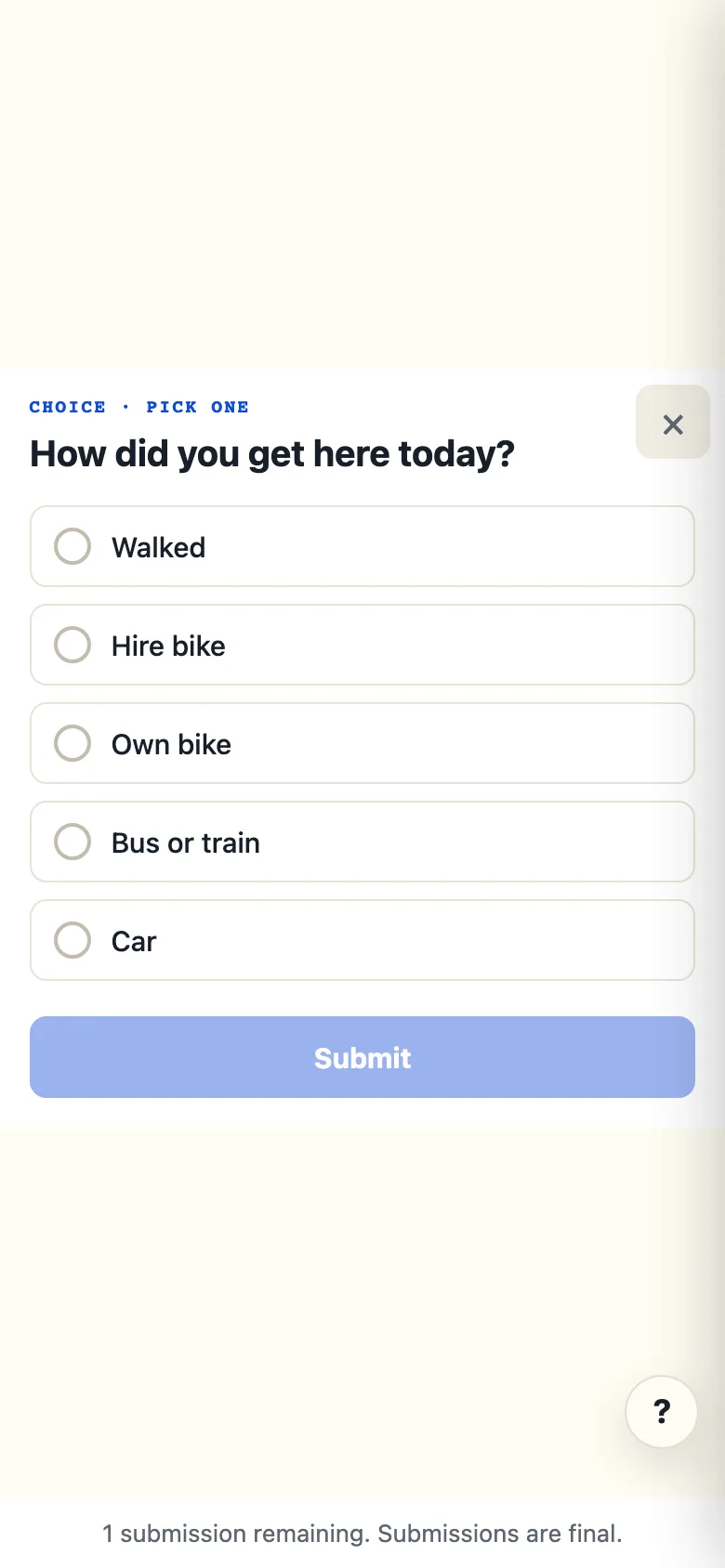
You write polls in the outline: single choice, multiple choice, open answer, rating, ranking and matrix.
You can also open a quick poll during a presentation without preparing a slide (K).
Q opens or closes the poll on the current slide. If you hold a poll’s results back, ⇧Q reveals them.
The audience view on phones
The audience joins from the talk’s QR code or link and follows your slides on their phones.
A poll uses the same slide frame in your presenter preview and on the audience’s screens. Results are shown behind the answer options. After you dismiss a poll, the audience can go back to the slides.
Reactions and questions on each slide
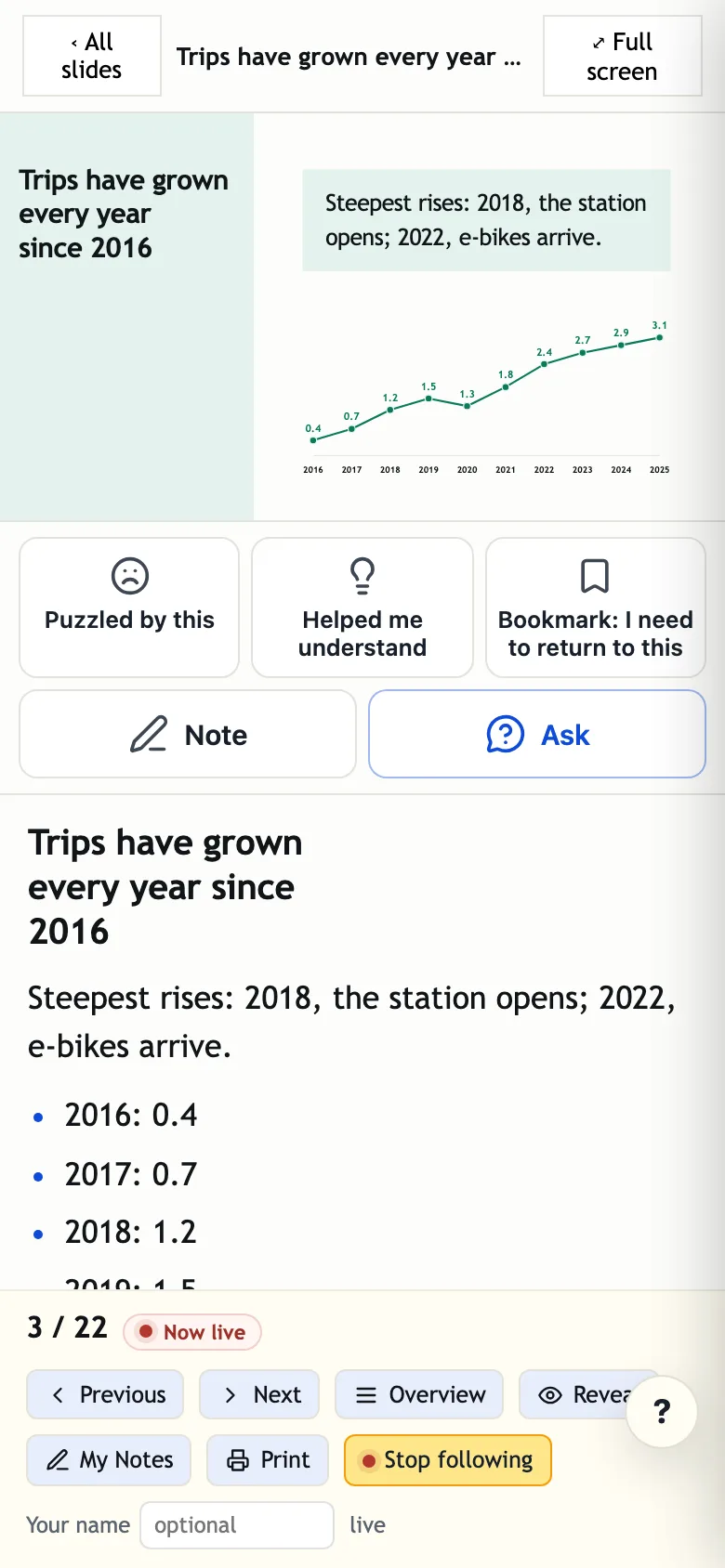
People following on a phone or laptop get a reaction bar under each slide and a Bookmark. The counts reach a chip in your presenter top bar, never the big screen. {reactions=…} on a slide chooses which reactions it offers, or turns them off.
Ask the speaker sends you a question about the slide the person is looking at. Press A in the presenter for the questions tray, and Mark answered folds a question away.
Allow slide questions and Allow slide reactions in the Poll menu pause either one during a talk. Afterwards, the Run in History shows the questions and the reactions by slide.
My Notes for the audience
On a laptop, selecting a phrase on a slide offers Save to notes and Send to the speaker as a question. On a phone, Note sits beside Ask.
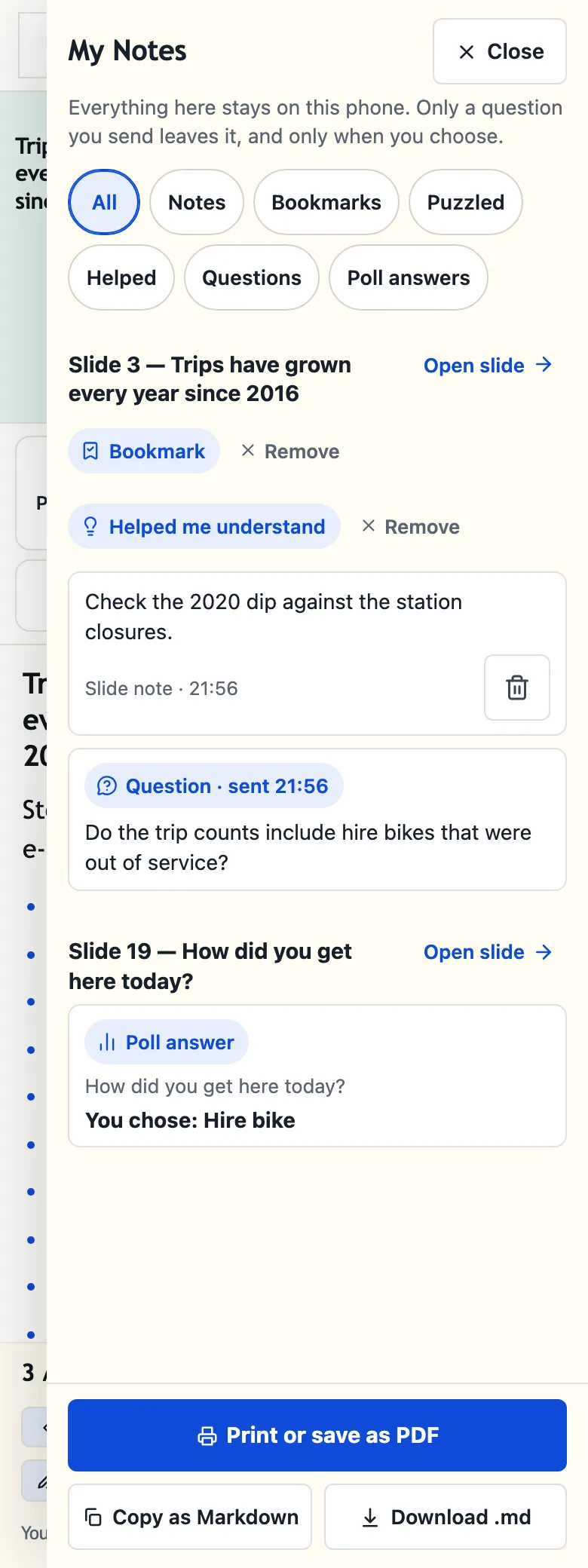
My Notes gathers notes, bookmarks, reactions, questions sent and poll answers by slide. A person can print the notes or save them as a PDF or as Markdown.
Feedback boards
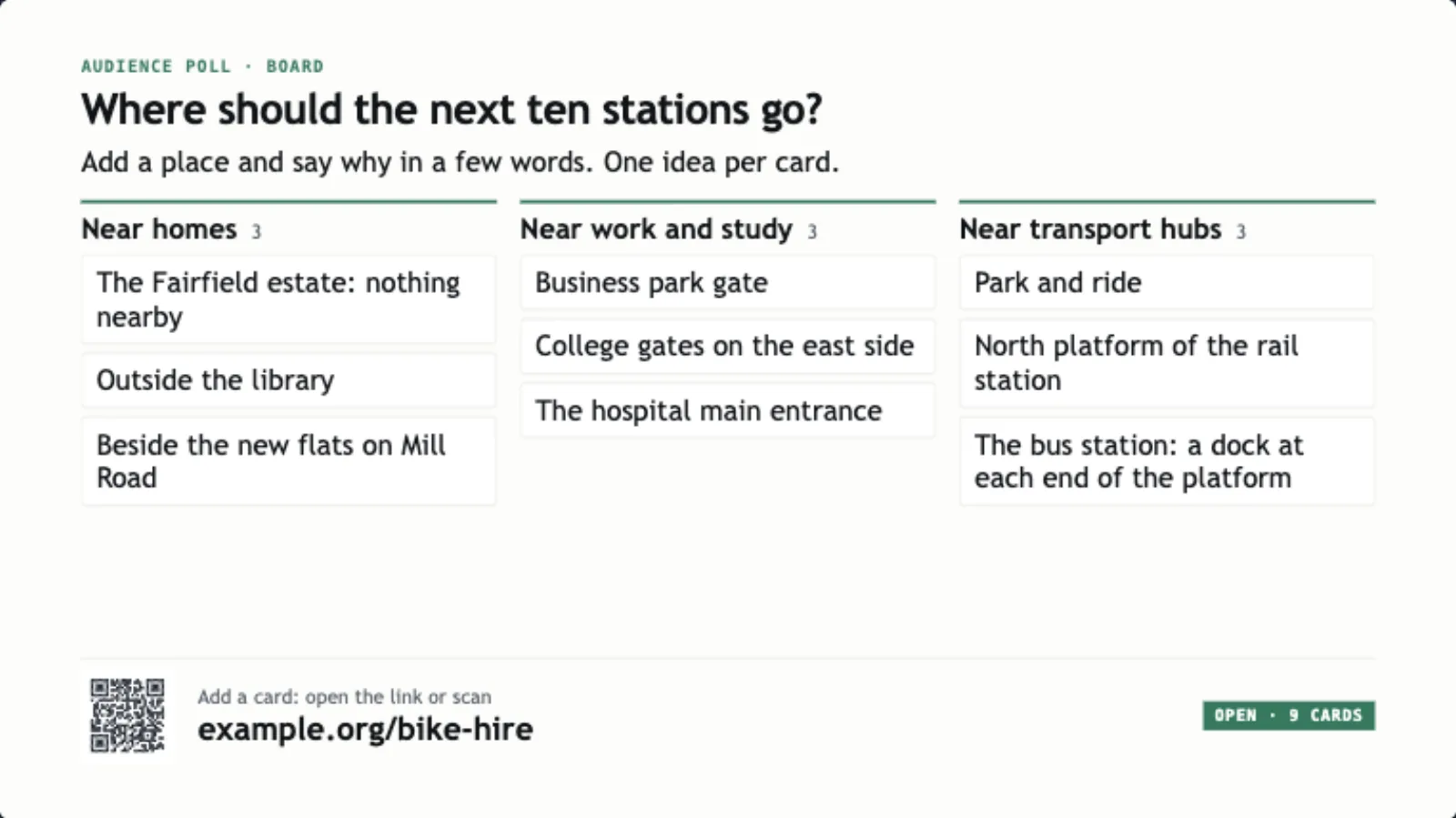
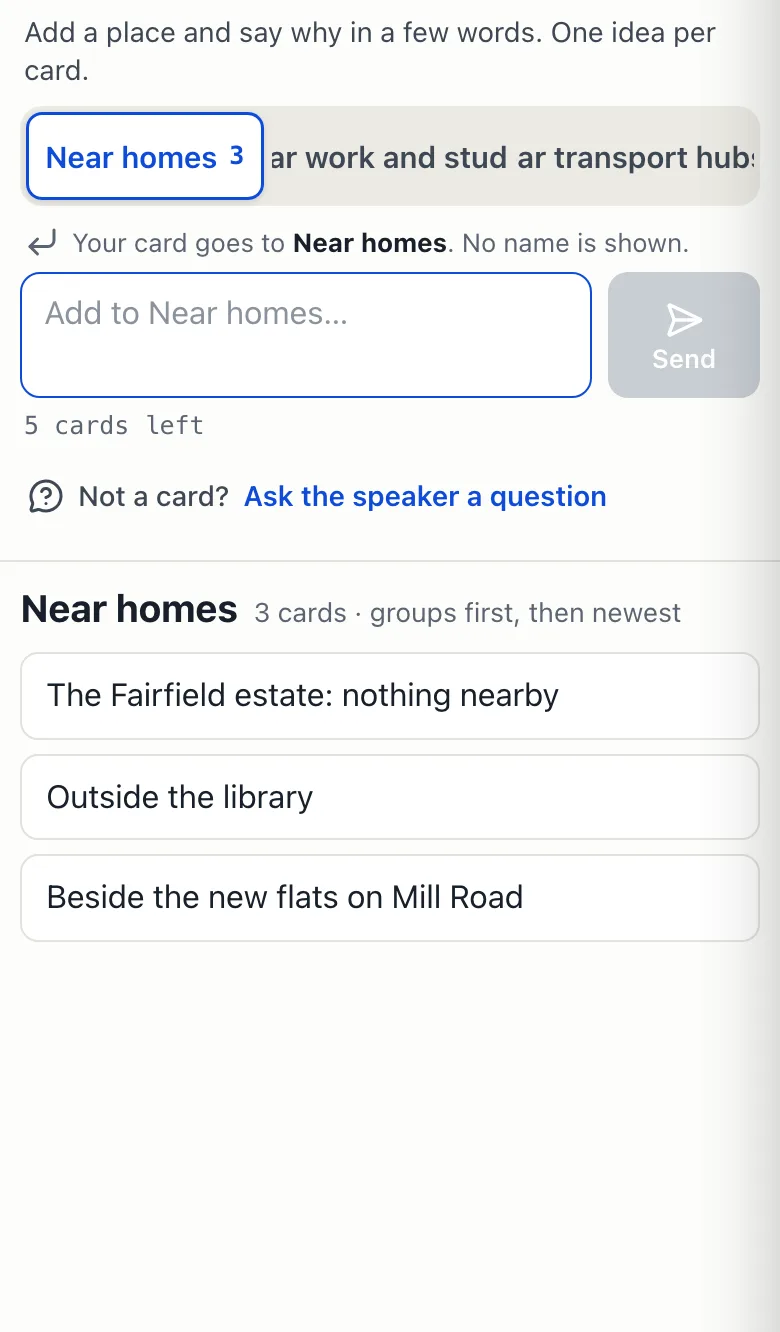
Insert a board slide from the Insert menu. During a live session, people add cards from their phone or laptop, and can edit or withdraw their own cards until you sort them.
The board shows on the big screen and the venue screen. A presenter panel lets you merge cards, move them into groups and rename the groups, hide and restore cards, and freeze the board. The Run keeps the board, and History shows the results with Copy as Markdown and a read-only results link.
The live handout page
While you are live, the talk’s handout page follows your slide. The audience can step back and forward through the slides. Once someone steps off the live slide, a line under the slide says where they are, and a button returns them to your slide. Reactions, Bookmark and Note go to the slide they are looking at; polls and boards stay on your slide.
The talk setting Audience can look ahead, under Presenting and on by default, can stop people stepping past your slide. The live slide has a Full screen button. Esc, Exit full screen, or a poll or board opening leaves full screen. The band button reads Open slides, and the slides view has a Handout home button.
The page scrolls with a mouse wheel at every width, the reactions sit directly under the slide and stay there when a board is open, and below 1200 pixels wide the page is one column.
The live page does not yet follow your reveal steps or show your pen drawings.
See an example handout. It is the handout page of the sample talk without a live session, so it has no polls or reactions.
Staying in control while you present
You can reopen or dismiss a poll from the presenter view. Responses are recovered after a connection interruption, and the presenter view confirms when your commands have been received.
Publishing and live sessions run on your own Cloudflare account, which you set up once in Settings → Cloudflare. TalkWeaver has no central server and no sign-up. Going live is set up on each computer. A second computer that has the same Cloudflare token in Settings → Cloudflare reads Set up on another computer on the Going live row, with the button Set up going live on this computer. Pressing it adds a key for that computer. Nothing made on the first computer changes, and both computers can go live. Adding a computer with a joining code instead of the token, and a list of computers with Remove, are planned for a later release. Read more about going live from a second computer.
On Windows, the Cloudflare set-up is tested automatically against a stand-in for Cloudflare. Going live with a real account has not been tested on Windows.