
What’s new in 0.41
TalkWeaver 0.41.0 turns on pre-work and post-work for a session, restyles every slide layout with the index-tab title as the new default, and makes undo after a save keep slide ids. It includes the work numbered 0.40, which was not released on its own. This page also lists what arrived in 0.39.0, 0.38.2, 0.38.0, the 0.37 beta and 0.35.
Added in 0.41.0
Pre-work and post-work for a session, with Sessions, Published pages and Work files in the Tools window. Every slide layout is restyled, and the default title is now the index tab. Undo after a save keeps slide ids.
Pre-work and post-work
Pre-work and post-work are on for everyone. They were hidden from 0.37 because there was no clear way to start them and no way to take a published page back. Pre-work is now written in a work file in your vault, post-work uses the same kind of file, and a Run sends the files out with its own handout.
Work files
A work file is a Markdown file in the vault with one step per ###, written in TalkWeaver’s slide syntax. A step can be a slide, a video, a quick check, a question or a task, and a question can be any poll type. There are no default questions: you choose every question.
The Work files view (⌘6) in the Tools window lists the files in the vault’s Work files folder, with the talks that use each. New work file (⌘⇧N) asks for a title and writes the file. Its “Start from” choice includes Survey what was learnt, which fills in two open questions: what was learnt and what will be tried.
Attaching files to a talk
A talk names its files in its metadata, in a Pre-work row and a Post-work row. Under the metadata, one line for pre-work and one for post-work say whether a file is attached and whether it has been sent. With no file attached they read “Attach a pre-work file” and “Attach a post-work file”. Once a file has gone out, the line names the Run and its answer count, with Open run.
The talk’s own Publish dialog says that pre-work and post-work are not included and go out with a Run, and it offers Plan a run. A talk’s handout never contains work-file steps.
Plan a run
Plan a run (⌘⌥N) sets up a session. Slides can be the full talk, a pathway, or New pathway…. The Pre-work and Post-work blocks sit side by side, each with the talk’s file, any other work file or none, and Opens and Closes times. Post-work opens When the session ends (the default) or At a set time….
Two messages come with a button that corrects the value: “Pre-work must close before the session starts” and “Post-work must close after the session ends”. Plan the next run like this (⌘⇧D) copies an earlier Run’s event, slides, files and windows, with no answers and no published pages.
Sessions and the Run page
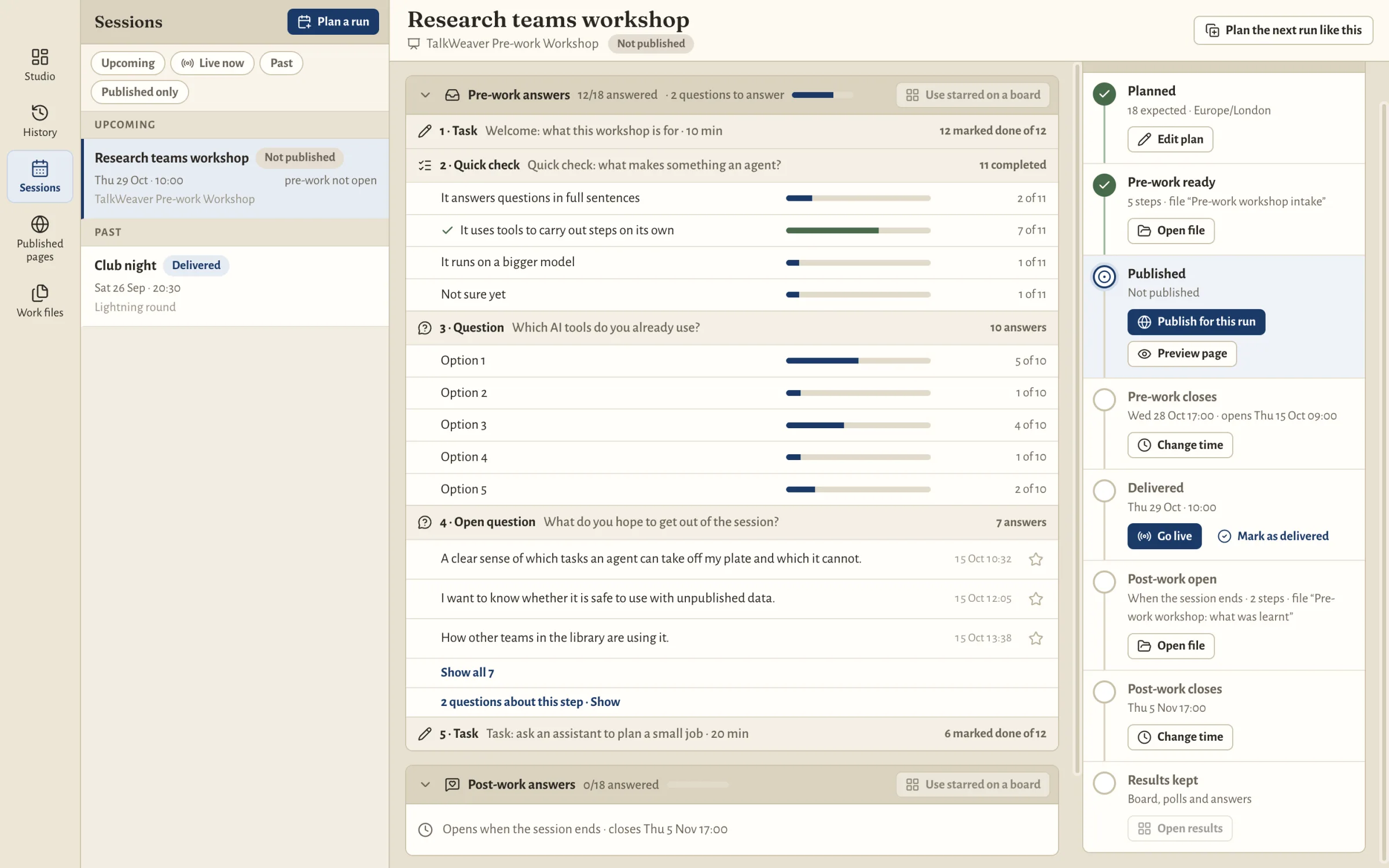
Sessions (⌘4) lists every planned and delivered Run, with the filters Upcoming, Live now, Past and Published only. A Run’s page has a checklist (Planned, Pre-work ready, Published, Pre-work closes, Delivered, Post-work open, Post-work closes, Results kept) with an action on each step.
The pre-work and post-work answers sit on the left, each with a progress bar. You can star answers, and Use N starred on a board counts the stars you set.
Publish for this run, and Unpublish
Publish for this run (⌘⌥U) puts up three pages for a Run: the handout, a pre-work page and a post-work page. The Published step shows the three links with copy buttons, a QR code and Copy invitation text. Preview page opens the participant page on your computer with nothing uploaded.
Unpublish makes all three pages show “This page is not available”. The answers are kept, and Publish again restores the same three addresses. A Run pins the revision of each work file when it is sent, so later edits to a file reach only future Runs.
What participants see
Pre-work and post-work each have their own page and link. A laptop shows a rail of steps; a phone shows a top bar and bottom navigation. Video plays in the page, answers are saved as the person goes, and Ask about this step lets people ask about a step ({noask} turns it off). Answers are anonymous. The post-work page is headed “After the session”.
Post-work opens when the session ends
Post-work that opens when the session ends opens when the live session bound to the Run ends, or when you mark the Run delivered. If TalkWeaver was not running then, it opens on the next launch. Changing a closing time after a phase has closed reopens it.
One fault is known: a planned Run whose post-work was published to open at a set time, and was then changed to open when the session ends, can still open at the old time.
Extras for this run
The Run page has an Extras for this run section with an intro note, up to 10 links and up to 10 extra slides. They appear on that Run’s handout and when presenting that Run, and nowhere else. Extra slides are plain text only, and the talk file is never written.
Published pages
Published pages (⌘5) lists every published handout and talk page across the open vaults, each with its link, its published date and Unpublish. A Run’s pre-work and post-work pages are inside the Run’s row. Run handouts published in 0.39 stay reachable.
History changes
History no longer publishes or unpublishes Runs, and it no longer has a pre-work page or column. A planned Run opens in Sessions. The pre-work section in the Inspector and the old pre-work block in the plan sheet are gone. Answers from older Runs stay readable.
Move to a work file
A talk’s old {prework} section is no longer used. Layout Doctor warns “Pre-work now lives in a work file” and offers Move to a work file, which writes the file, names it in the talk’s metadata and removes the section. Step ids are kept, so results slides still find their steps. Until a section is moved, it stays out of presenting.
Keys
Sessions ⌘4, Published pages ⌘5, Work files ⌘6, New work file ⌘⇧N, Plan a run ⌘⌥N, Edit plan ⌘⌥E, Plan the next run like this ⌘⇧D, Publish for this run ⌘⌥U, Go live ⌘⌥L, Open run ⌘⌥O, Copy link ⌘⇧C and Copy invitation text ⌘⌥C. The Tools window has its own command palette on ⌘⇧P.
Slide design
Every layout is redrawn, and the default title look changes.
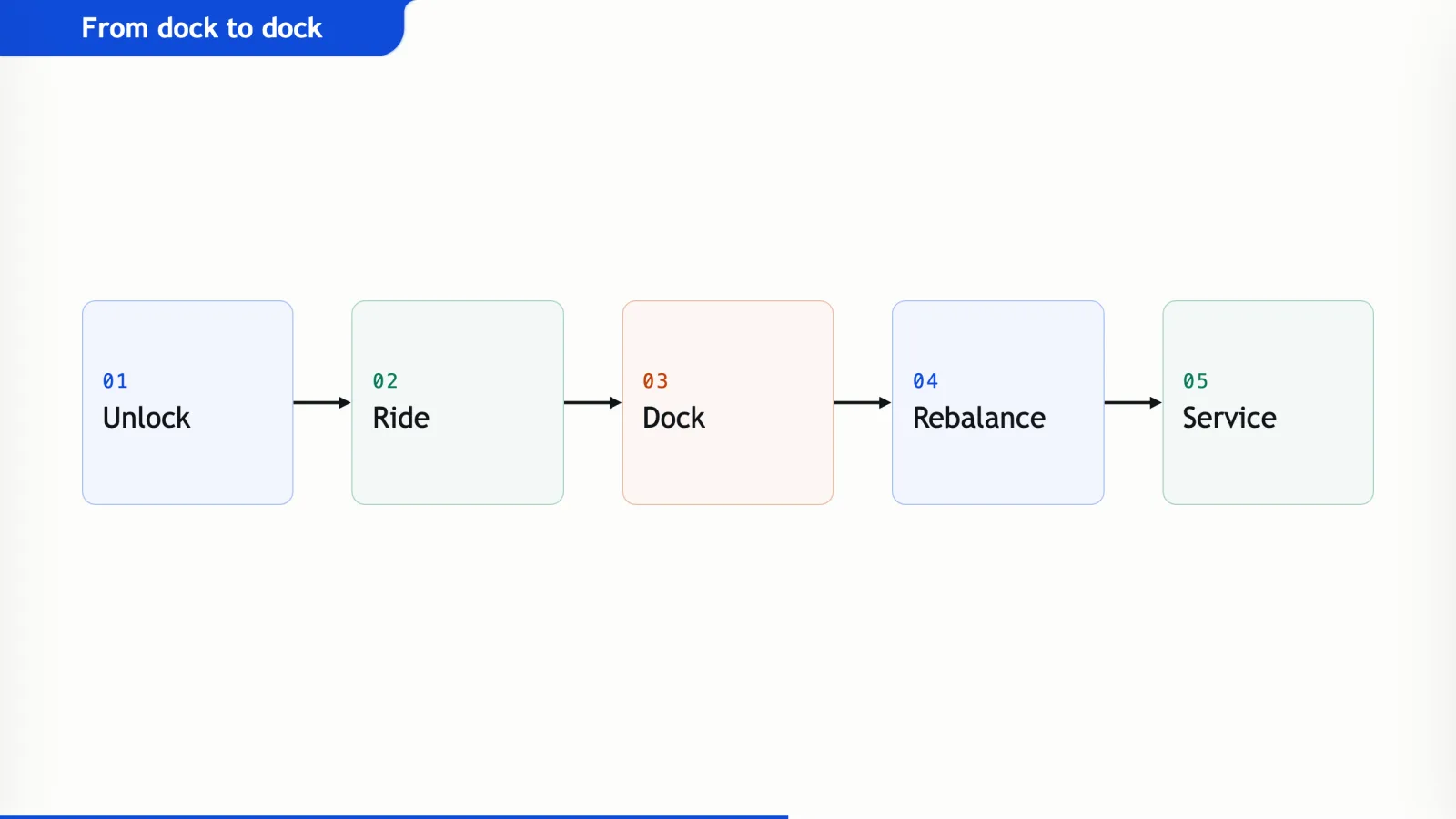
What changed in every layout
- The content block is centred in the space under the title.
- Boxes around text have a subtle outline and a light tint.
- Body text is larger and regular weight. Quotes, paragraphs and rows are never bold; stat figures may be.
- Connectors start and end on box borders.
- Slides do not lose their images or screenshots.
- A layout may use more than one colour from TalkWeaver’s palette. Green and red keep their meaning of right and wrong.
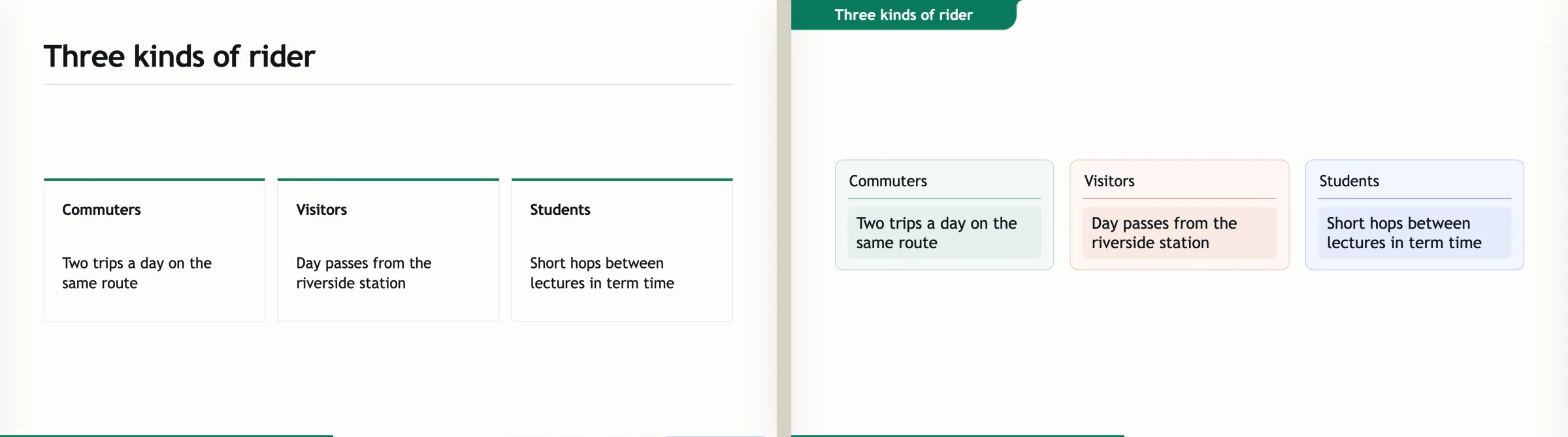
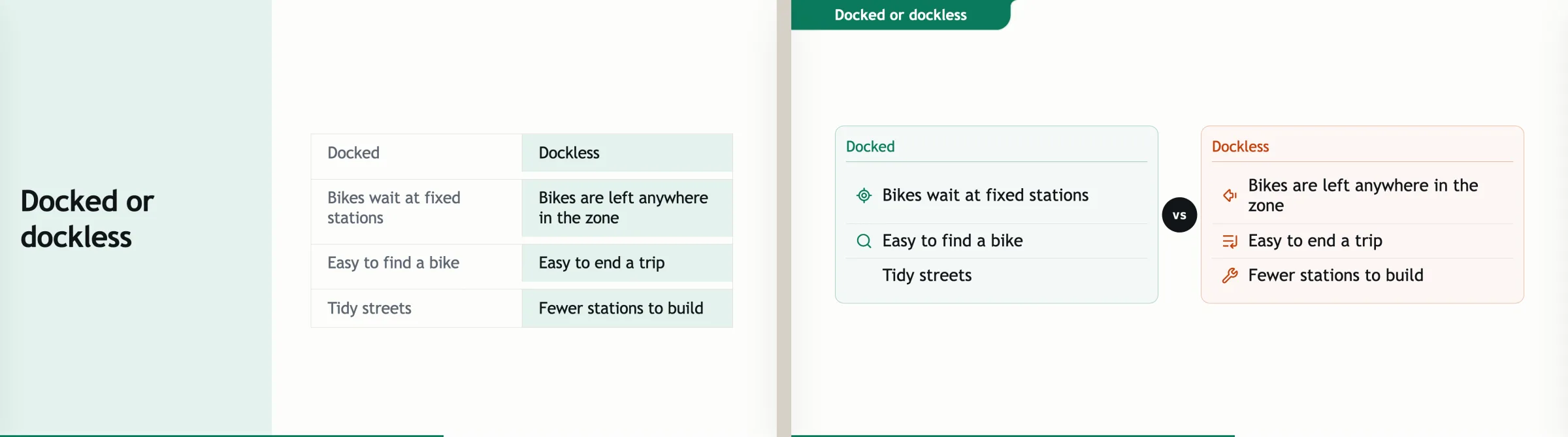
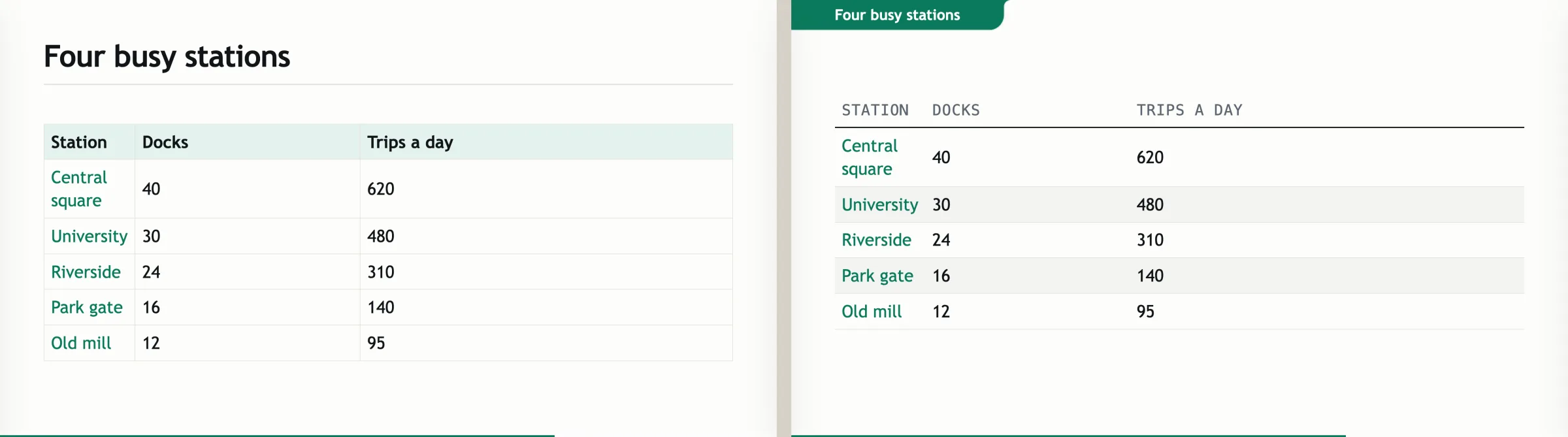
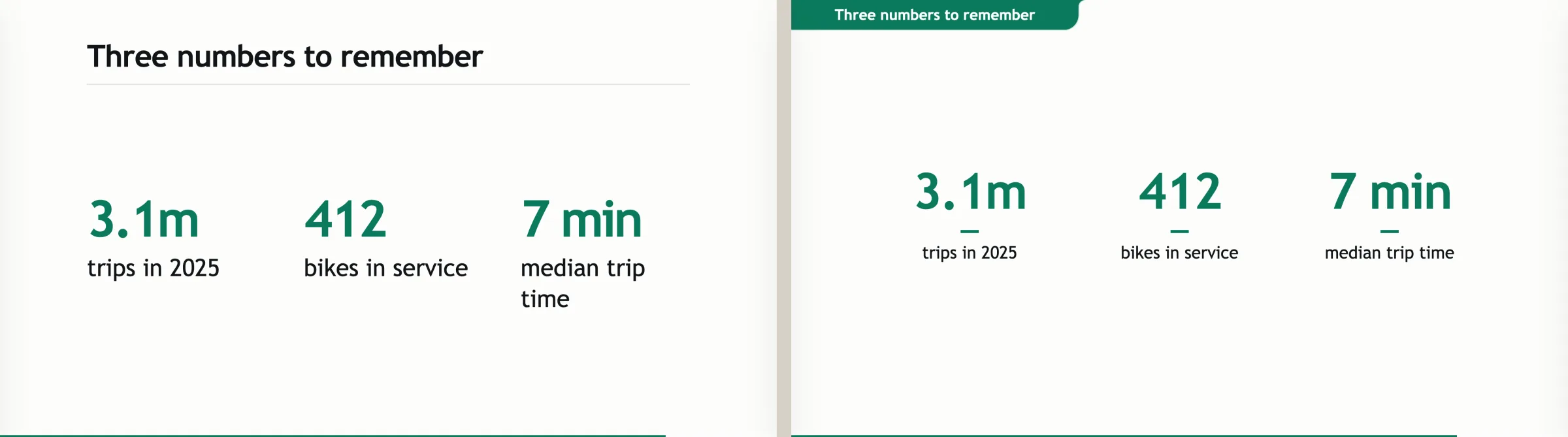
The restyled layouts
Section, statement, quote, icon list, numbered list, icon row, process, cycle, equation, timeline, compare, contrast, cards, stats, line chart, table, trace, chat, code, image with claims and image grid.
- Contrast has two panels with a “vs” disc.
- Cards bring their points in one at a time.
- A table has banded rows.
- Chat is a full chatbot window.
The title look, and the new default
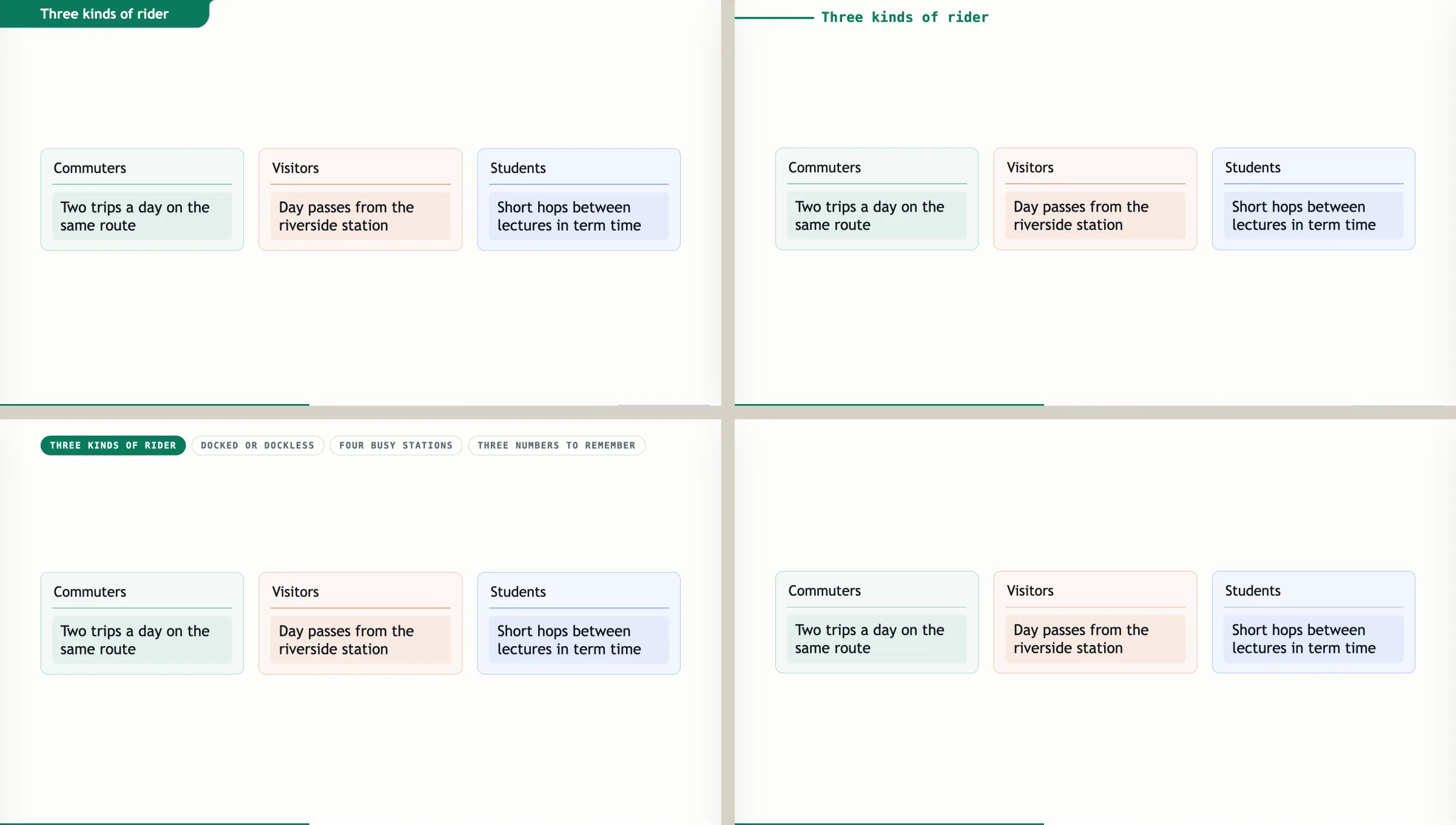
The deck setting title_look sets how titles look. A deck that does not set it now gets the index tab (tab), so every deck without a title_look setting changes look when you upgrade. A deck that sets a value keeps it.
tab: the index tab, the default.kicker.defaultorfull: a plain title at the top.label.tab-strip, new: a row of the section’s slide titles, with the current one filled. Carousel slides draw it too.intro-then-none, new: the section card introduces the topic and the slides after it carry no title.
No small line shows above the title unless the slide gives {kicker=…}.
Smaller fixes
{numbered=square}is renamed{numbered=mono}.- A long unbreakable word in a title breaks in the left column.
- A
{reveal}table tints its newest row as it builds. - An image-claim link is angled when the claim lies beyond the picture.
Image drawer
You find images and reuse old slides in a drawer beside the editor.
Find images on ⌘⇧I
The image drawer docks beside the editor, in both the Plain and Markdown views, and the editor stays usable while it is open. ⌘⇧I opens or closes it. The shortcut is named Find images, and the Insert menu’s Image… item opens it too. Esc closes it. The drawer replaces the old image palette.
The drawer has three tabs. The SlideWell tab searches your SlideWell screenshots and the images from old PowerPoints that you have added to SlideWell. The PowerPoint Imports tab holds whole slides from old PowerPoints. The TalkWeaver Vaults tab finds pictures already pasted or imported into your TalkWeaver vaults, and works without SlideWell. The drawer does not search the web. Results show captions and “Used in” counts. ⌘↵ or a drag inserts the picture at the caret, and the picture is copied into the talk’s own vault.
Screenshots come from SlideWell. Until it is set up, the first tab shows the line “Screenshots appear here when SlideWell is set up”.
Reusing an old slide
The PowerPoint Imports tab shows slides from your old PowerPoints, the ones you have added to SlideWell. Choosing a slide asks “Use this slide as”:
- Editable slide: the slide is added after the current slide, and its text and images stay editable.
- Picture of the slide: the slide is placed on the current slide as one image, as it looked.
A slide with no text or pictures to edit can only go in as a picture. A reused slide gets its own new id when the talk is saved, and one ⌘Z removes it whole.
Undo keeps slide ids
One undo step after a save
Before, undo after a save could lose a slide’s id. A slide id is what links to a slide from results slides, pathways and references, so a lost id breaks those links.
A save’s ids and tidy-up are now one undo step. One undo takes back your change, and the ids stay. The undo history is deeper.
The selection undo keys are removed
The selection-only undo and redo keys, ⌘U and ⌥U and their redo partners, are removed.
Other changes
Slide Focus: a new line under the last line
In Slide Focus, a line begun under the slide’s last line now belongs to the slide. The 0.39.0 notes listed this as not done.
The demo vault
In the demo vault, the pre-work workshop talk takes its steps from a work file, and the vault has a small post-work file. TalkWeaver-demo-vault.zip is attached to the 0.41.0 release.
Added in 0.39.0
The Plain editing view, icons on slide titles and paragraphs, quote slides whose form is chosen from the source, a Guide key in the presenter, going live from a second computer, and fixes to undo and to moving slides.
The Plain editing view
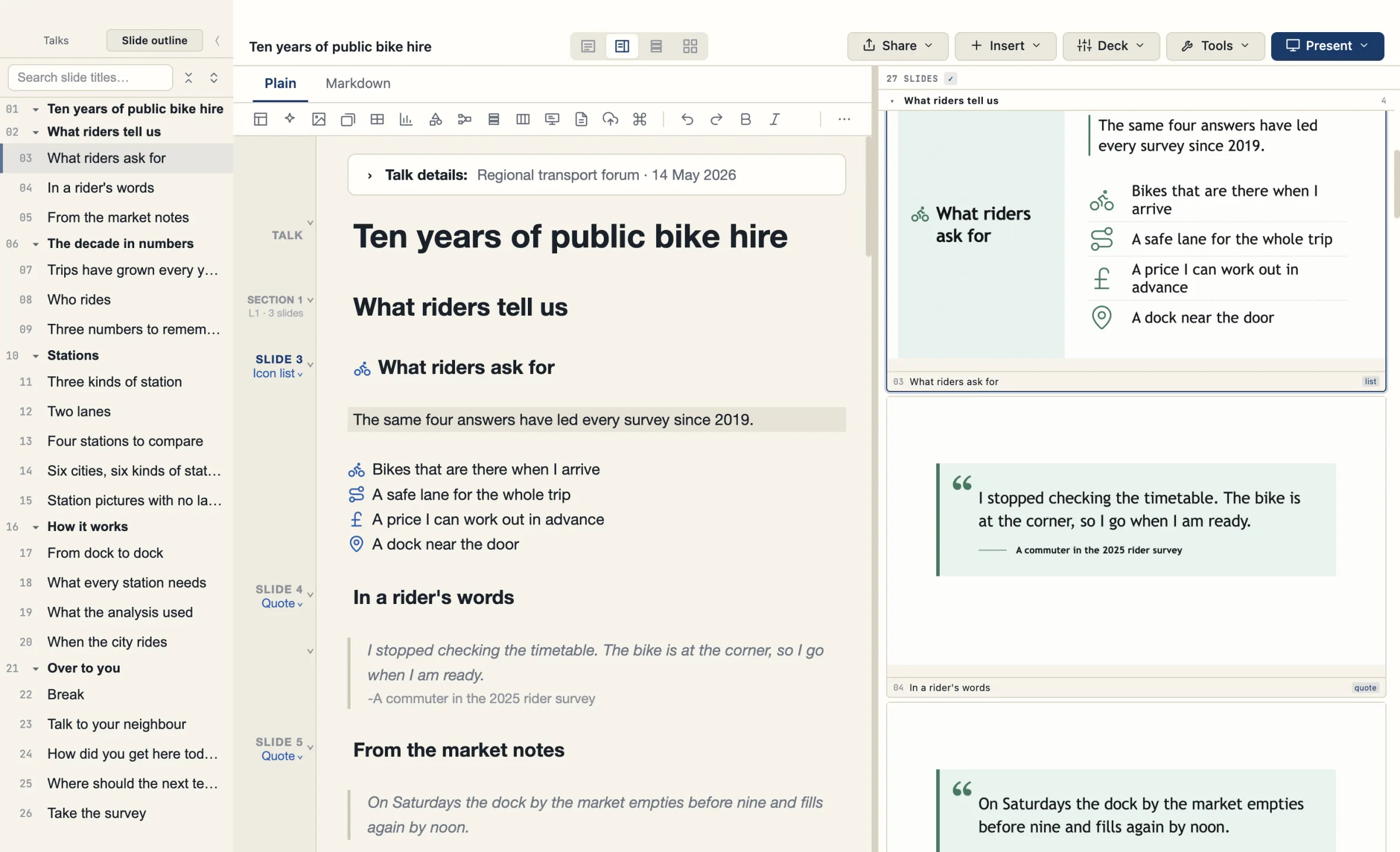
A way of writing a talk that hides layout lines, slide ids and Markdown marks while the file stays the same Markdown.
Two tabs: Plain and Markdown
The editor has two tabs, Plain and Markdown. Plain is shown until you choose a tab. The commands are Show the plain view and Show the Markdown view.
Both tabs edit the same Markdown file. In Plain, the layout lines (the {…} lines under a title) and the slide ids are hidden wherever they sit on a slide. Markdown marks are concealed away from the caret, quotations show formatted, and Markdown typed in Plain works.
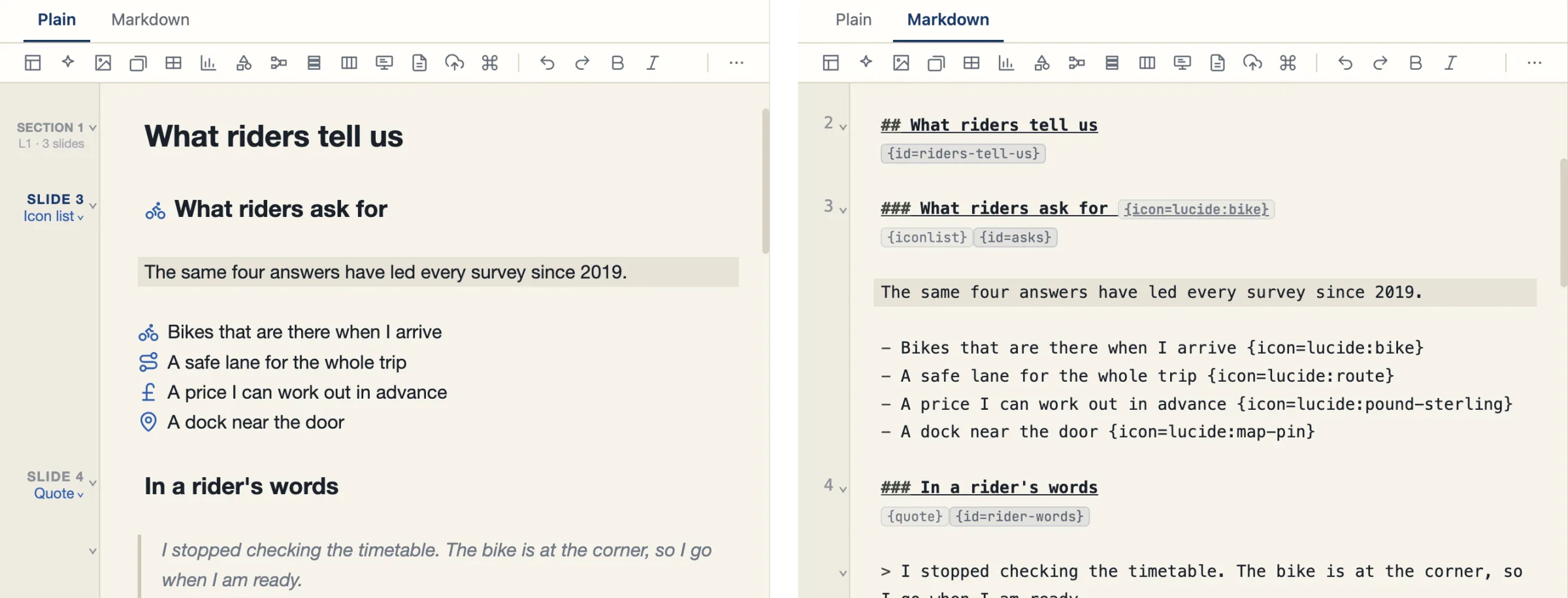
The margin, and the Talk details panel
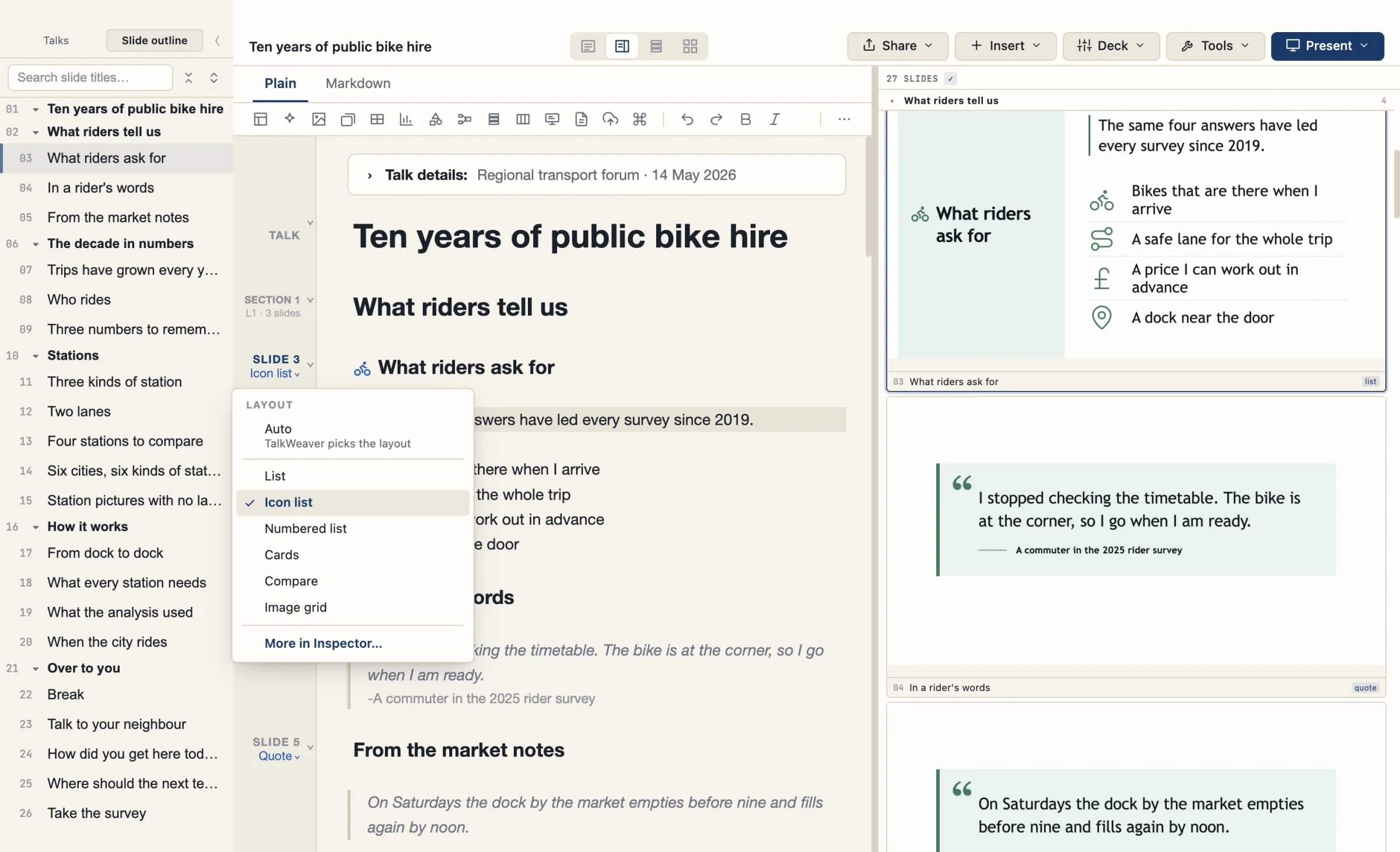
A margin beside the text reads Talk, Section or Slide n, with the layout name beneath. Sections are numbered and show their level and slide count.
Margin menus change a heading’s level and a slide’s layout. The layout menu is titled Layout and its last row is More in Inspector…. The commands are Change this heading’s level… and Change this slide’s layout…. The Talk details panel holds the talk’s front matter.
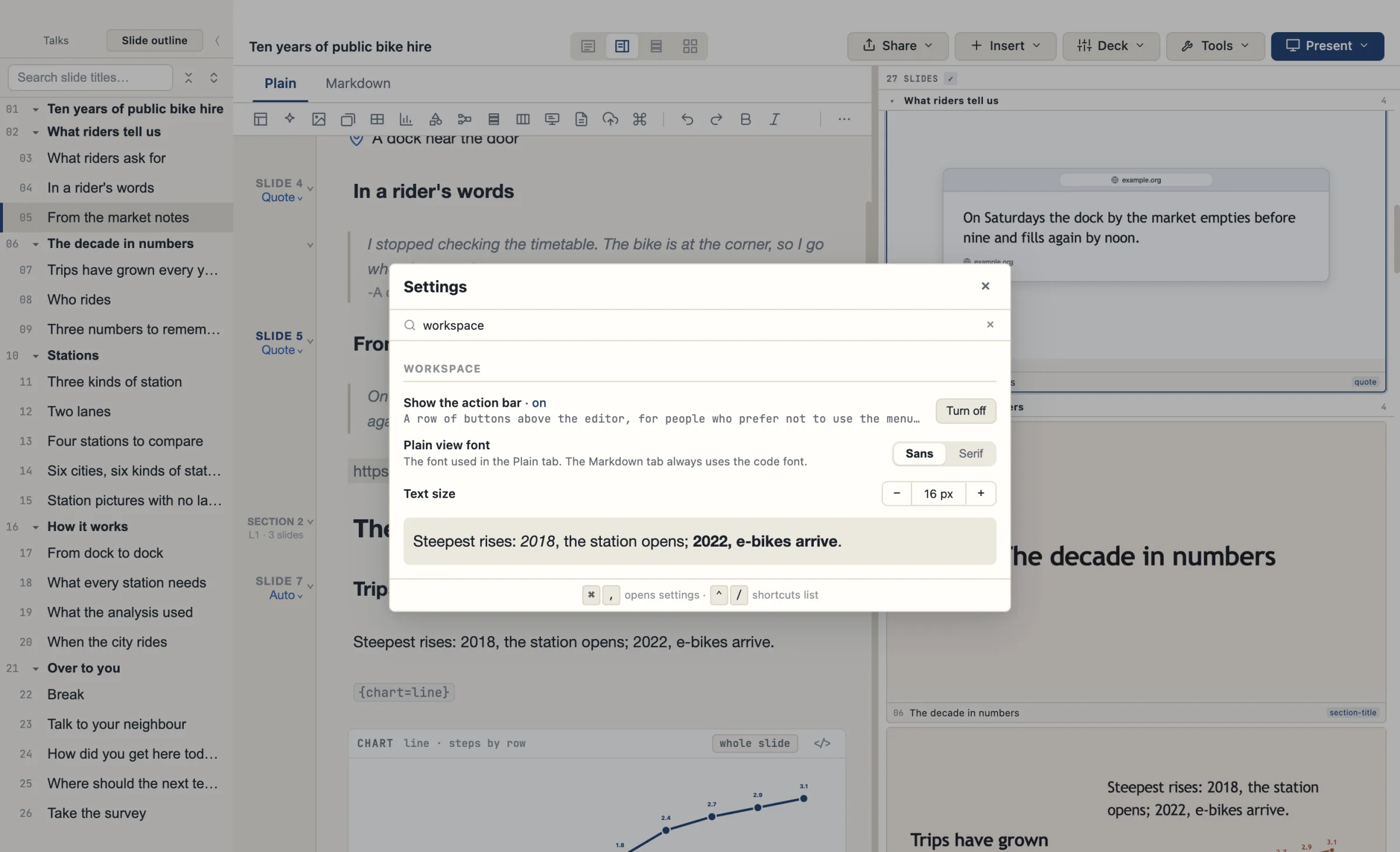
Plain view font and Text size
Plain view font in Settings is Sans or Serif. Text size has Smaller and Larger buttons.
What Plain does not draw
List-item icons show as pictures in Plain. Plain does not draw icons on a card, carousel-frame or column heading. It has no widgets for polls, code, QR, countdown or statistics. All of these are still correct in the slides.
Icons on titles and paragraphs
Title icon and Paragraph icon
Slide titles and paragraphs can carry an icon. The Inspector has a Title icon row (None, Before, Above) and a Paragraph icon row.
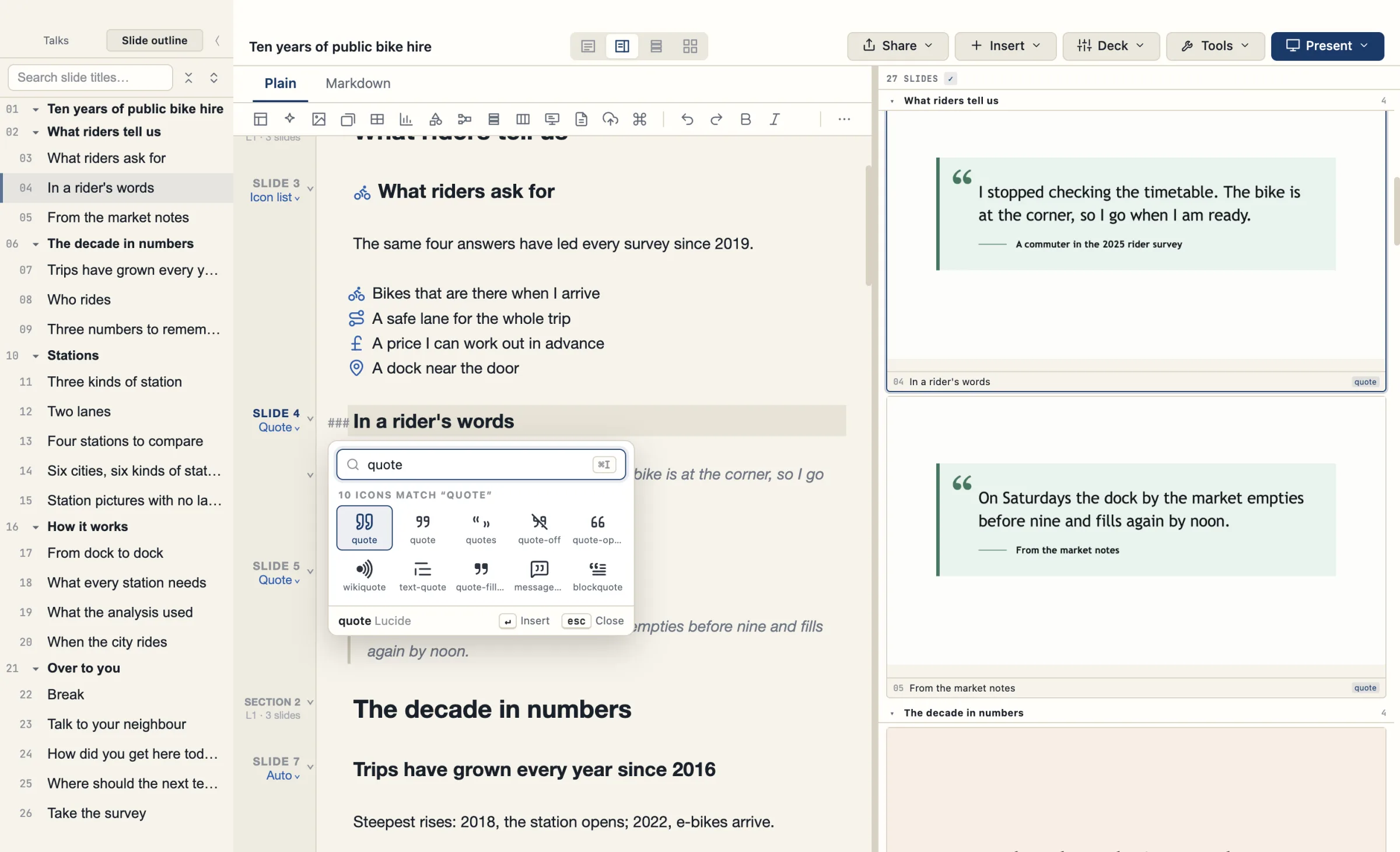
Insert icon on ⌘I
Insert icon… on ⌘I opens an icon picker at the caret, in both the Plain and the Markdown view.
A Layout Doctor finding: Icon not on the title
Layout Doctor has a new finding, Icon not on the title. It moves a stranded icon back to its title.
Icons on list items write only on list items
Setting an icon on a list item from the older picker could write into the talk’s details, notes or a code block. It now writes only on a real list item, and declines on rows that draw no icon, such as chart rows and timeline rows.
Quote slides
The form of a quote slide is chosen from the source you give.
Quote form
The Inspector has a Quote form setting: Automatic, Plain, Tweet, Video, Book, Paper and Web. The command palette has a Quote form: … command for each. The Web form shows a quotation from a web page or blog post as a browser window.
A web address on its own line under a quotation sets the form. A DOI makes it a paper and any other web address makes it a web page. An author and a link (-Author link) also set it.
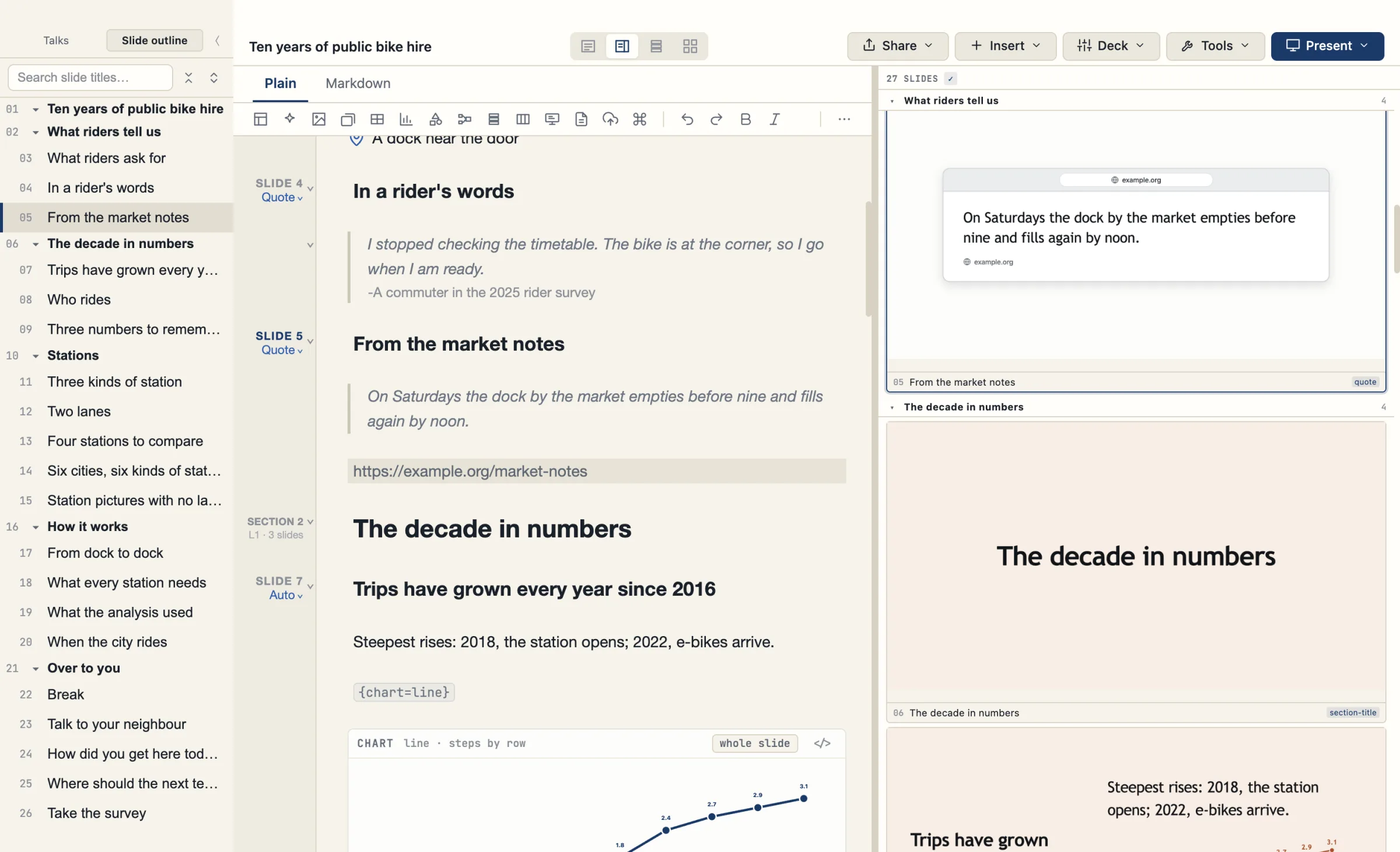
When the form is set
A quote slide typed from top to bottom gets its form when you leave the quotation. The form is set only by your own typing, pasting or deleting. A change made by the app, such as a sync or an import, never sets a form.
Filling a tweet or a video from a pasted link is not in this release.
Leaving a quotation, and a new paragraph in it
In a quotation, pressing Enter twice leaves it. ⇧↵ is New paragraph in a quotation. Leaving a quotation keeps a blank line above the next slide.
This works in Slide Focus too, with one limit. At the end of a quotation that ends the focused slide, Enter stays inside the quotation. To add a line under it, leave Slide Focus.
Carousel
Pictures and bold first lines in carousel items
A carousel item now shows a picture beside its text and a bold first line, as an ordinary slide does. The {carousel} layout existed before.
Carousels in the HTML handout
In the HTML handout a carousel has previous and next buttons, dots, a count (“1 / 3”) and swipe on a phone. Printed, every carousel item is on its own page. Reveal and Focus step through the items.
Statement slides
Backgrounds and title looks
A statement has no box around it. There are four backgrounds: Tinted, Rule, Strong colour and Lower third.
The title looks are Kicker, Label and Tab. Tab tone is Strong or Soft. These sit at the slide edge, and a panel title is always centred. On a Lower third, the text sits nearer the middle and there is no divider beside the panel.
Older talks keep working. Old values such as statement-bg=halo are read as Tinted.
Contents slide
Sidebar title beside the list
On a section contents slide with a sidebar title, the title now sits in a column beside the list. It used to overlap the list.
Presenter
C shows or hides the Guide column
C shows or hides the Guide column in the presenter window. The Guide button sits in the bottom bar beside Outline. The key can be changed in the keyboard sheet.
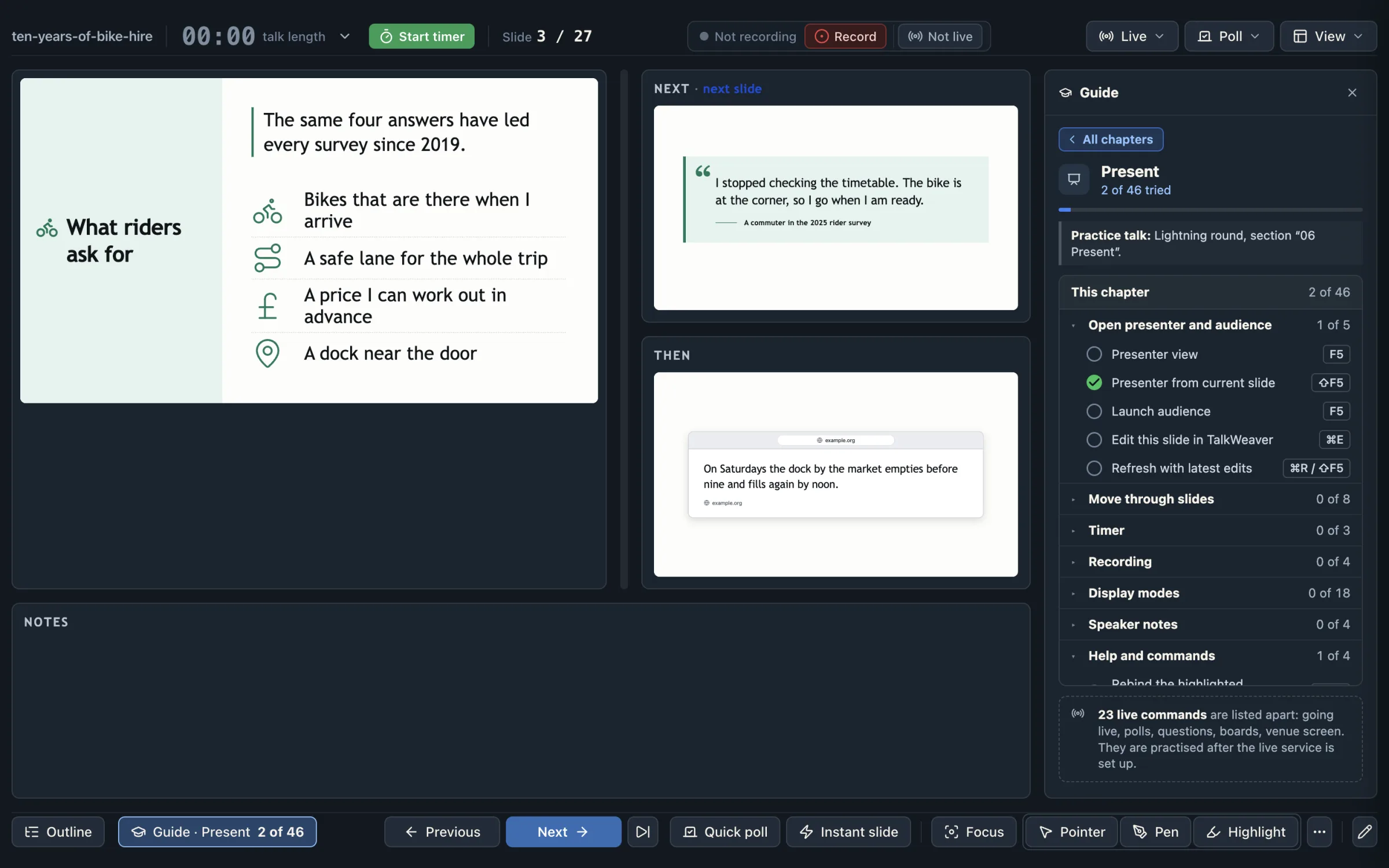
The ⌘K panel is named Actions here
The ⌘K panel in the editor now shows its name, Actions here.
Editing fixes
Undo after a save
In a talk where a layout line sat after a blank line, a save tidied the line, and ⌘Z could never get past that tidy-up to your own change. It now can: the first ⌘Z undoes the tidy-up and the second undoes your change. In 0.41 this is one undo step: see Undo keeps slide ids.
Move slide or item up and down
With Move slide or item up/down (⌘⇧↑ and ⌘⇧↓), a line moved up under a layout line used to land between the title and its layout line, and the slide lost its layout. The title, layout line and id now stay together. With the caret on a layout line, the whole slide moves. In Slide Focus, a move that would reach outside the focused slide does nothing.
New since 0.38.2
The commands Move slide to…, Move section to…, Collapse all sections and Expand all sections, and whole-slide cut, copy and paste.
Speed
Large talks no longer freeze
Large talks no longer freeze for a moment after you type on a slide and click elsewhere. The quote check read the whole talk once per slide, which took about 1 second at 200 slides and 4 seconds at 400. It now takes under 0.1 second at 200 slides. The Plain view reads a talk once per change.
Image search
Old-PowerPoint image search uses SlideWell
The old-PowerPoint image search (⌘⇧I, placeholder Search old-PowerPoint images…) takes its results from SlideWell’s library when SlideWell is installed on the same Mac. Otherwise it works as before.
Going live from a second computer
The first part of using one Cloudflare set-up from several computers.
Set up going live on this computer
The 0.38.2 notes said “Using one set-up from several Macs comes in 0.38.3”. 0.38.3 was not released separately, and its work is in 0.39.0. Only the first part is in.
A second computer that has the same Cloudflare token in Settings → Cloudflare now reads Set up on another computer on the Going live row, with the button Set up going live on this computer. Pressing it adds a key for that computer. Nothing made on the first computer changes, and both computers can go live. The Ready text then reads Ready · this computer and 1 other. Before this release, a second computer was told its keys were lost and to delete the live service.
When a computer’s key was removed
If a computer’s key was removed, the row reads This computer’s access was removed and the computer can be set up again.
Updating the live service
As in 0.38.2, the app updates the live service in your Cloudflare account when it is older than the app’s. Existing sessions and links keep working, and nothing needs re-entering.
If two computers on different TalkWeaver versions update the live service within about 15 seconds of each other, the app says: “Another computer updated your live service at the same moment, with an older TalkWeaver. Press Update again on this computer.”
Planned for a later release, not in 0.39.0 or 0.41.0
- Adding a computer with a joining code instead of the token.
- A list of computers with Remove.
- Seeing and stopping what another computer made.
- Updating a shared talk from any computer.
Not in 0.39.0
These were not in 0.39.0. Each item says where it stands now.
- Pre-work forms stayed switched off in 0.39.0 while they were redesigned. Pre-work is on in 0.41: see Pre-work and post-work.
- Undo across a save’s tidy-up took two keystrokes in 0.39.0, as described under Editing fixes, and undo and redo across saves in a new talk could leave a slide id doubled. In 0.41, undo across a save is one step: see Undo keeps slide ids.
- Starting a new line under the last line of a slide in Slide Focus was not done in 0.39.0. It is fixed in 0.41: see Other changes.
Platforms and ffmpeg
- macOS: Apple silicon, signed and notarised.
- Windows: x64 installer, unsigned.
- ffmpeg is the same as in 0.38.2: FFmpeg 9.0.2 under the GNU GPL v3. Its complete corresponding source is attached to the 0.39.0 release as
TalkWeaver-0.39.0-ffmpeg-9.0.2-corresponding-source.tar.
Added in 0.38.2
Cloudflare set-up inside the app, a transcription row, a live handout page that lets the audience step through slides, AI chat and terminal slides, onboarding and a demo vault.
Cloudflare, set up in Settings
One Cloudflare API token sets up publishing handouts, going live and sharing, with no command line.
Settings → Cloudflare
Settings → Cloudflare takes one Cloudflare API token. The screen says how to make the token and which permissions it needs, checks what the token can do, and shows the account it is connected to.
Create talkweaver-handouts makes the handout site in your Cloudflare account. When the row reads Ready, it shows the site and the web address of your handouts. Set up going live uploads the live service (polls, questions, reactions and Share for comments) to your account. The app does the upload itself, and updates the service when a newer TalkWeaver carries a newer one.
Share links can use your own domain. When your handout site has its own domain, the screen suggests share. followed by that domain, with a Use button. Recording storage has its own row and its own access keys on the same screen.
The token and the keys are kept in the computer’s secure storage (the Keychain on macOS, Windows protected storage), not in a settings file. When a publish cannot start, a sheet names what is missing and offers the one button that fixes it, or Save as a file instead.
Going live is set up per computer. Setting up going live on a second computer with the same token is in 0.39.0: see Going live from a second computer.
Set-up by a coding agent
TalkWeaver setup does from the command line what the Cloudflare, Recording storage and Transcription screens do, without opening a window. setup status --json reports the same states as the screens. A token is read only from a hidden prompt or from standard input, never from an argument. Quit TalkWeaver first: while it is open, every setup command stops and changes nothing. The set-up guide for agents is inside the app.
Transcription, sharing and speed
A Transcription row, and ffmpeg in the app
Settings → Transcription has one row that says whether transcription is set up and what is missing. ffmpeg now ships with the app, so there is nothing to install for it. On the Mac it is FFmpeg 9.0.2 under the GNU GPL v3, and its complete corresponding source is attached to the 0.38.2 release as TalkWeaver-0.38.2-ffmpeg-9.0.2-corresponding-source.tar.
Sharing, publishing and speed
Share and Stop on a shared talk end in the state you pressed last, also when you press Stop while a share is still being made. Publishing a handout and drawing slide pictures no longer freeze the app, because both now run in the background. One TalkWeaver runs at a time for each user-data folder, and opening it a second time brings the open window forward.
The live handout page
The page the audience sees while you are live.
Stepping through slides, and full screen
The audience can step back and forward through the slides. A line under the slide says where they are, and a button returns them to your slide. Reactions, Bookmark and Note go to the slide they are looking at; polls and boards stay on your slide. The talk setting Audience can look ahead (under Presenting, on by default) can stop people stepping past your slide.
The live slide has a Full screen button. Esc, Exit full screen, or a poll or board opening leaves full screen. The band button reads Open slides, and the slides view has a Handout home button. The page scrolls with a mouse wheel at every width, the reactions sit directly under the slide and stay there when a board is open, and below 1200 pixels wide the page is one column.
The live page does not yet follow your reveal steps or show your pen drawings.
AI chat and terminal slides
Four slide designs that simulate an AI chat and a terminal.
Chat and terminal designs
There are four: a chat with behind-the-scenes lanes, a chat with rows that open on a click, a plain terminal and an agent terminal. Each can show its parts step by step and has a larger-text option.
Learning TalkWeaver
A Guide in the app, an example vault to practise in, and a list of what you can do at the caret.
A Guide in the sidebar
A Guide button at the foot of the Talks panel, on the sidebar’s Talks tab, opens a Guide tab in the right-hand pane. It has three steps to get started and three sections: Learn the commands, How it works and Features to delight you, which ends with How you connect, and what each needs. A switch in Settings hides the button.
Learn the commands has ten chapters: Write the outline, Build a slide, Reuse slides, See the talk, Shape the talk, Present, Share, Manage talks, Check and repair, and Set up TalkWeaver. Each ticks off commands as you use them.
An example vault of five talks
The first-launch screen offers “look around first”. It writes five example talks to Documents/TalkWeaver/Example vault, each marked with an Example badge. Their practice slides say what to try, with the keys shown as key caps.
Remove example vault asks once, shows what will move to the Bin, and touches nothing outside the example folder. Settings → Get started, or the command palette, brings it back as a fresh copy with your progress kept.
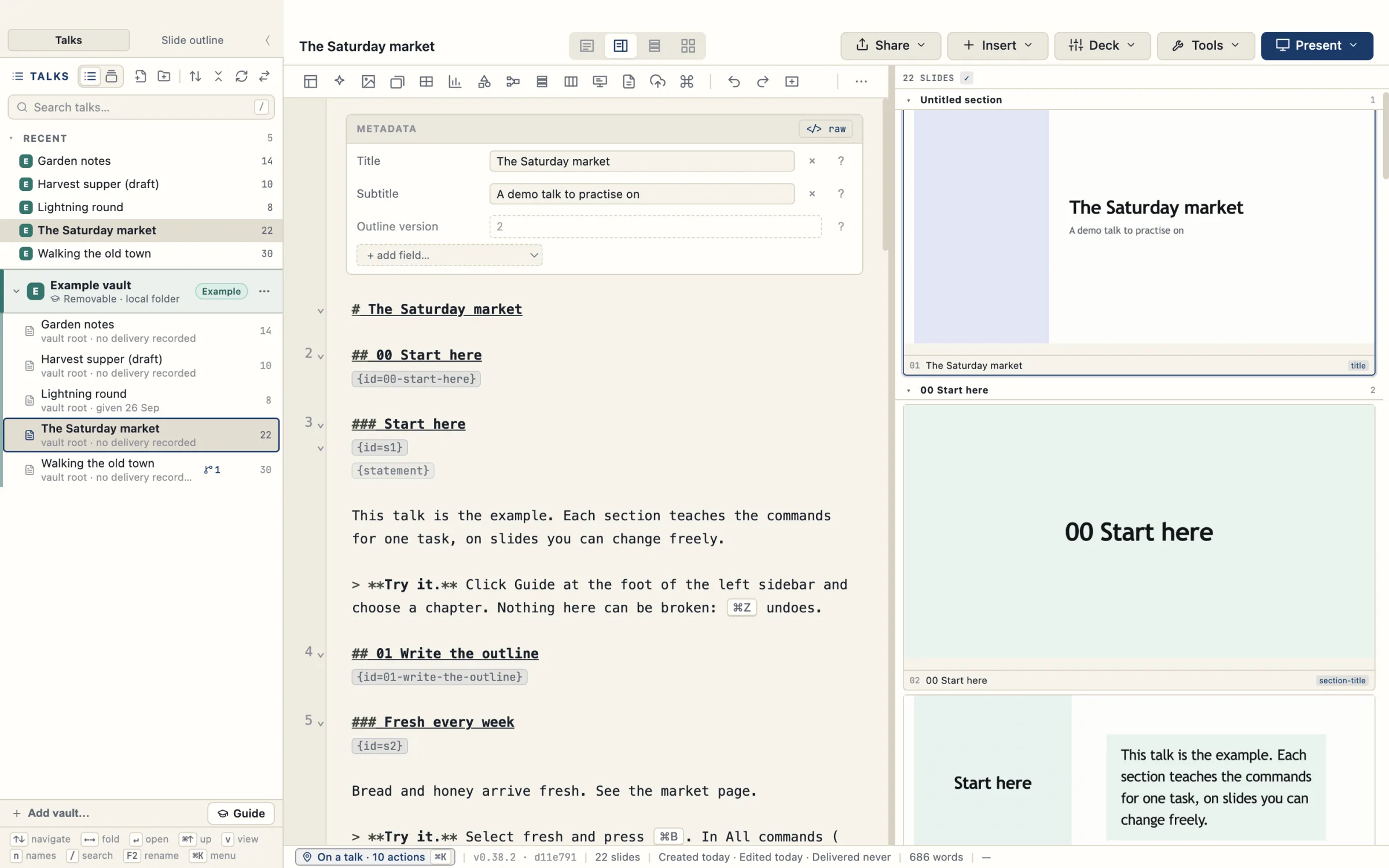
⌘K shows what you can do at the caret
Every command belongs to one of ten task groups, and the command palette lists them all. The status bar says where you are, for example on a slide heading, and how many commands apply there. ⌘K runs the command Actions here: a panel at the caret with a “Filter actions” field and the actions that apply there, grouped by task. The panel has no heading on screen. The command is named Actions here in the keyboard sheet, and ⌘/ opens the keyboard sheet on the same list.
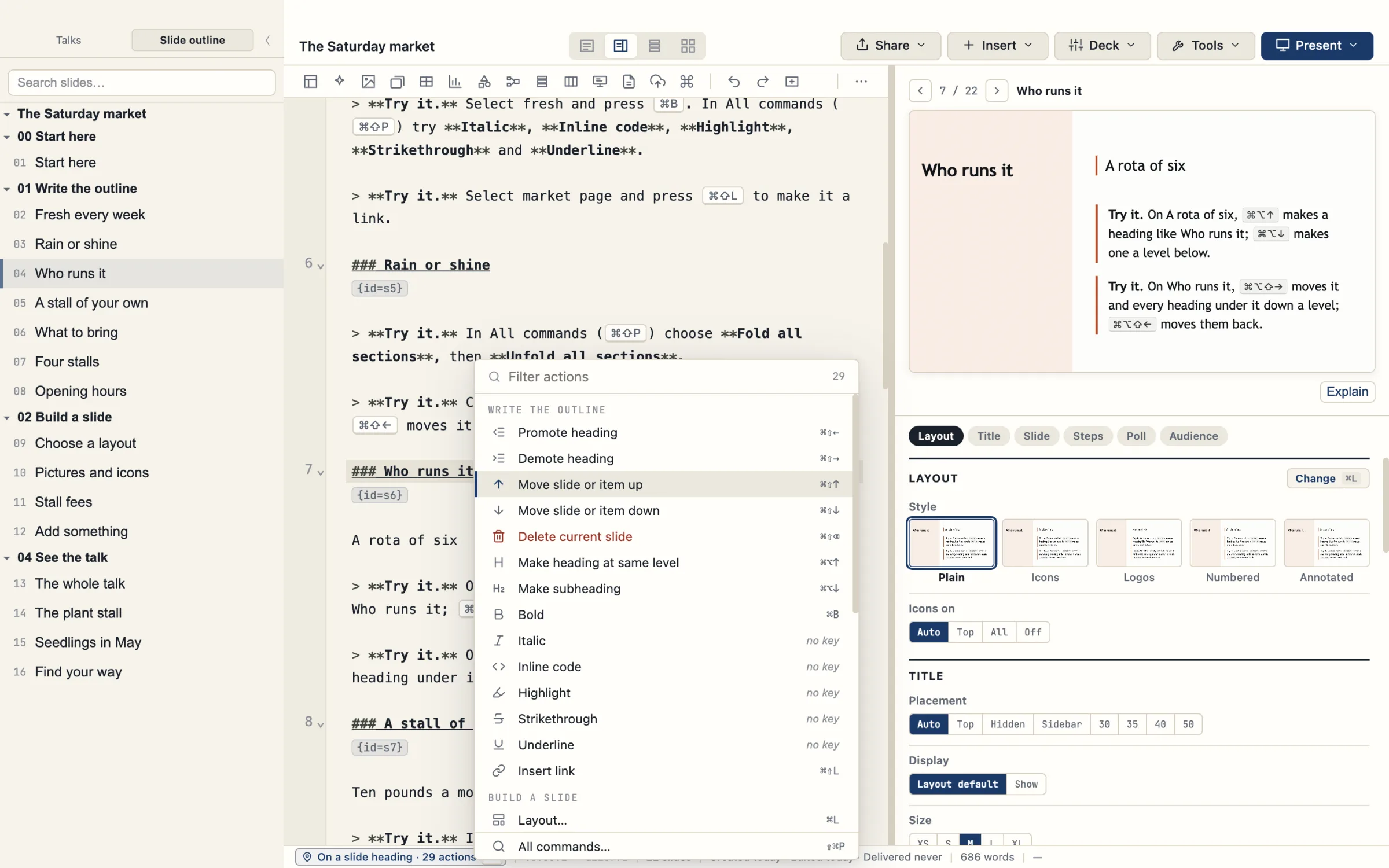
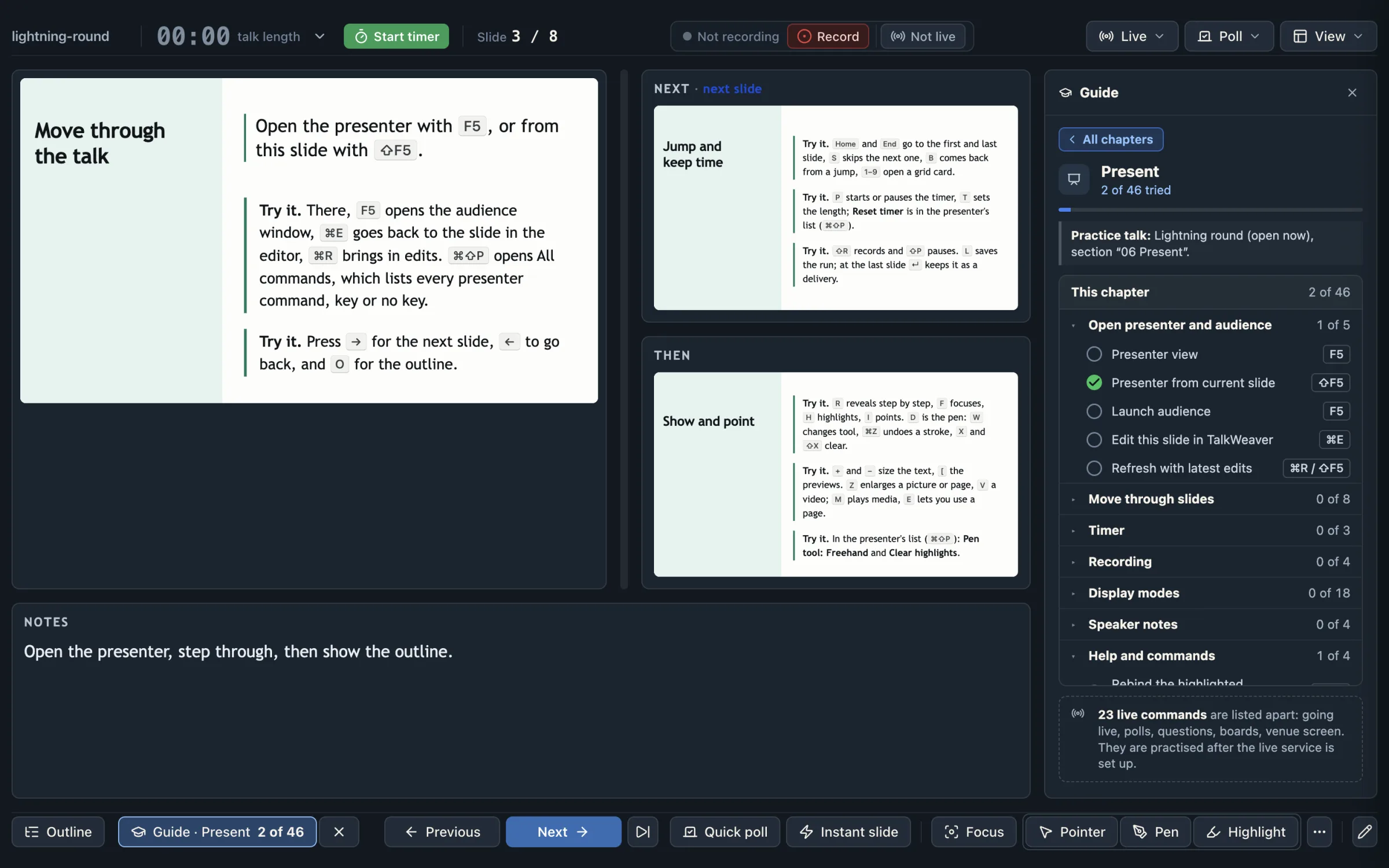
The Present chapter in the presenter
In the presenter, a Guide column sits beside Next and Notes. The button “Guide · Present” in the bottom bar, beside Outline, opens it; it has no key. It shows the Present chapter and ticks commands as you use them.
A demo vault of twelve talks
TalkWeaver-demo-vault.zip is attached to the 0.38.2 release. It holds twelve small talks that show the features at work: layouts, emphasis, audio and video steps, embedded pages, pre-work, polls, and the chat and terminal slides. Unzip it and add the folder with Add vault… in the Talks panel. It is separate from the example vault, which the app writes itself and which has five talks.
Windows
The Cloudflare set-up, the secure storage and the shipped ffmpeg are tested automatically on Windows against a stand-in for Cloudflare. A real publish and go-live on a Windows computer with a real account has not been run for this release.
Added in 0.38.0
The pen, the pointer, step-by-step emphasis, audio and interactive pages.
Presenting
Draw on a slide, show a pointer, step through emphasis and pictures, play audio, and run interactive web pages.
The pen
Press D in the presenter to draw on the current slide, or on a zoomed picture. The drawing appears on the audience and venue screens as you draw. W steps through freehand, arrow and rectangle; ⌘Z removes the last stroke; X clears the slide.
Drawings are not saved in the talk. A recording keeps them, and replay shows each one when you drew it.
The pointer
I, or the Pointer button, shows a red ring on the audience screen where your mouse is over the Current pane.
Emphasis and pictures, one step at a time
Bold, highlighted and underlined phrases can light up one at a time as you press Next. Step through images enlarges each picture on a slide in turn, then shows the whole slide again. A video or sound can start as one of a slide’s Next steps, and audio files play on a slide. ~~struck~~ and ++underlined++ text shows on slides in every view.
Interactive pages on slides
An HTML page in the talk’s folder, added with [Embed: …] or [Simulation: …], runs on its slide in a sandbox cut off from the app and your files. In the presenter you work it from the Current pane, and your scrolling, clicks and typing are copied to the audience screen. Z makes the page cover the slide on both screens. Websites and videos from the web are not covered yet.
A talk can show only pictures and files inside its vault.
Added in the 0.37 beta, included in 0.38.0
The 0.38.0 release includes everything from the 0.37.0-beta.1 pre-release.
Audience
Reactions, questions, notes and boards from people following on their own devices.
Reactions and questions per slide
People following on a phone or laptop get a reaction bar under each slide and a Bookmark. Counts reach a chip in your presenter top bar, never the big screen. Ask the speaker sends you a question about the current slide; A opens the questions tray. The Poll menu has switches that pause questions or reactions during a talk.
Live features need a Cloudflare account. Since 0.38.2 you set it up in Settings → Cloudflare.
My Notes for the audience
People can save a phrase from a slide to their notes, or send it to you as a question. My Notes gathers notes, bookmarks, reactions, questions and poll answers by slide, and can be printed or saved as Markdown.
Feedback boards
A board slide collects cards from the audience during a live session. You group and move cards in a presenter panel, the board shows on the big screen and the venue screen, and the results are kept in History.
Several vaults
Keep talks in more than one folder.
Add vaults and work across them
+ Add vault… at the foot of the Talks panel adds another folder of talks. Recent lists talks from every open vault, a Show filter narrows the panel to one vault, and ⌘S finds slides across vaults. Each vault can have its own name, style and logo.
When a sync service leaves a conflict copy of a talk, TalkWeaver badges it, and Compare and merge shows both versions side by side.
Slide design
A layout picker, a second round of design work, and formatting in titles.
The layout picker
⌘L opens a picker with Recent layouts, a Suggested row that shows your own slide in several layouts, and every layout grouped by purpose. Arrowing onto a layout previews it without changing the outline; ↵ keeps it and Esc puts it back.
Smaller titles and readable dense slides
Top titles take less space. A slide that cannot fit gets an amber mark on its heading line in the editor instead of shrinking. Screenshots sit in one row in window frames, long icon rows wrap onto two rows, and the title looks Kicker, Label and Tab can be set for one slide or the whole talk.
Formatting in titles
Bold, italic and code in slide and talk titles show wherever the slide is shown. Bold in a title is in the accent colour. The slide strip and the Inspector show titles as plain text.
Break slide labels
A countdown slide has no default label. In the instant-slide composer, Break, Discussion and Group work add one with a click.
Added in 0.35
The sections below describe the 0.35 release.
Share a talk for comments
Send a colleague a private link to your talk. They leave notes and propose changes slide by slide; you accept, compare or dismiss them in TalkWeaver.
Notes and proposals from the colleague
The colleague’s page shows each slide with room beside it for a note or a proposal: new slide text, deleting a slide, or adding a slide. It works on a phone, and notes written offline are sent when the connection returns.
The Feedback rail: Accept, Undo and Compare
Notes and proposals arrive in a Feedback rail beside the editor, with markers on the slides they concern. Mark a note done, dismiss it, or Accept a proposal to write it into your outline; Undo reverses it. If you changed the slide after the proposal was written, Compare shows your version, theirs and the slide as they saw it.
Safer talk files
When an open talk changes on disk, for example through a sync client, a bar offers Reload or Keep mine, and a save never silently overwrites the newer file. Renaming the folder that holds an open talk keeps the talk open.
Live presenting
Run your talk on a screen you cannot plug into, bring up the QR code from any slide, and put things on screen in the middle of a talk.
Present on a venue screen from a link
Your published talk’s link with /p on the end opens a full-screen copy of your projector window on the venue computer, and it follows your laptop. It shows the title slide before you go live and the title slide with the QR code after you end. Image galleries and polls follow too. If your laptop drops out, the venue keyboard can move the slides, and the go-live panel tells you when a venue screen is connected. Talks published with an earlier version need to be published again.
The talk’s QR code from any slide
One key shows the QR code and link full screen on the big screen and the venue screen. Esc returns to the slide.
Instant slides during a talk
⌘V shows whatever is on your clipboard (a link, text or a screenshot) after a “Show this?” preview. A composer adds typed text, the time or a countdown. Instant slides show on every screen, including phones, and → takes you back.
Instant slides kept after the talk
The talk’s Run in History lists every instant slide you showed. “Add to talk” puts one into the talk after the slide it followed.
An offer to record after the title slide
If the title slide has been up for at least a minute and you move to slide 2, a small notice offers to start recording. ⇧R accepts, and the notice fades after eight seconds.
Slide design
More space, clearer headings and icons, and a bigger slide in the presenter view.
List alignment
Sidebar titles line up, icons are bigger and centred on their item, and a faint dotted line separates items.
Cards and icon rows at normal text size
Cards and icon rows use the normal text size, with bold headings and bigger icons. They reduce spacing before they shrink text.
Numbered lists
Numbered lists use the icon-list layout, with the number in a square by default, or plain or styled. You switch the style in the Inspector.
Section slides without the word “SECTION”
Section divider slides no longer print “SECTION” above the title.
Statement slides and quotes beside the sidebar
Statement slides get more line spacing and more room around the text. A quote beside the sidebar loses its panel, and its quote mark hangs in the margin. The section name on subsection slides lines up with the title.
Read more about Statement slides and quotes beside the sidebar
A bigger slide in the presenter view
Notes sit under the slide by default, so the slide is larger. Notes can be turned off, moved to a sidebar, or shown as a teleprompter above the slide or under the camera, scrolled with J or at a set speed. The placement is one setting for all talks, with an override for each talk.
What’s next
Setting up going live on a second computer with the same token is in 0.39.0 and later: see Going live from a second computer. Adding a computer with a joining code, a list of computers with Remove, seeing and stopping what another computer made, updating a shared talk from any computer, and collaboration are planned for a later release.
Already in 0.32
- An action bar above the editor puts layout, media, slide insertion, presenting, handouts and publishing within reach.
- The Inspector groups its options into sections, with shortcuts to each section at the top.
- Rating, ranking and matrix polls, and quick polls you can open during a presentation.
- PowerPoint files import with their slide structure and embedded videos.
- Handouts adapt to a phone screen, with a script companion that follows the slide.
- The macOS build is signed and notarised by Apple.
Full release notes for every version are on GitHub.