Pre-work and post-work
Pre-work is what participants do before a session and post-work is what they do after it. In TalkWeaver each is written in a work file in your vault. A Run sends the files out with its own handout, and the answers come back to the Run’s page.
Work files
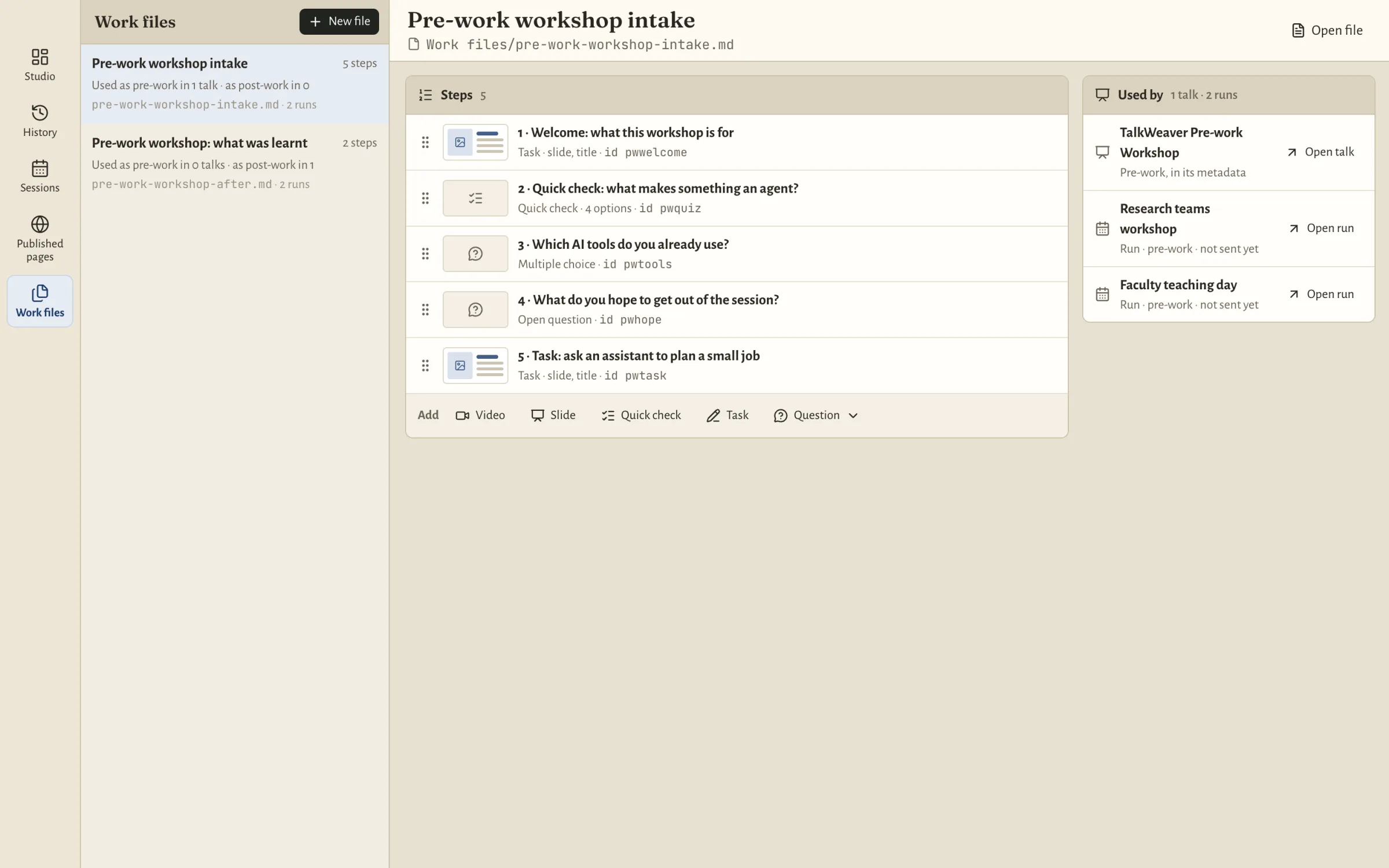
A work file is a Markdown file in the vault with one step per ###, written in TalkWeaver’s slide syntax. A step can be a slide, a video, a quick check, a question or a task. A question can be any poll type. There are no default questions and no 1–5 rating step: you choose every question.
The Work files view (⌘6) in the Tools window lists the files in the vault’s Work files folder. Each row reads “Used as pre-work in N talks · as post-work in M”. Opening a file shows its steps with their kind, layout and id, the talks that use it, and the note “Runs already sent keep the version they went out with”. A file with findings says so on its row.
New work file (⌘⇧N) asks for a title and writes the file. The Add row offers Slide, Video, Quick check, Question and Task. The “Start from” choice includes Survey what was learnt, which fills in two open questions: what was learnt and what will be tried. Presets are offered only when you make a file, and are never attached for you.
Removing and reordering steps, and editing step text, are done by opening the file in the editor, not in the Work files view.
A talk’s old {prework} section is no longer used. Layout Doctor warns “Pre-work now lives in a work file” and offers Move to a work file. It writes the file, names it in the talk’s metadata and removes the section, and it keeps the step ids so results slides still find their steps. Until a section is moved, it stays out of presenting and is not published with a Run.
Attach files to a talk
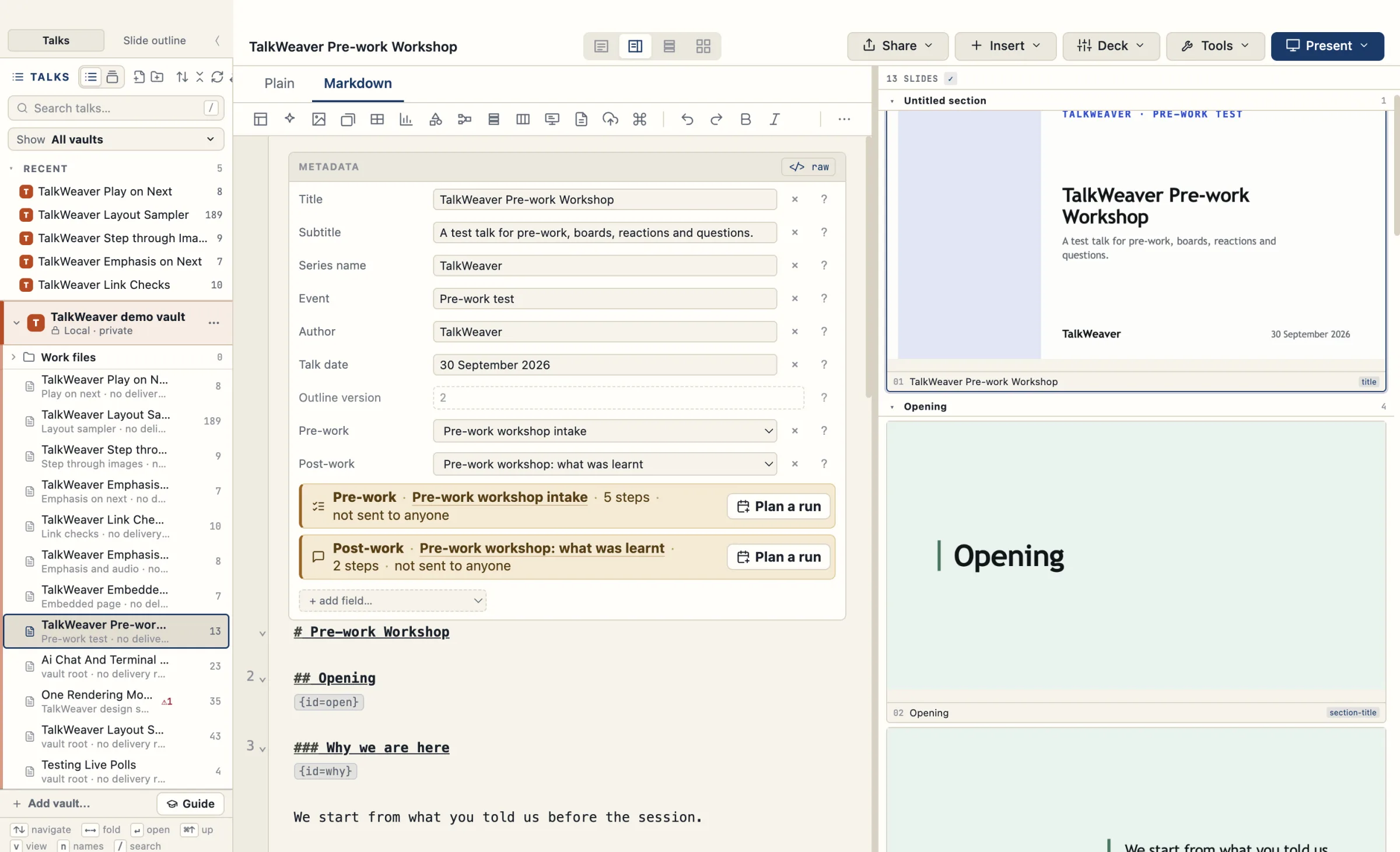
A talk names its files in its metadata, in a Pre-work row and a Post-work row. One file can be pre-work in one talk and post-work in another.
Under the metadata there is one line for pre-work and one for post-work. With no file attached, the line reads “Attach a pre-work file” or “Attach a post-work file”, and Attach opens a picker of file names. An attached file that no Run carries reads, for example, “Pre-work · Research teams intake · 4 steps · not sent to anyone”, with Plan a run.
Once the file has been sent, the line names the Run and its answer count, with Open run. If the file went to two Runs, it reads “sent to 2 runs” and Open run lists both. While post-work is open, the line reads, for example, “Saïd workshop · 5/18 · closes Wed 4 Nov”.
The talk’s own Publish dialog says that pre-work and post-work are not included and go out with a Run, and it offers Plan a run. A talk’s handout never contains work-file steps. A talk that names no work file gets the same Publish dialog as before.
Plan a run
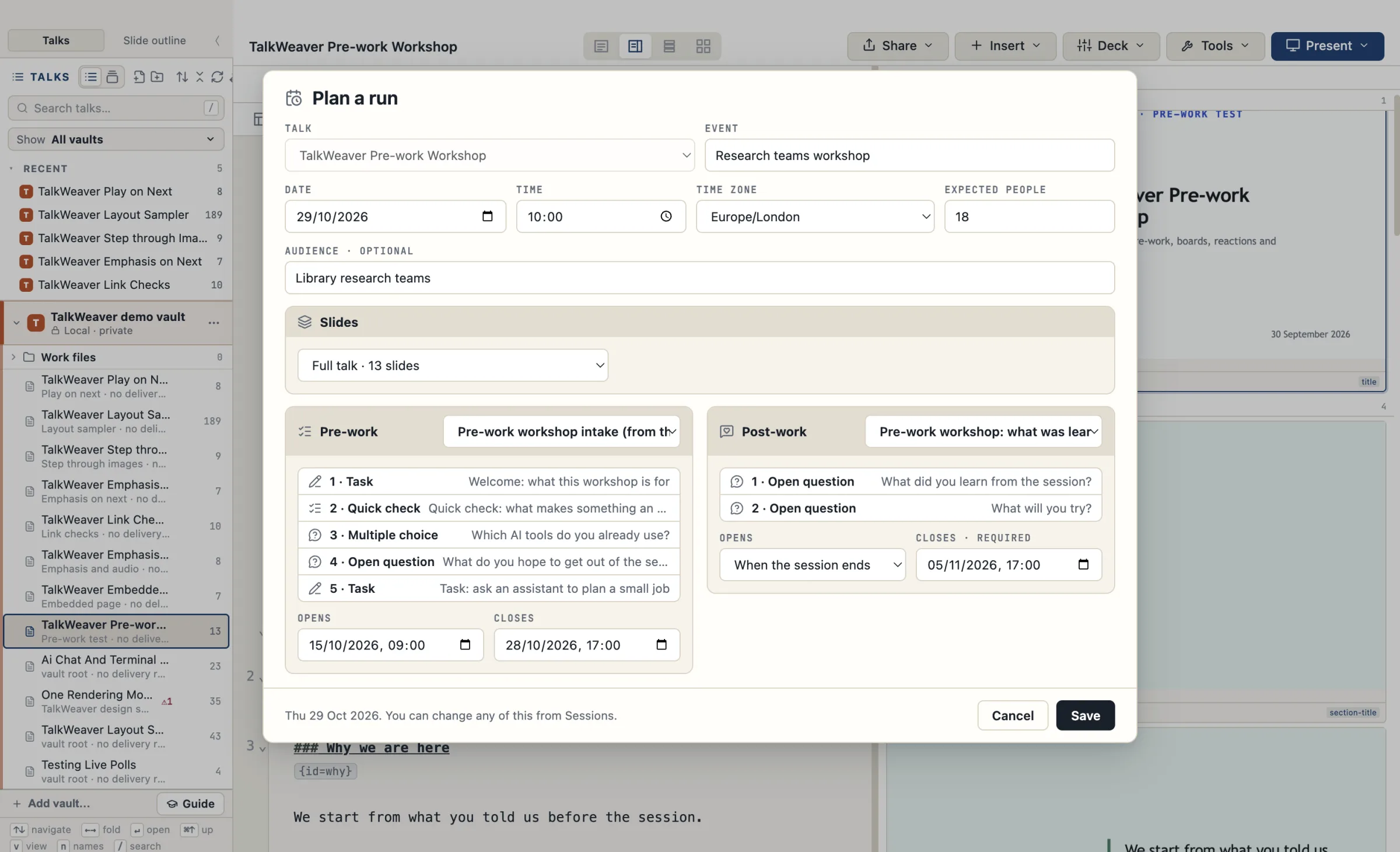
Plan a run (⌘⌥N) is the sheet where you set up a session. Slides can be the full talk, a Pathway, or New pathway…, which opens the Pathway view for the talk and returns to the sheet with the new Pathway chosen.
The Pre-work and Post-work blocks sit side by side. Each offers the talk’s file, any other work file, or none; shows the file’s steps; and has Opens and Closes times. Choosing none leaves that phase off the Run, and its steps are absent from the Run’s checklist.
Post-work opens When the session ends (the default) or At a set time…. Its closing time is required. Two messages come with a button that corrects the value: “Pre-work must close before the session starts” and “Post-work must close after the session ends”.
Save writes the Run and opens its page in Sessions.
Plan the next run like this (⌘⇧D) opens the sheet with the event, slides, files and windows of an earlier Run copied, and a new date to fill in. The copy has no answers, no pinned files and no published pages.
Sessions and the Run page
Sessions (⌘4) lists every planned and delivered Run in every open vault, upcoming first. A row reads “event · talk · date · published state · pre-work n/N”, or “post-work n/N” while post-work is open. The filters are Upcoming, Live now, Past and Published only. The chip in the status bar shows the next Run’s work, and clicking it opens the Run page in Sessions.
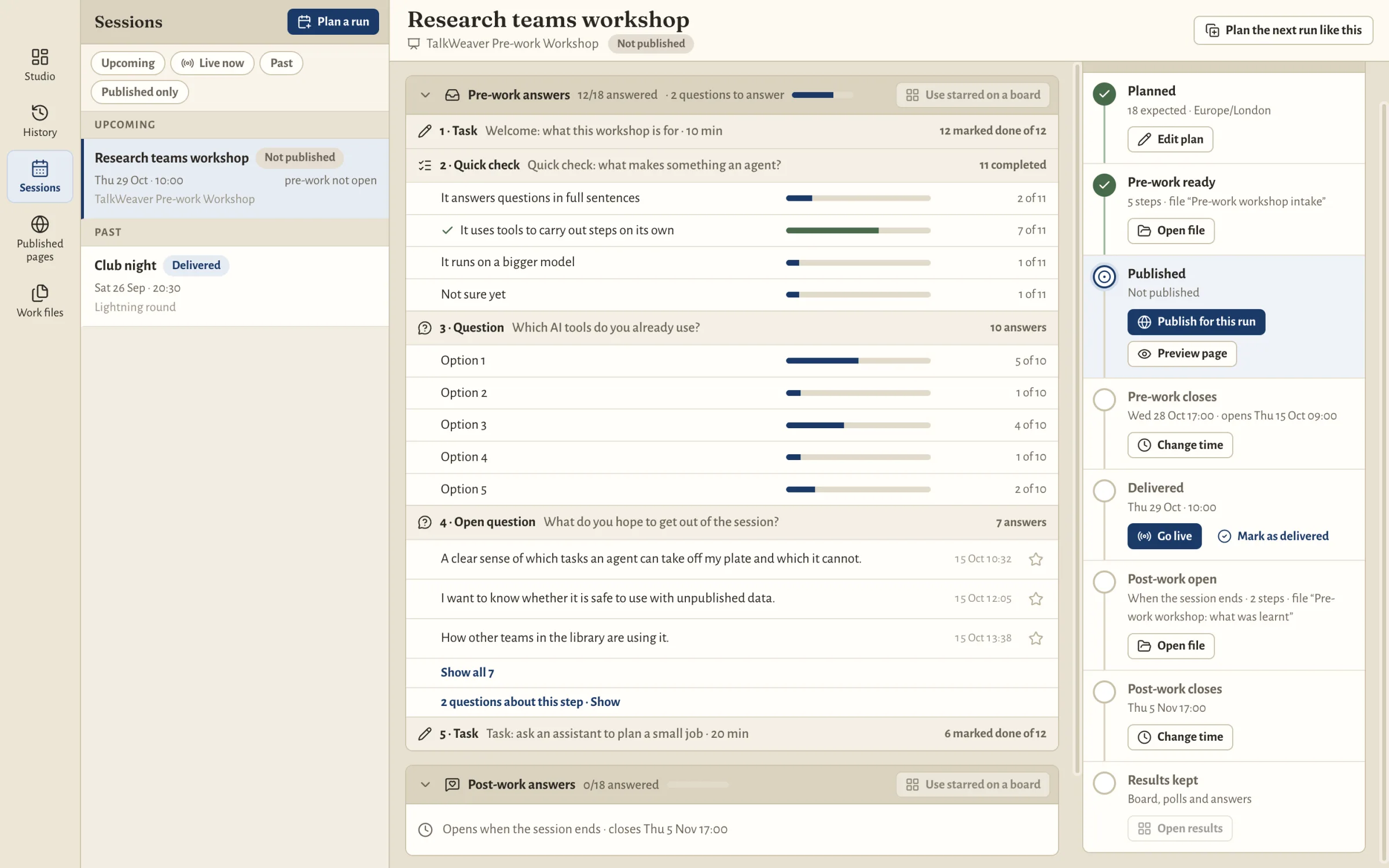
The right column of the Run page is the Run’s checklist: Planned, Pre-work ready, Published, Pre-work closes, Delivered, Post-work open, Post-work closes and Results kept. Each step has its action. Steps for a phase without a file are absent.
The actions are Edit plan (⌘⌥E), Change time, Open file, Go live (⌘⌥L), Open live view and Open results. Go live is allowed before the session date. Open results is disabled before the session and reads “Available after the session”. Mark as delivered is a secondary action on the Delivered step, for a session you gave without presenting from the app. Open run is ⌘⌥O.
Pre-work answers and Post-work answers sit on the left, each with a progress bar and a fold. You can read the overview, the answers to each step, the quick-check spread and the questions people asked about a step, and you can star answers. While post-work is open, the pre-work section starts folded. A Run with no post-work file shows no Post-work section, and before post-work opens its section reads “Opens when the session ends · closes …”.
Use N starred on a board counts the stars you set. Task steps show “N marked done”, because a task entry carries no text.
History no longer publishes or unpublishes Runs, and it has no pre-work page or column. A planned Run opens in Sessions. Answers from older Runs stay readable.
Publish for this run
Publish for this run (⌘⌥U) puts up three pages for that Run: the handout, a pre-work page and a post-work page. A Run whose work file is not ready is refused, and the finding is shown.
The handout links to both work pages. The post-work link is labelled “opens after the session” until it opens. The Published step shows the three links, each with its own copy button (⌘⇧C copies a link), a QR code, Copy invitation text (⌘⌥C) and Unpublish. The invitation text carries both the pre-work and the post-work link. The QR code points to the pre-work page while pre-work is open, to the post-work page while post-work is open, and otherwise to the handout.
Preview page opens the participant page on your computer with nothing uploaded.
A Run pins the revision of each work file when it is sent. Later edits to a file reach only future Runs.
Unpublish is in the Published step. Its confirmation names the pages and the answers, for example “The handout and the pre-work page will show “This page is not available”. The 7 answers are kept.” After you confirm, the handout, the pre-work page and the post-work page all show “This page is not available”. The answers stay on the Run, the Run page reads “N answers kept”, and Publish again restores the same three addresses.
Published pages (⌘5) lists every published handout and talk page across the open vaults, each with its link, its published date and Unpublish. A Run’s pre-work and post-work pages are inside the Run’s row, not on their own rows. Taking a talk’s handout off the site removes that talk’s pages and clears its handout address, and leaves Run handouts alone. Run handouts published in 0.39 stay reachable.
What participants see
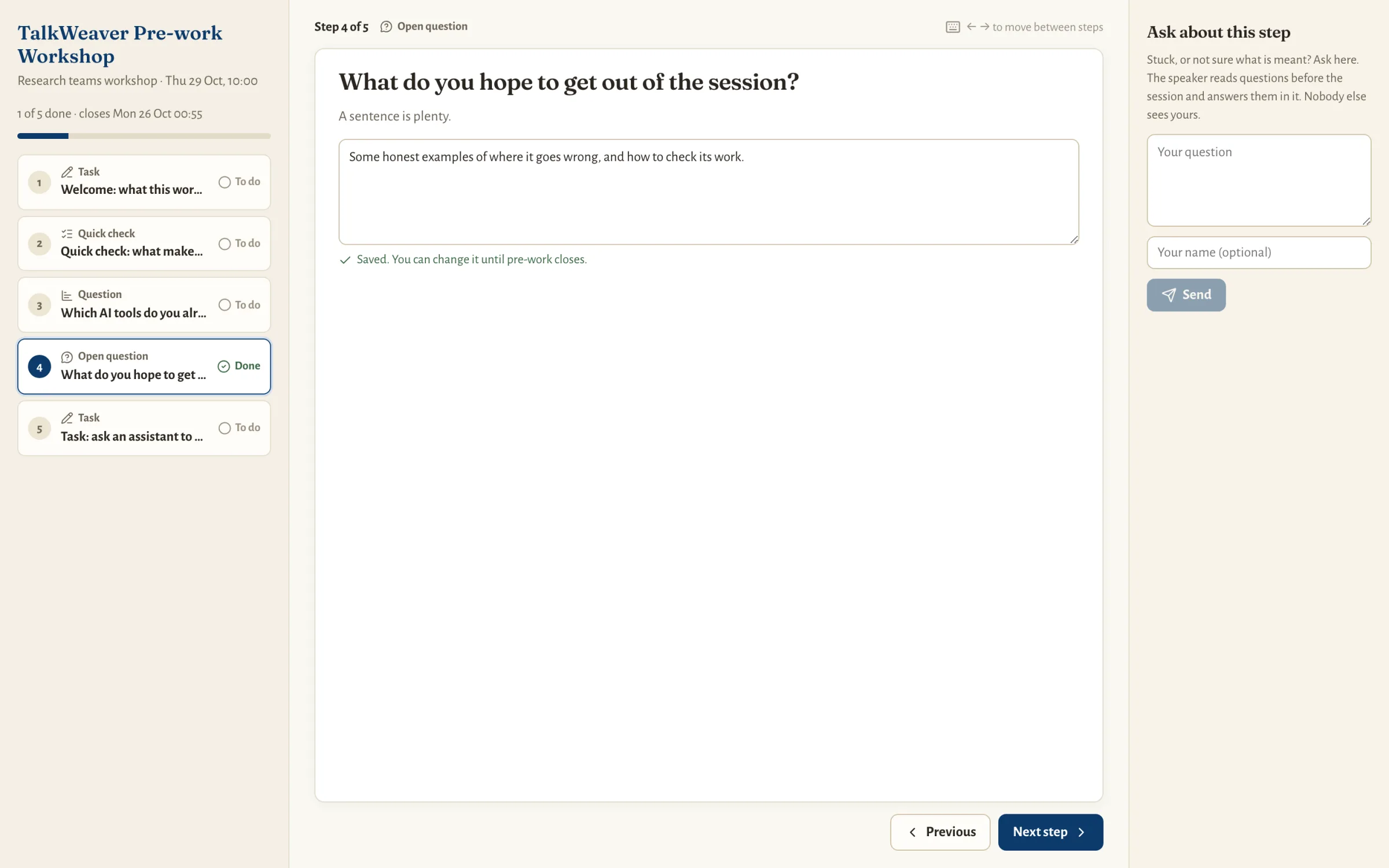
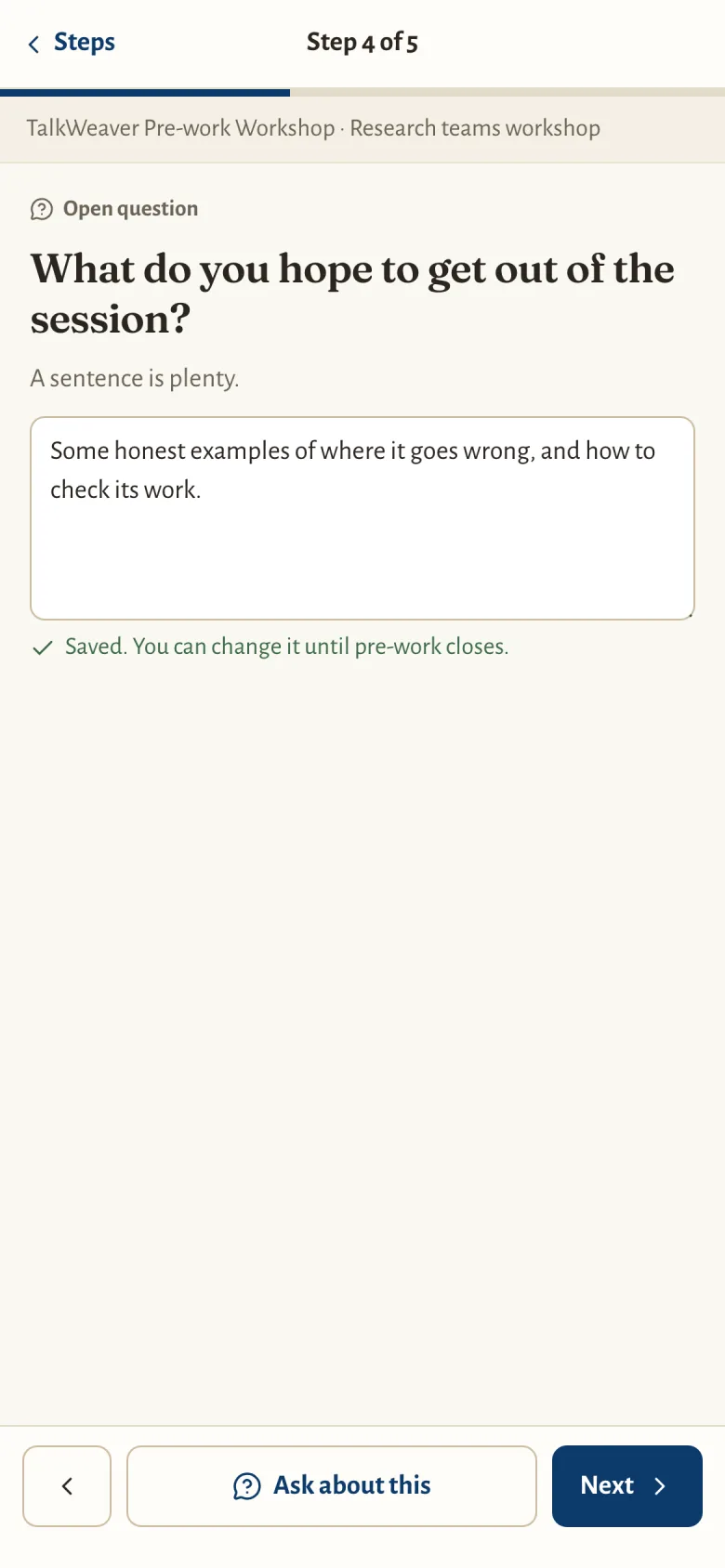
Pre-work and post-work each have their own page and link. On a laptop the page has a rail of steps, the step, and a column for asking about a step. On a phone it has a top bar, the step and bottom navigation. A link back to the handout sits in the rail or under the top bar.
Video steps play in the page. Slide steps stack at phone width. Each answer is saved as the person goes, and “5 of 7” shows when they come back. The post-work page is headed “After the session”. A closed page shows the closed banner.
Ask about this step works on both pages. {noask} turns it off. Answers are anonymous.
Post-work opens when the session ends
Post-work that opens when the session ends opens when the live session bound to the Run ends, or when you mark the Run delivered. If TalkWeaver was not running at that time, it opens on the next launch, and the checklist says when it opened. Post-work set to open at a time opens at that time.
Changing a closing time after a phase has closed reopens it. This works on a delivered Run through Change time.
One fault is known: a planned Run whose post-work was published to open at a set time, and was then changed to open when the session ends, can still open at the old time.
Extras for this run
The Run page has an Extras for this run section with an intro note, up to 10 links and up to 10 extra slides. They appear on that Run’s handout and when presenting that Run, and nowhere else. The talk’s own handout does not change, a second Run of the same talk does not see them, and the talk file is never written.
An extra slide has a plain title and plain text, and you choose which slide it goes after. A talk in the older outline format refuses extra slides until it is migrated.
Keys
The Tools window has its own command palette on ⌘⇧P, and ⌘/ lists the keys.
- ⌘4
- Sessions
- ⌘5
- Published pages
- ⌘6
- Work files
- ⌘⇧N
- New work file
- ⌘⌥N
- Plan a run
- ⌘⌥E
- Edit plan
- ⌘⇧D
- Plan the next run like this
- ⌘⌥U
- Publish for this run
- ⌘⌥L
- Go live
- ⌘⌥O
- Open run
- ⌘⇧C
- Copy link
- ⌘⌥C
- Copy invitation text