Pathways
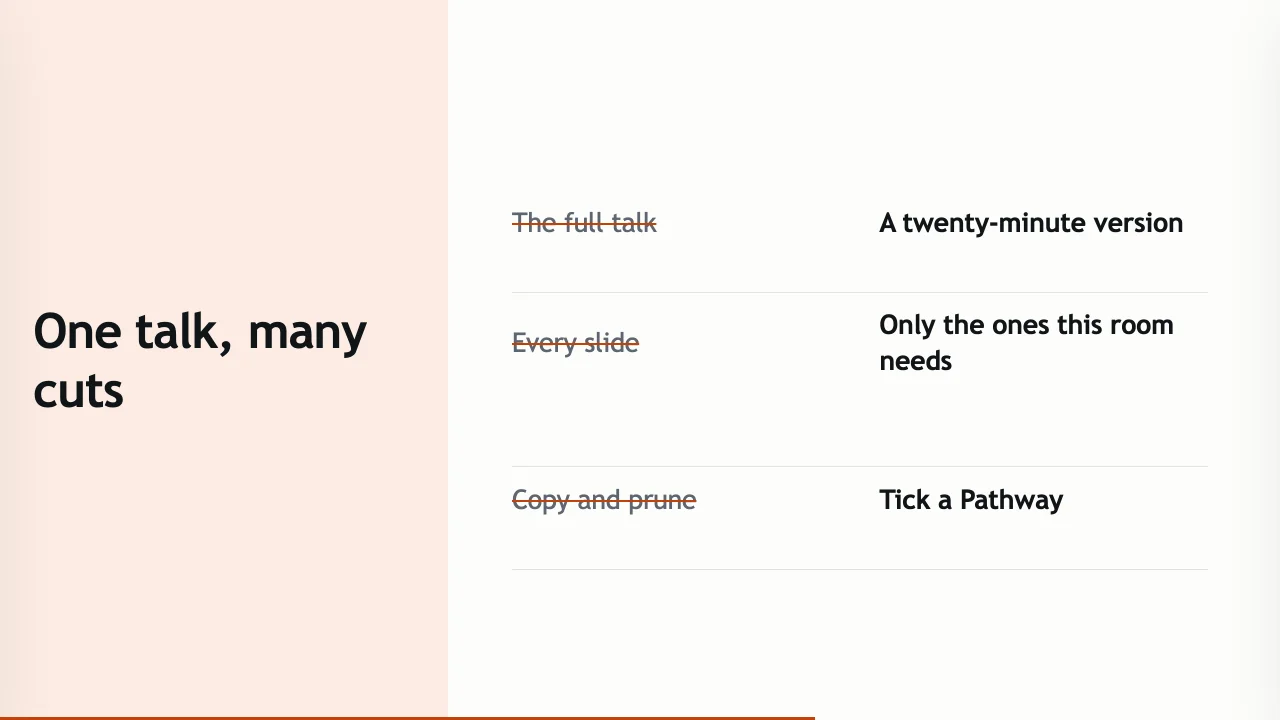
One talk often needs several versions: a full one, a twenty-minute one, one for a particular audience. Pathways give you those versions without copying the talk.
Tick slides instead of copying them
Build a shorter or audience-specific version of a talk by ticking slides into a Pathway. The outline itself does not change.
When you improve a slide, every Pathway that includes it gets the improvement.
Grid, List and Matrix views
See a Pathway as thumbnails (Grid), as a numbered running order (List), or every Pathway side by side against the full outline (Matrix).
⌘⌥P opens Pathways.
Plan your deliveries
Plan a run (⌘⌥N) schedules a talk as a Run before the day arrives. In the Slides choice you pick the full talk, a Pathway, or New pathway…, which opens the Pathway view for the talk and returns to the sheet with the new Pathway chosen.
When you save, the Run opens in Sessions (⌘4) in the Tools window. History no longer publishes or unpublishes Runs. The Run can also carry pre-work and post-work: see Pre-work and post-work.