
Writing and slide design
You write a talk as a Markdown outline. TalkWeaver turns it into designed slides as you type, and you adjust them without leaving the keyboard.
Every heading is a slide
Write your talk as a Markdown outline. Each heading becomes a slide, and the slides update as you type.
There are no boxes to drag and no canvas to arrange. The outline stays the source of truth, and the slides, the handout and the recording are views of it.
Each talk compiles to one self-contained HTML file with a presenter view. It runs in any browser without a server.
Your talks are ordinary Markdown files in a folder you choose, so you can keep them in any backup or version control you already use.
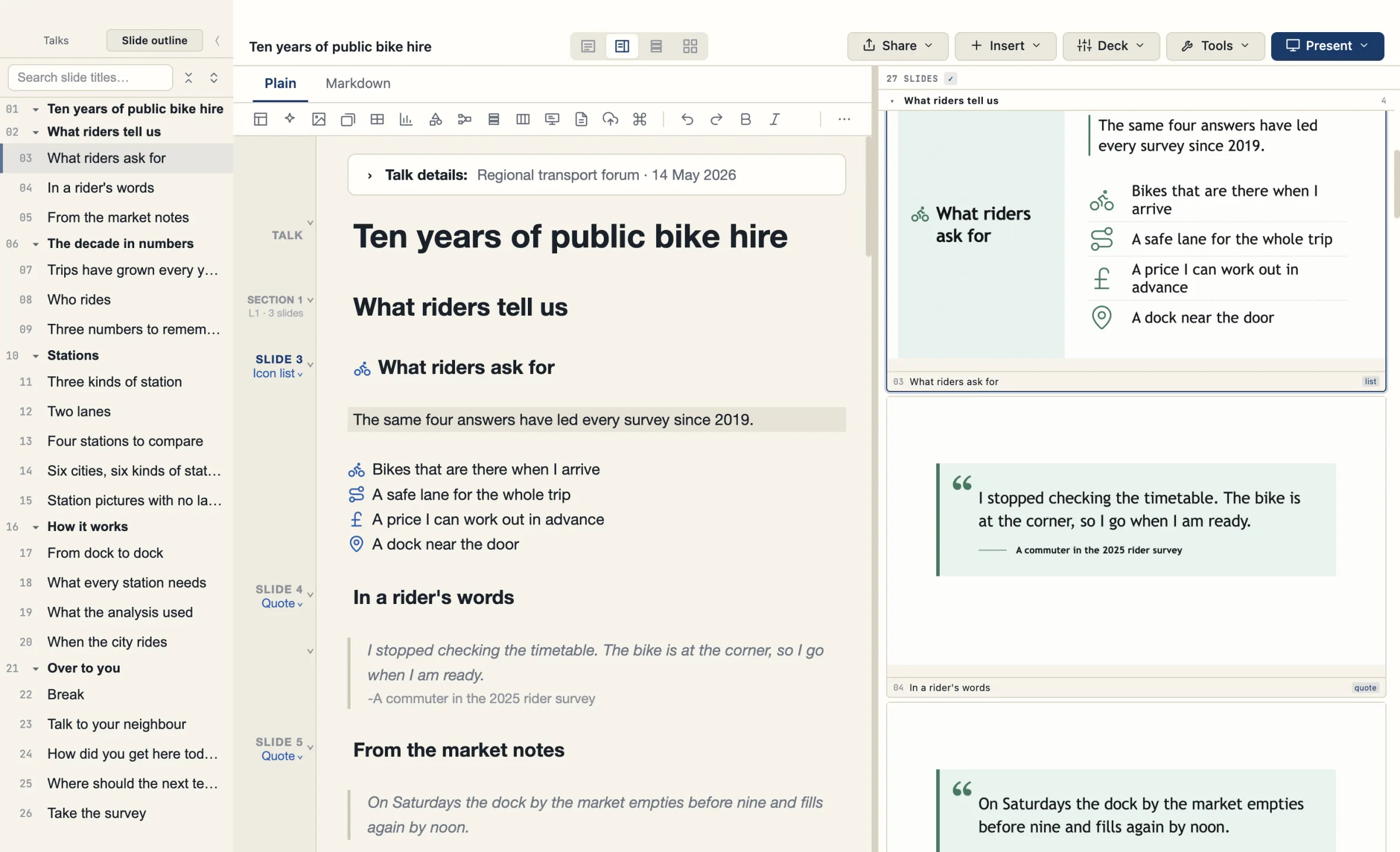
The Plain view and the Markdown view
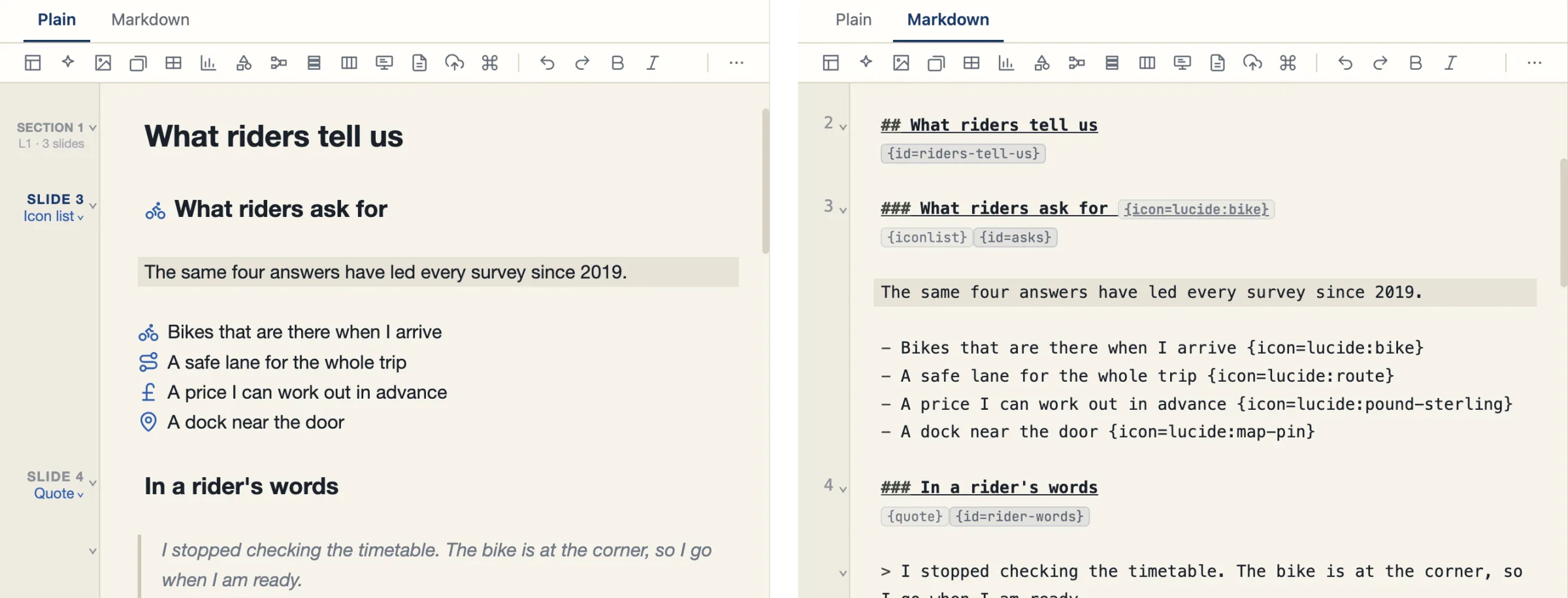
The editor has two tabs, Plain and Markdown. Plain is shown until you choose a tab. The commands are Show the plain view and Show the Markdown view.
Plain hides the layout lines (the {…} lines under a title) and the slide ids, wherever they sit on a slide. It conceals Markdown marks away from the caret and shows quotations formatted. Markdown typed in Plain works. Both tabs edit the same Markdown file.
A margin beside the text reads Talk, Section or Slide n, with the layout name beneath. Sections are numbered and show their level and slide count. Margin menus change a heading’s level and a slide’s layout: the layout menu is titled Layout and its last row is More in Inspector…. The commands are Change this heading’s level… and Change this slide’s layout…. The Talk details panel holds the talk’s front matter.
Plain view font in Settings is Sans or Serif, and Text size has Smaller and Larger buttons.
List-item icons show as pictures in Plain. Plain does not draw icons on a card, carousel-frame or column heading, and it has no widgets for polls, code, QR, countdown or statistics. All of these are still correct in the slides.
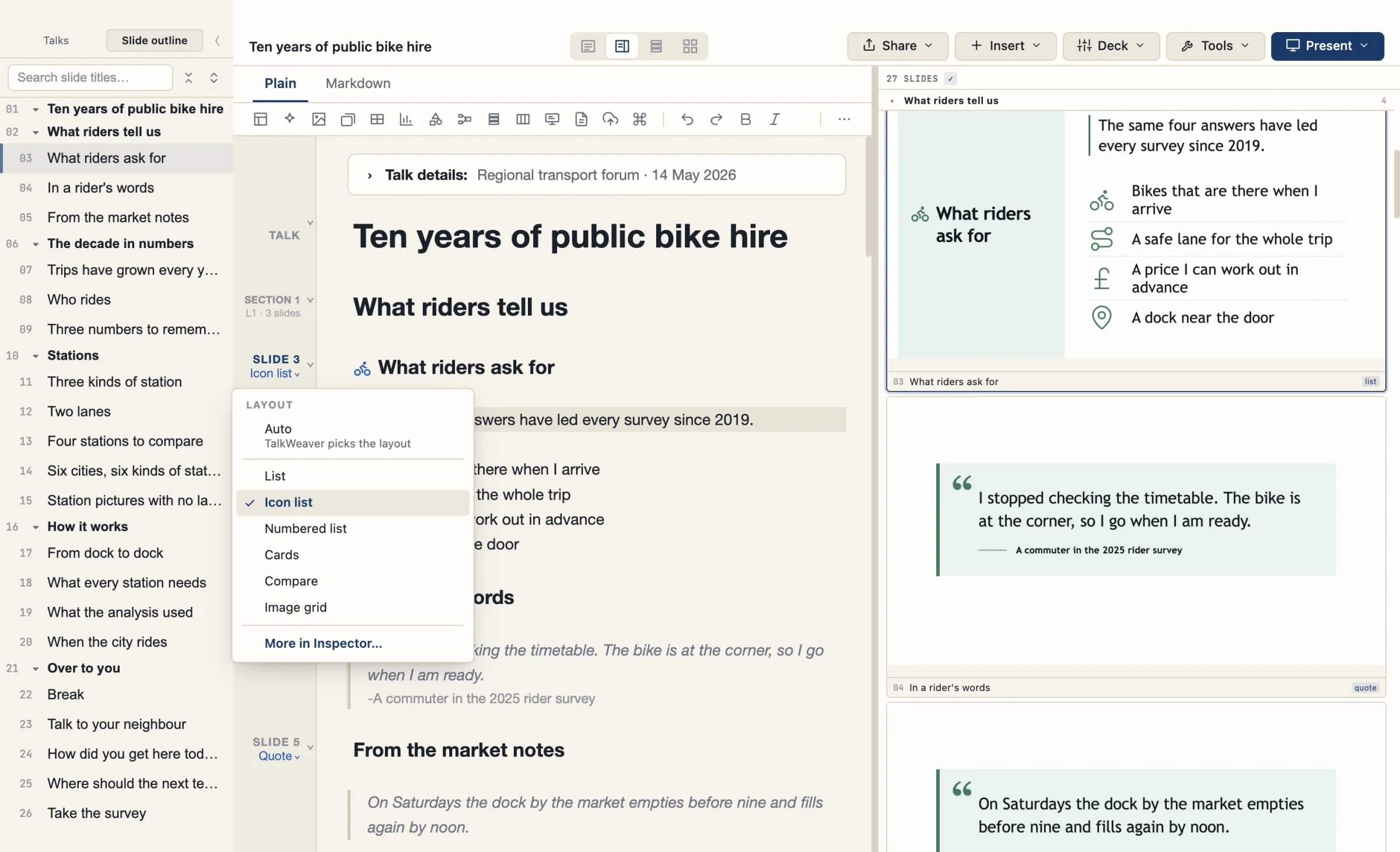
A registry of designed layouts
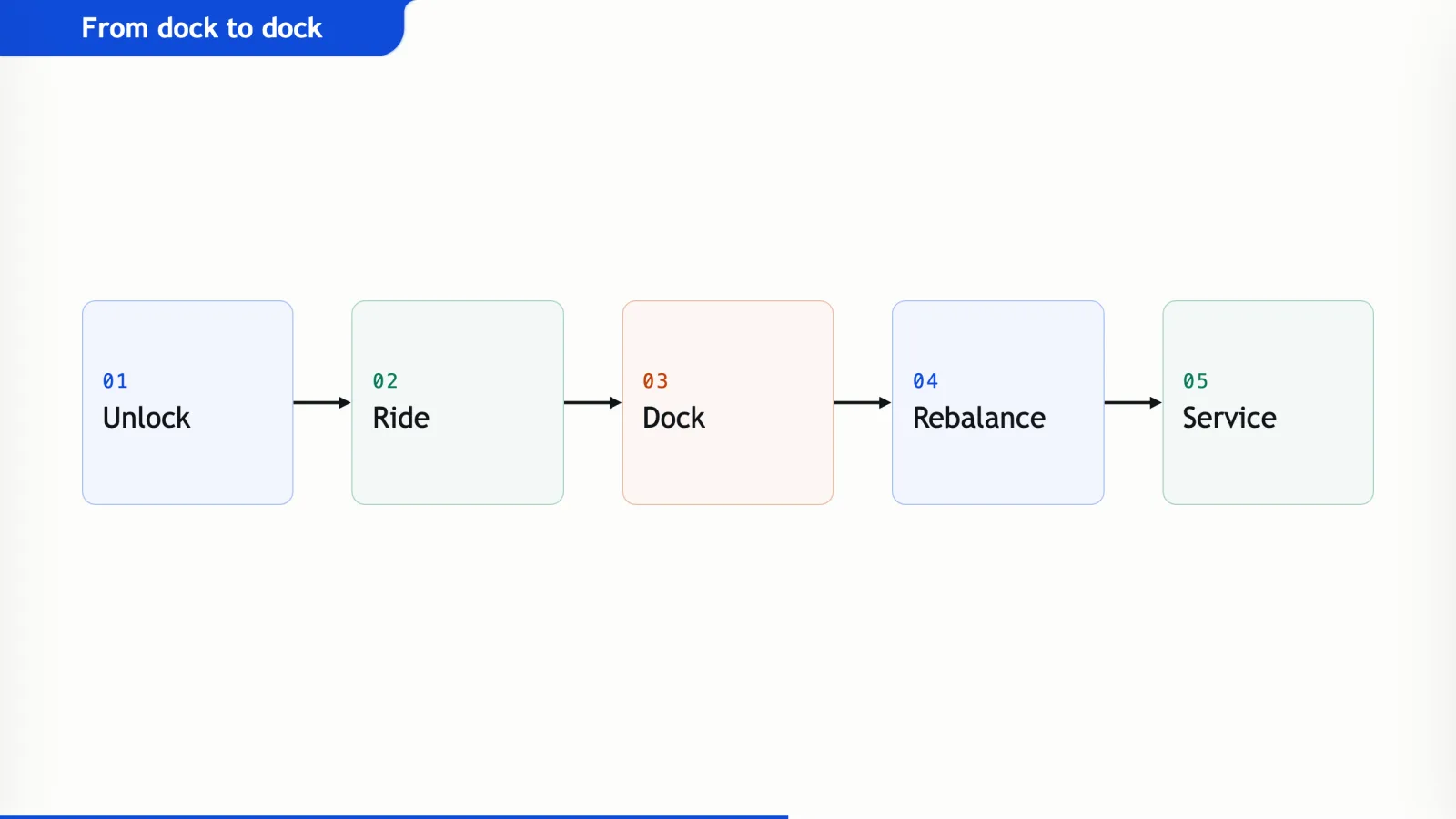
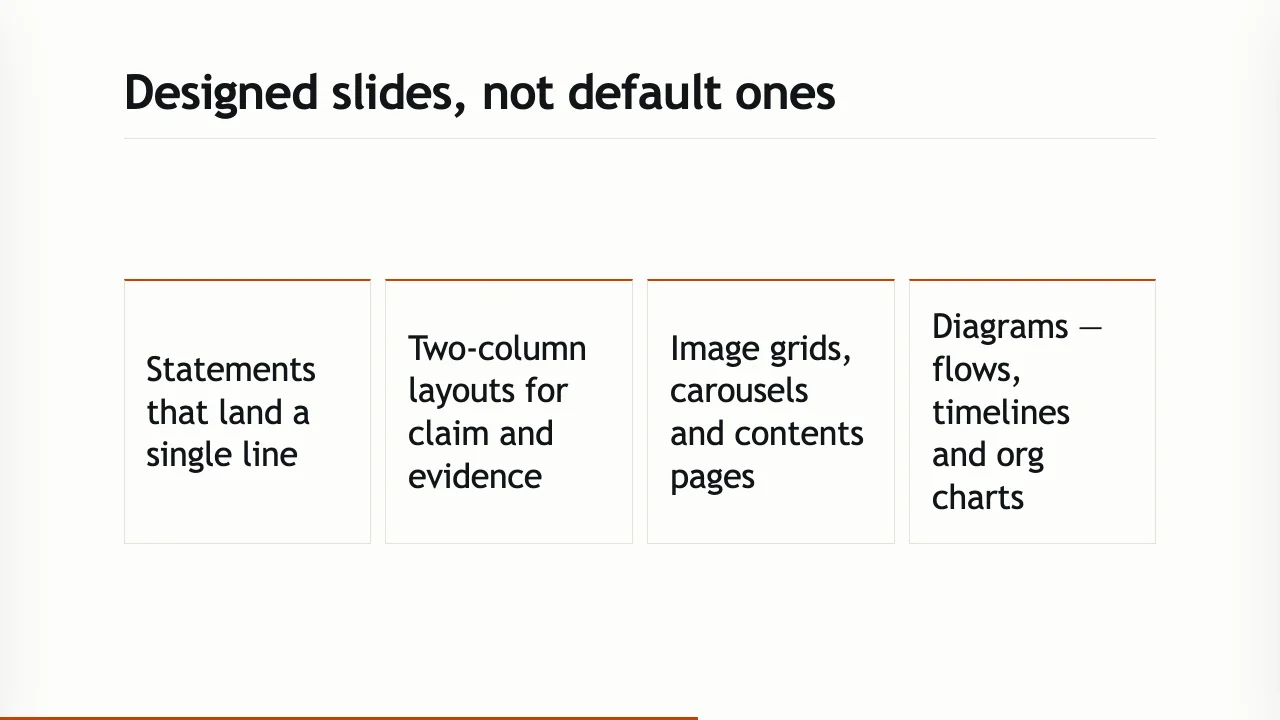
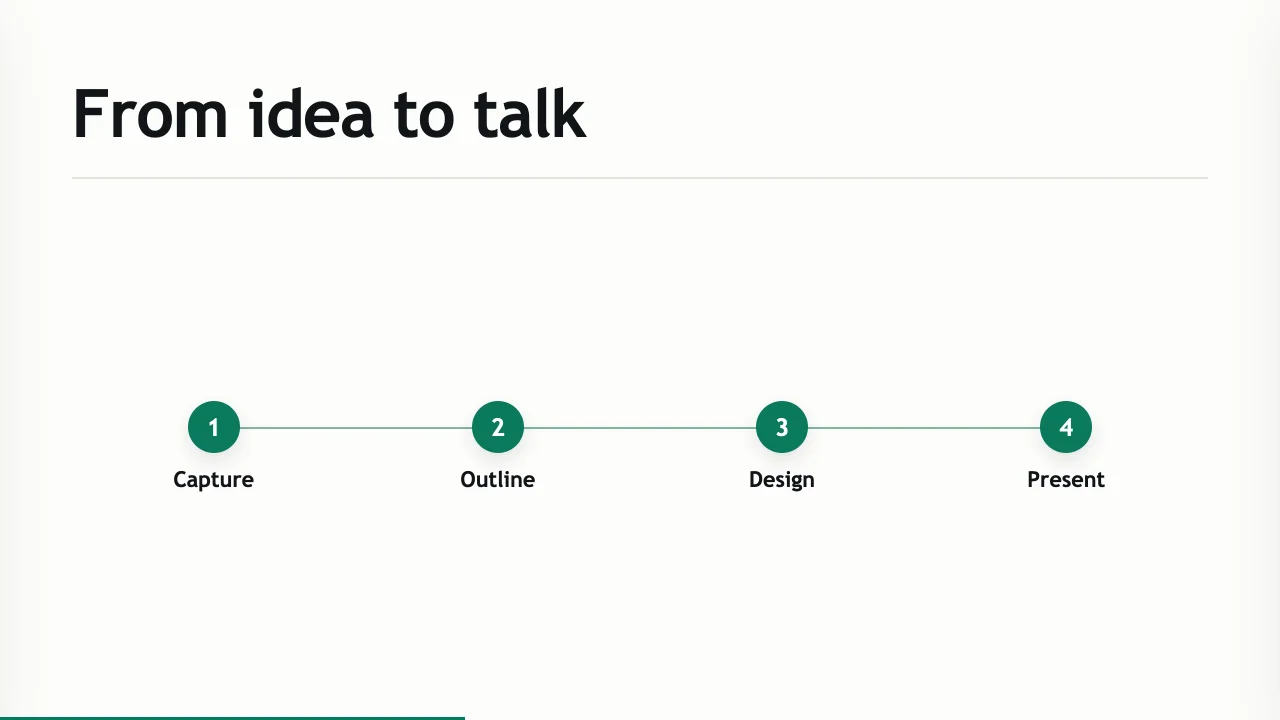
TalkWeaver has layouts for statements, two columns, image grids, carousels, contents pages and diagrams such as flows, timelines and organisation charts.
You choose a layout with a keyboard picker (⌘L) or by typing it in curly brackets under the heading, for example {statement} or {cards}.
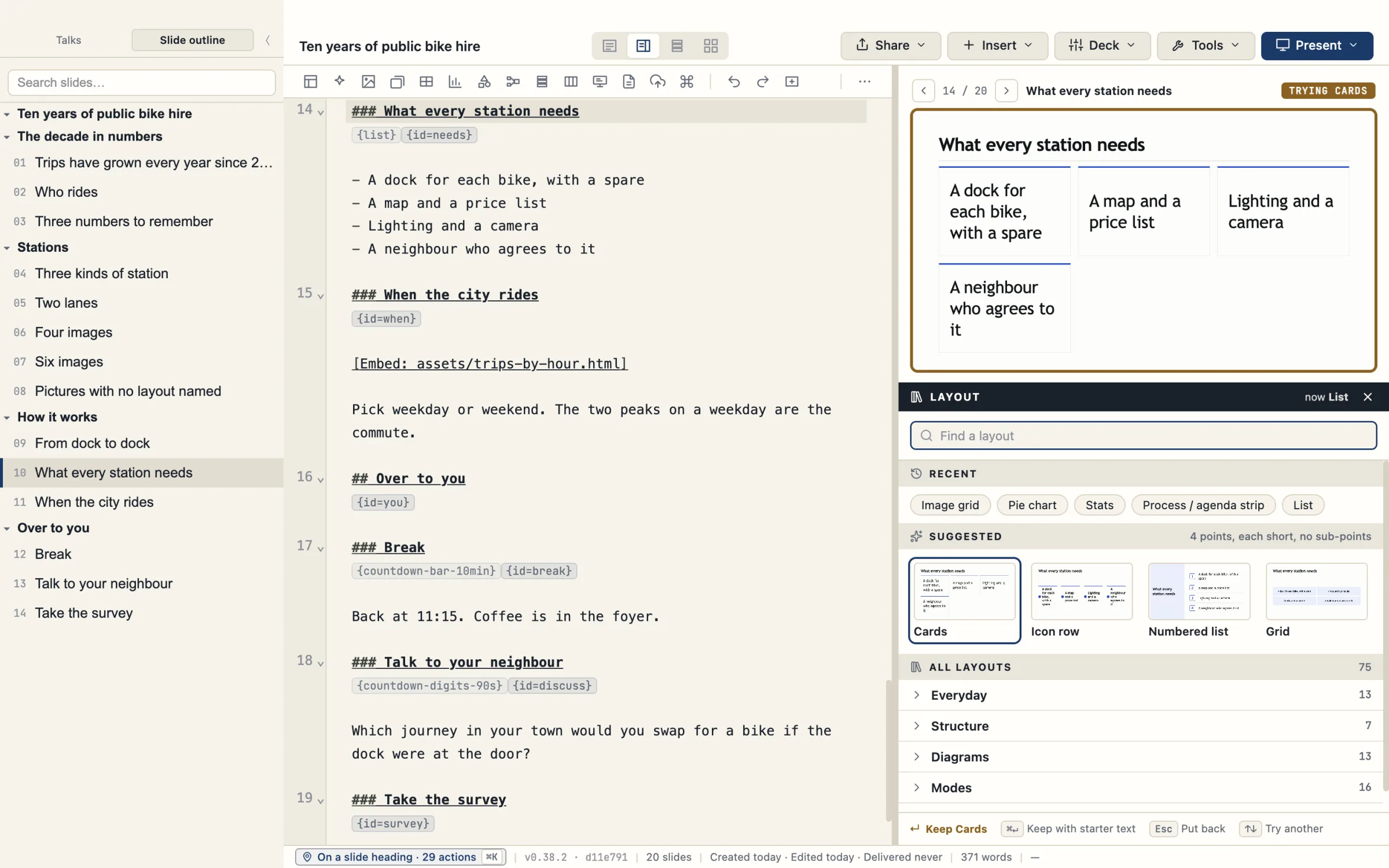
The picker shows your own slide in each layout. A Recent row and a Suggested row come first, then every layout grouped by purpose with a line on when it fits. Arrowing onto a layout previews it without changing your outline; ↵ keeps it and Esc puts it back. A slide that cannot fit a layout is flagged, never shrunk.
The layouts share one design language. Titles keep the same size across layouts, and body text never drops below a readable minimum size.
Version 0.41 redraws every layout. The content block is centred in the space under the title. Boxes around text have a subtle outline and a light tint. Body text is larger and regular weight: quotes, paragraphs and rows are never bold, though the figures on a stats slide may be. Connectors start and end on box borders, and a layout may use more than one colour from TalkWeaver’s palette. Green and red keep their meaning of right and wrong. Slides do not lose their images or screenshots.
The deck setting title_look sets how titles look. A deck that does not set it now gets the index tab (tab), so such a deck looks different after you upgrade. A deck that sets a value keeps it. The values are tab, kicker, default (also written full, a plain title at the top), label, tab-strip and intro-then-none. With tab-strip, a row of the section’s slide titles shows with the current one filled, and carousel slides draw it too. With intro-then-none, the section card introduces the topic and the slides after it carry no title. No small line shows above a title unless the slide gives {kicker=…}.
Lists with icons and logos
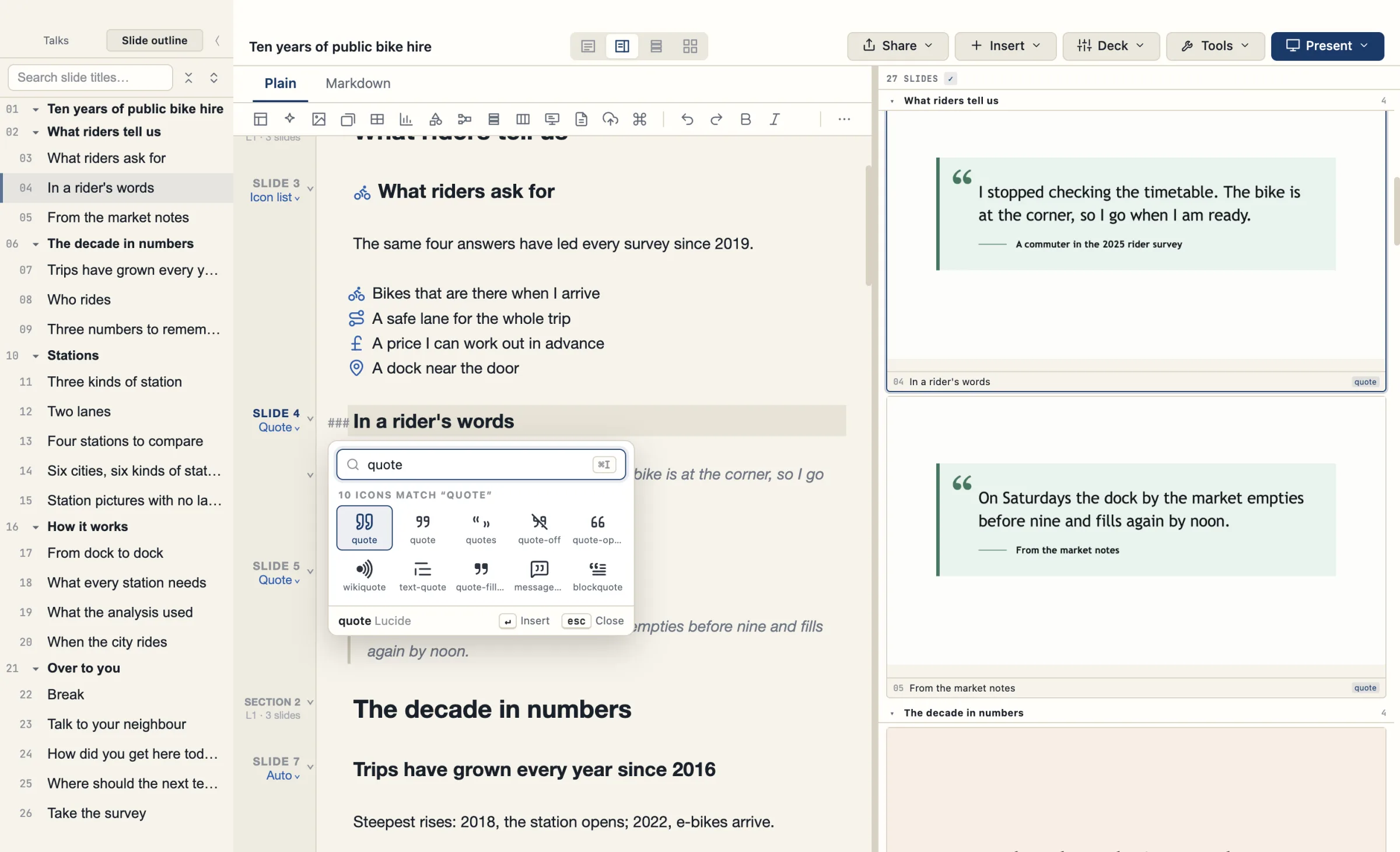
A list can show an icon or a logo beside each item. The markup is on the left and the slide it makes is on the right, both from the sample talk Ten years of public bike hire.
Slide titles and paragraphs can carry an icon too. The Inspector has a Title icon row (None, Before, Above) and a Paragraph icon row. Insert icon… on ⌘I opens the icon picker at the caret, in both the Plain and the Markdown view. If an icon ends up away from its title, the Layout Doctor finding Icon not on the title moves it back.
A list with icons
Each item names its icon with {icon=lucide:…} at the end of the line, and {iconlist} under the heading turns the list into rows of icons. An item with no icon named gets none. Insert › Icon opens the icon picker.
### What riders ask for
{iconlist}{id=asks}

- Bikes that are there when I arrive {icon=lucide:bike}
- A safe lane for the whole trip {icon=lucide:route}
- A price I can work out in advance {icon=lucide:pound-sterling}
- A dock near the door {icon=lucide:map-pin}
- Help when something breaks {icon=lucide:wrench}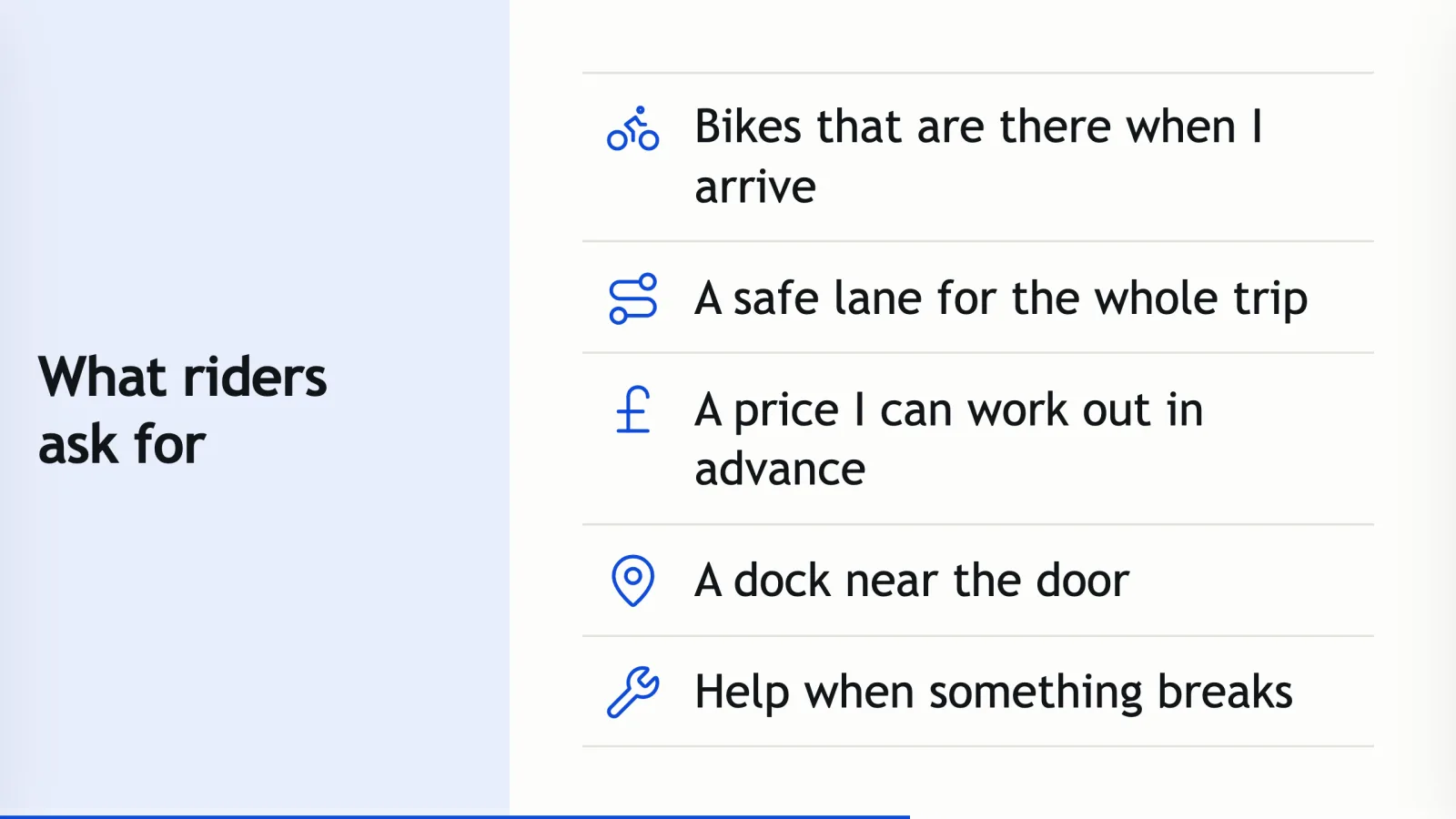
A list with logos
{logolist} shows a logo beside each name. TalkWeaver finds the logo from the name: it knows well-known products. A name it does not know gets a grey chip with its first letter instead, and you cannot give it a logo file.
### What the analysis used
{logolist}{id=tools}

- OpenStreetMap
- Python
- GitHub
- Slack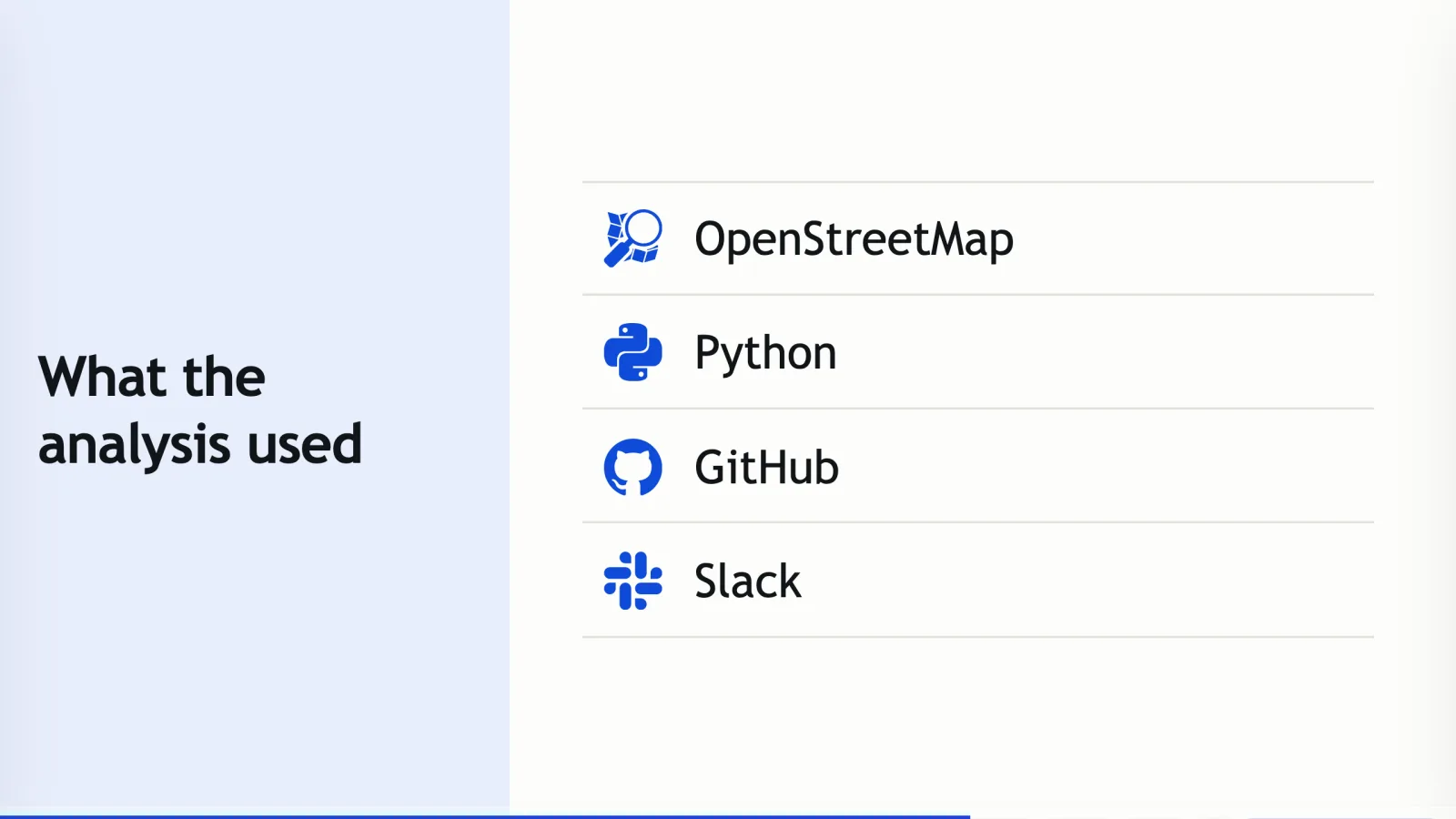
Quote slides take their form from the source
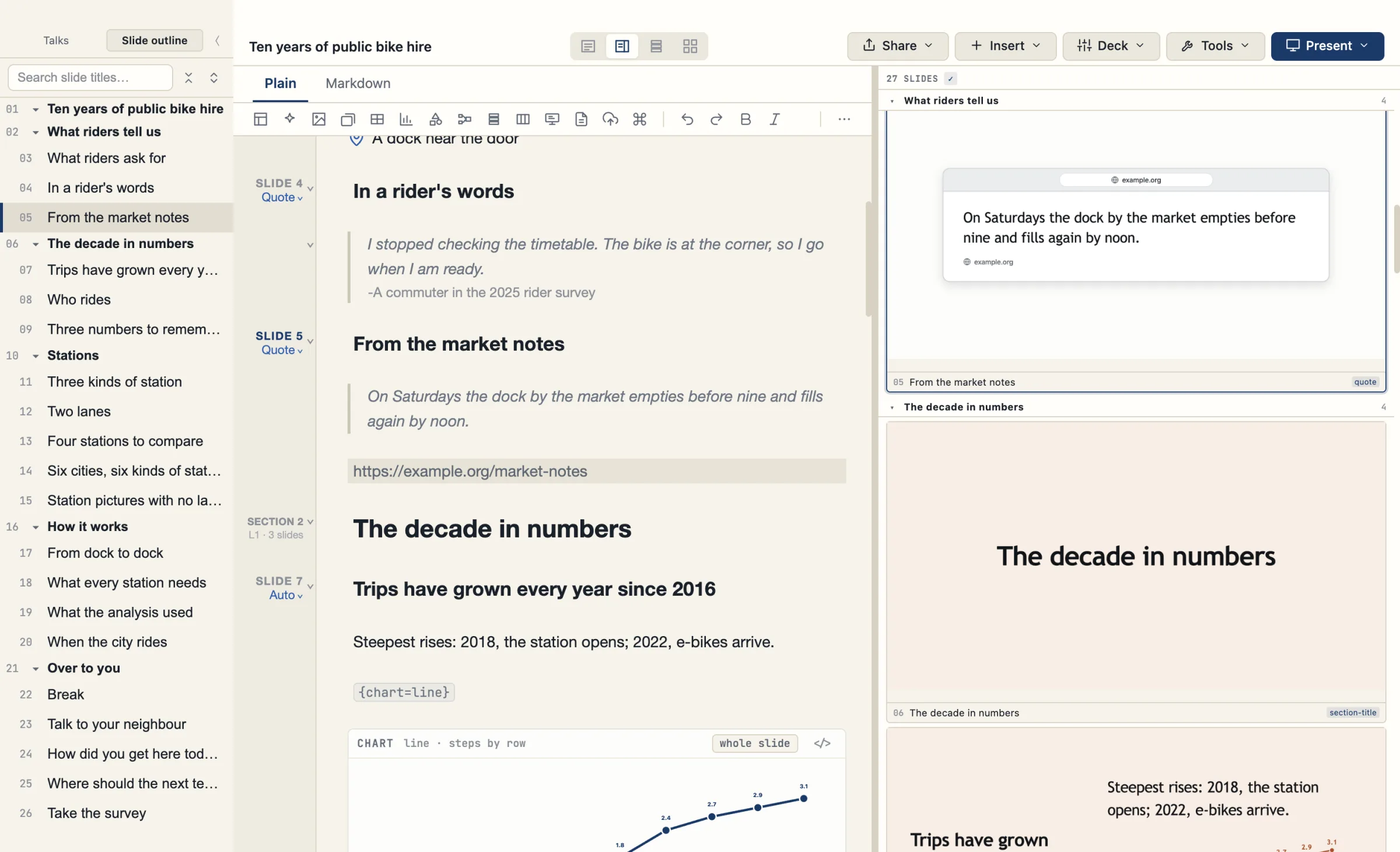
The Inspector has a Quote form setting: Automatic, Plain, Tweet, Video, Book, Paper and Web. The command palette has a Quote form: … command for each. The Web form shows a quotation from a web page or blog post as a browser window.
A web address on its own line under a quotation sets the form. A DOI makes it a paper and any other web address makes it a web page. An author and a link (-Author link) also set it. A quote slide typed from top to bottom gets its form when you leave the quotation. Only your own typing, pasting or deleting sets a form: a change made by the app, such as a sync or an import, never does. Filling a tweet or a video from a pasted link is not in 0.39.0.
In a quotation, pressing Enter twice leaves it, and ⇧↵ starts a new paragraph inside it. Leaving a quotation keeps a blank line above the next slide. This works in Slide Focus too, with one limit: at the end of a quotation that ends the focused slide, Enter stays inside the quotation, and to add a line under it you leave Slide Focus.
Pictures laid out as a gallery
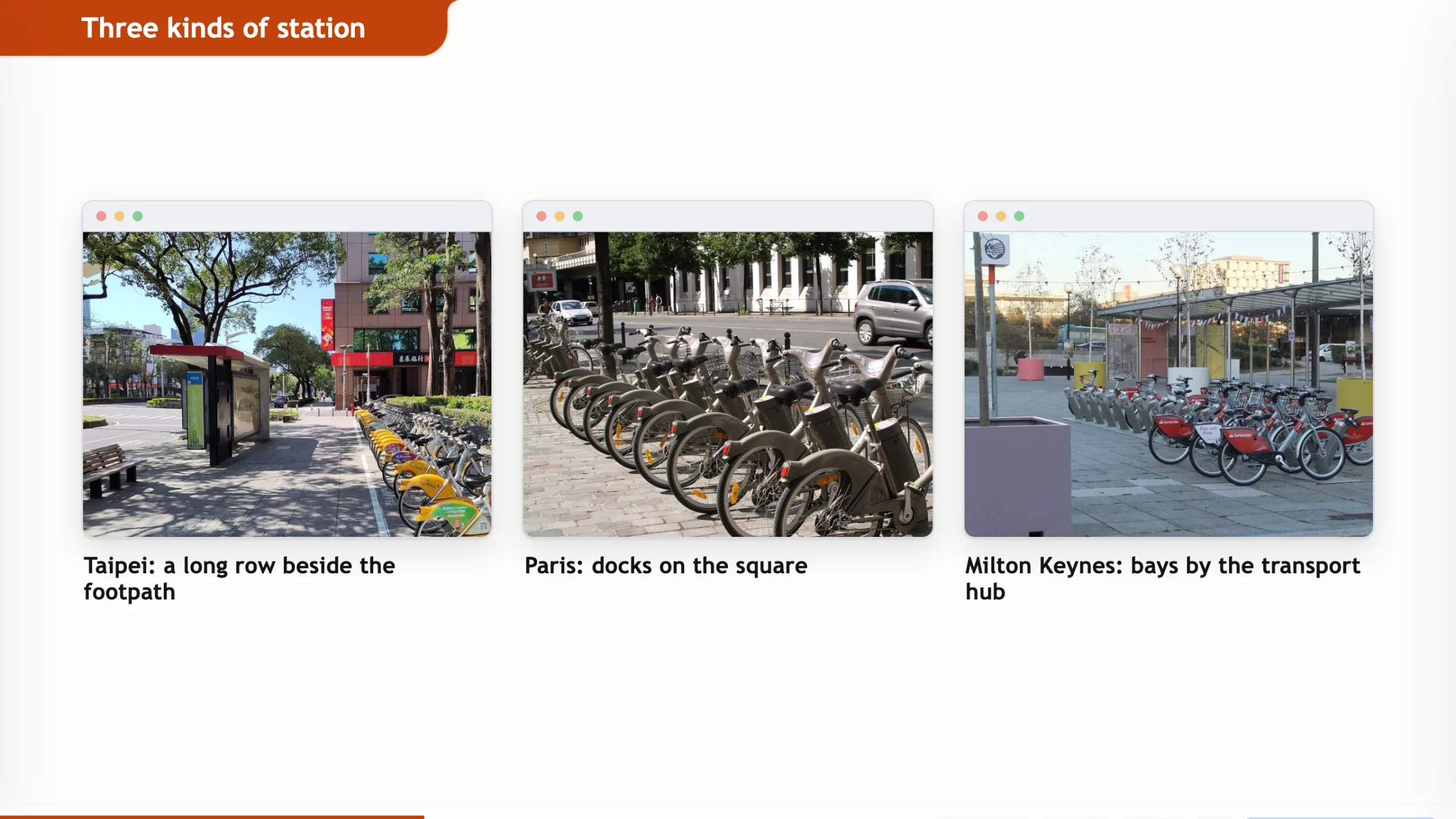
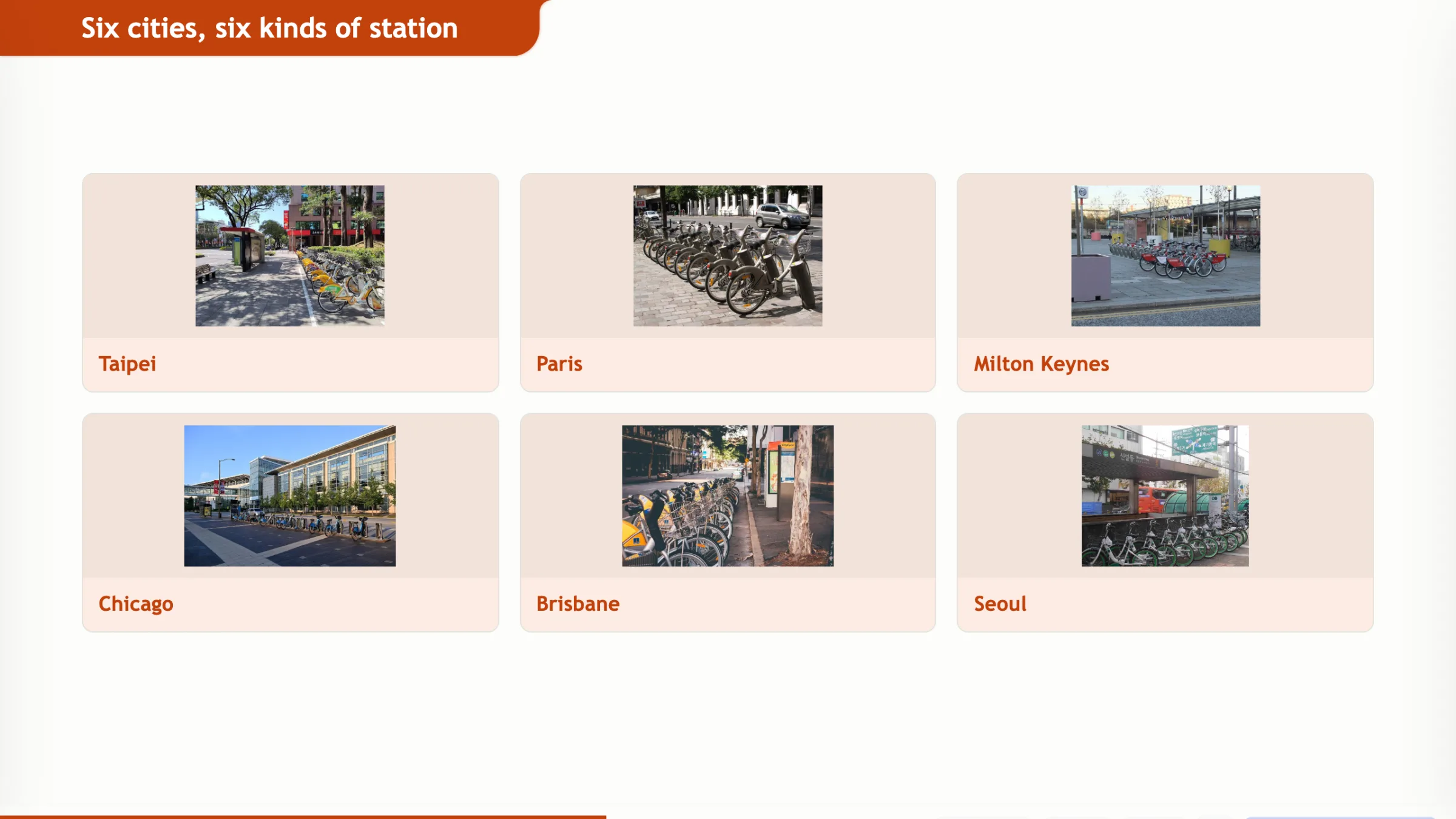
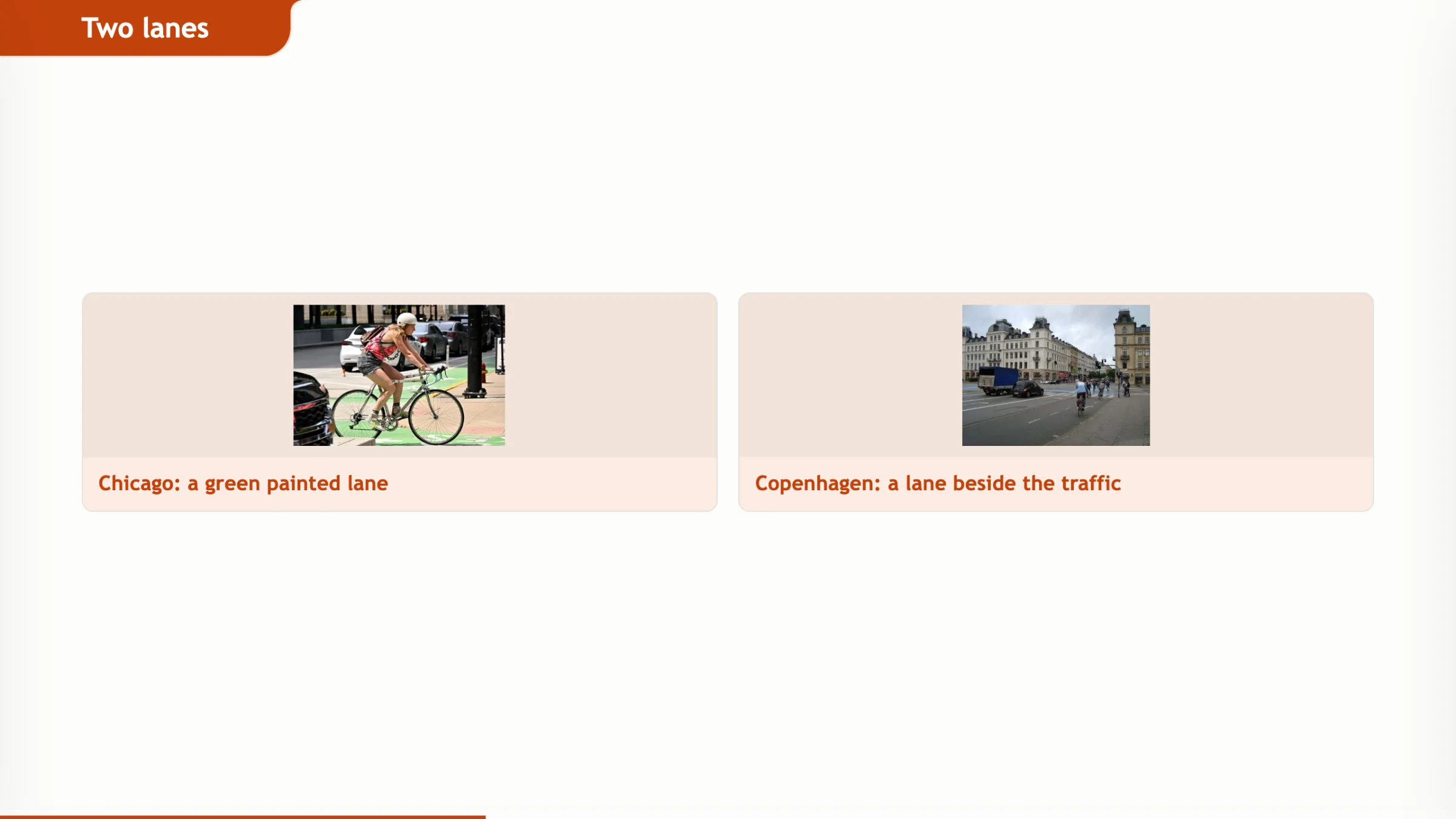
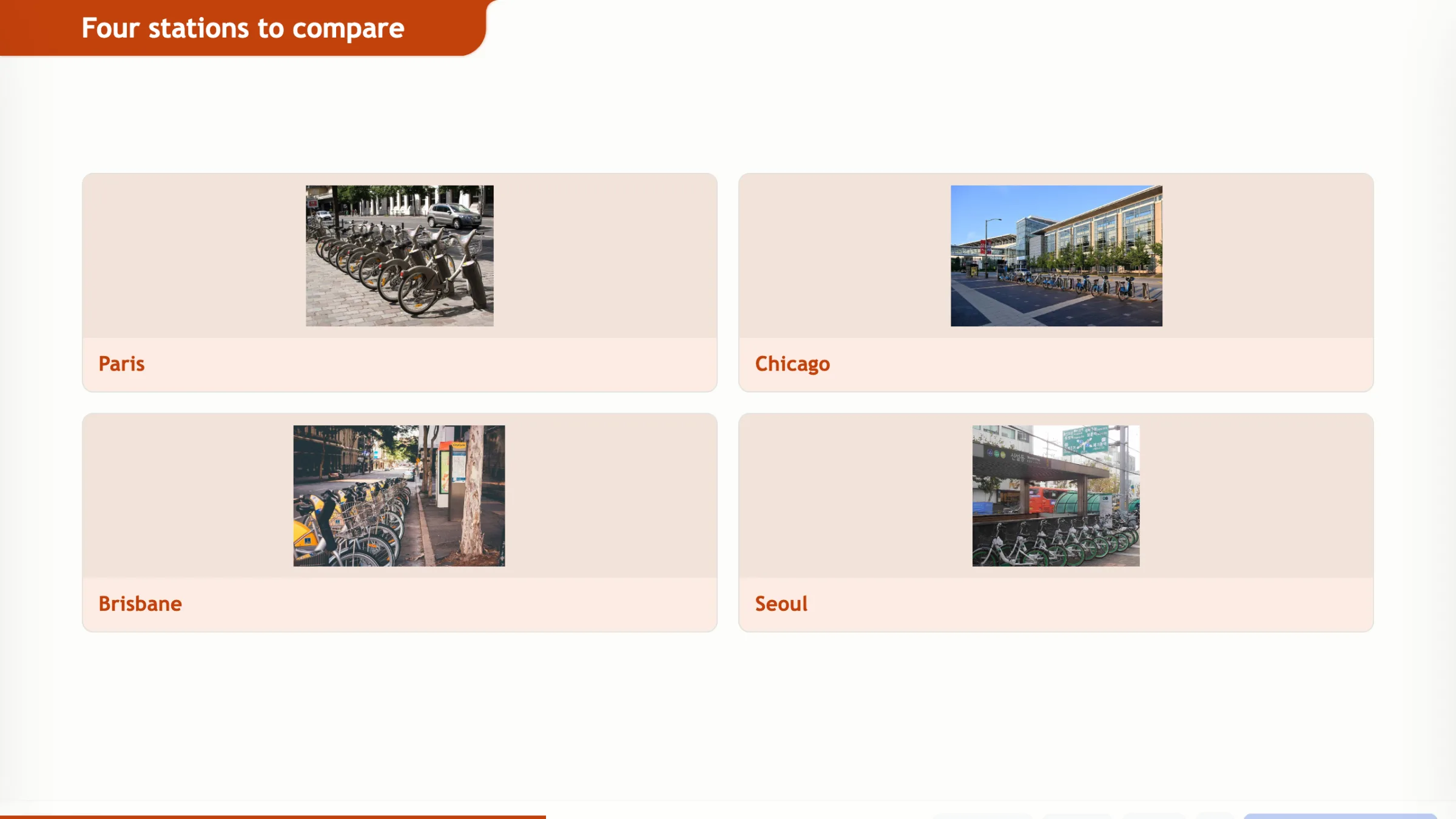
Put several pictures on one slide, give the slide the {image-grid} layout, and TalkWeaver lays them out as a gallery. You write each picture as one line, with its caption in quotation marks, and you write no sizes or positions. The caption goes under the picture.
The pictures here show the same layout with three, two, four and six photographs. Three pictures sit in one row in window frames, two share a row, four fill two rows of two and six fill two rows of three.
The photographs are public-domain (CC0) images from Wikimedia Commons.
Find images and reuse old slides beside the editor
The image drawer docks beside the editor, in both the Plain and Markdown views, and the editor stays usable while it is open. ⌘⇧I opens or closes it. The shortcut is named Find images, and the Insert menu’s Image… item opens it too. Esc closes it. The drawer replaces the old image palette.
The drawer has three tabs. The SlideWell tab searches your SlideWell screenshots and the images from old PowerPoints that you have added to SlideWell. The PowerPoint Imports tab holds whole slides from old PowerPoints. The TalkWeaver Vaults tab finds pictures already pasted or imported into your TalkWeaver vaults, and works without SlideWell. The drawer does not search the web. Results show captions and “Used in” counts. ⌘↵ or a drag inserts the picture at the caret, and the picture is copied into the talk’s own vault.
Screenshots come from SlideWell. Until it is set up, the first tab shows the line “Screenshots appear here when SlideWell is set up”. Images and slides from old PowerPoints come from the PowerPoints you have added to SlideWell.
The PowerPoint Imports tab shows slides from your old PowerPoints. Choosing a slide asks “Use this slide as”:
- Editable slide: the slide is added after the current slide, and its text and images stay editable.
- Picture of the slide: the slide is placed on the current slide as one image, as it looked.
A slide with no text or pictures to edit can only go in as a picture. A reused slide gets its own new id when the talk is saved, and one ⌘Z removes it whole.
What a slide can hold
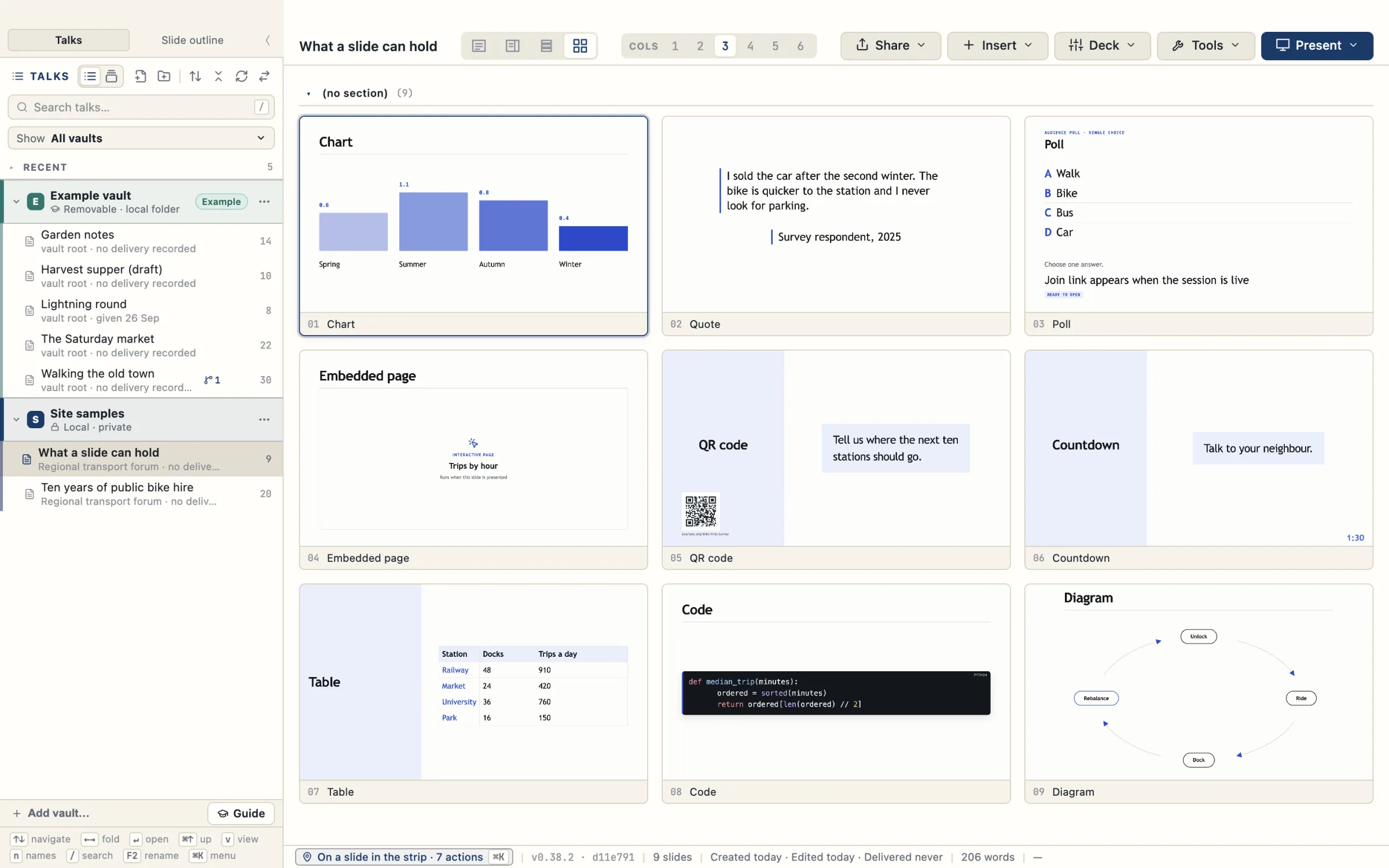
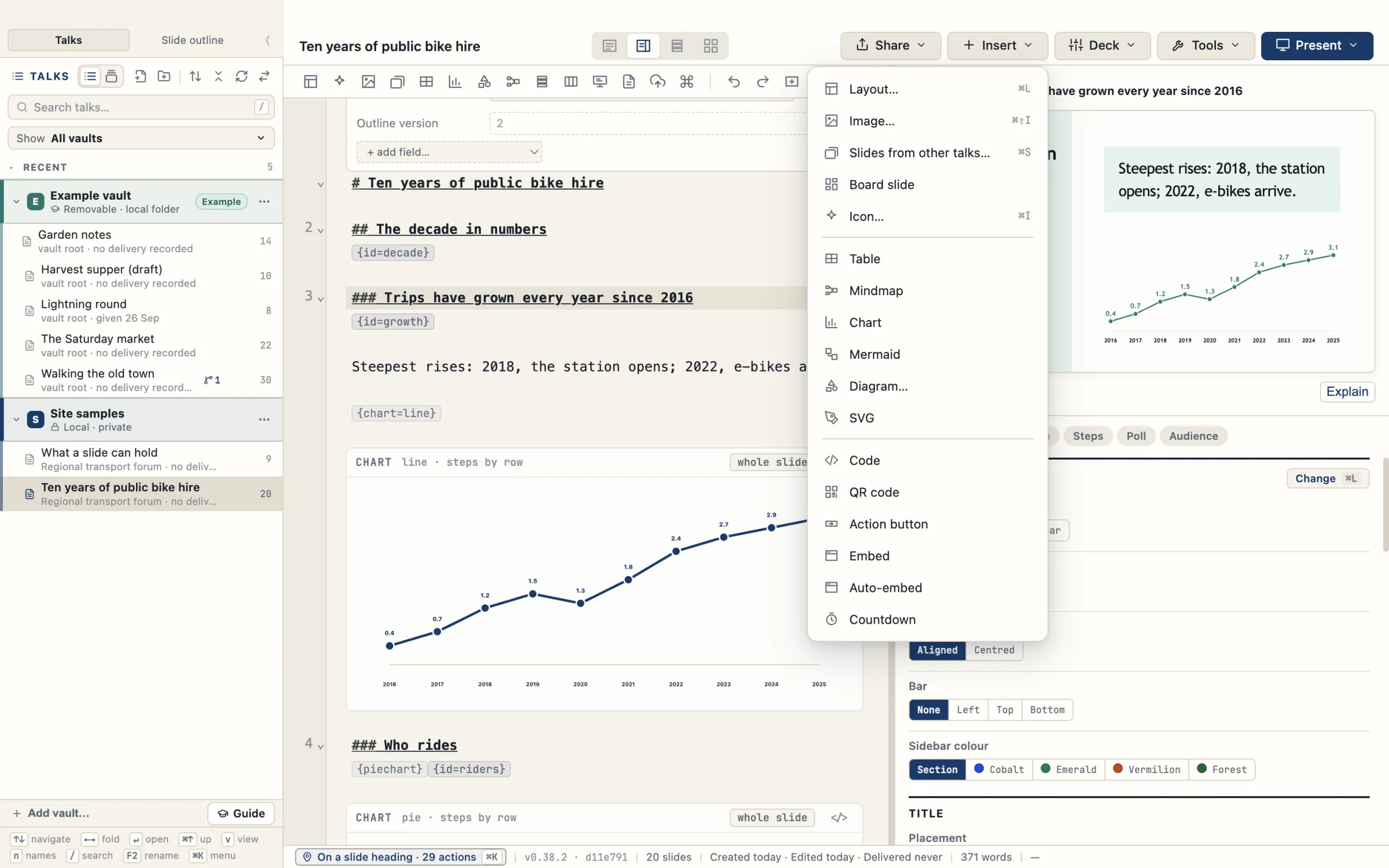
The Insert menu lists the things a slide can hold: Image, Slides from other talks, Board slide, Icon, Table, Mindmap, Chart, Mermaid, Diagram, SVG, Code, QR code, Action button, Embed, Auto-embed and Countdown. A poll is written as a heading with {poll=single} and a list of options. A quotation uses {quote}.
The first picture shows one object on each slide of a sample talk: a chart, a quotation, a poll, an embedded page, a QR code, a countdown, a table, code and a diagram. The second shows the Insert menu.
AI chat and terminal slides
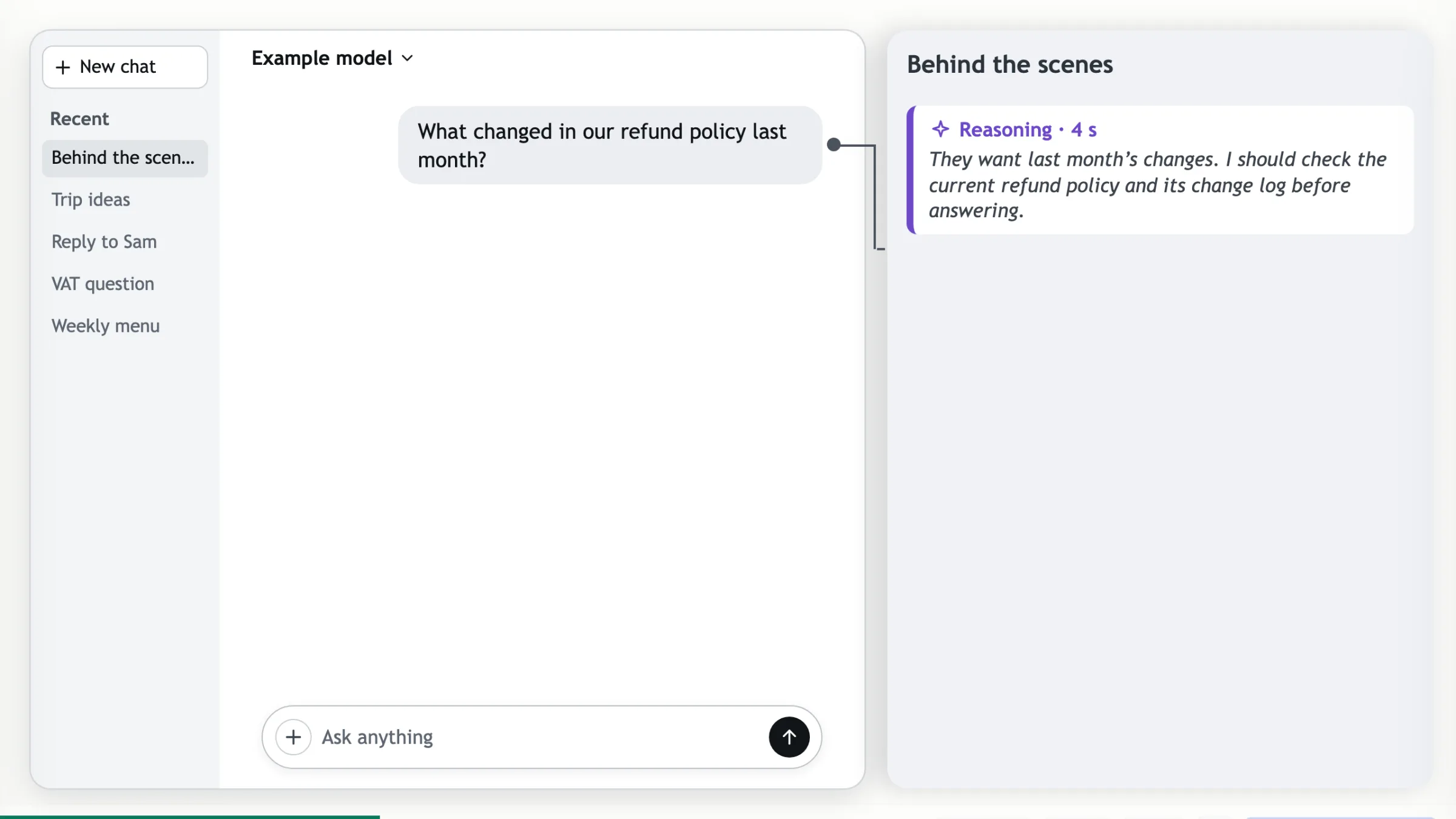
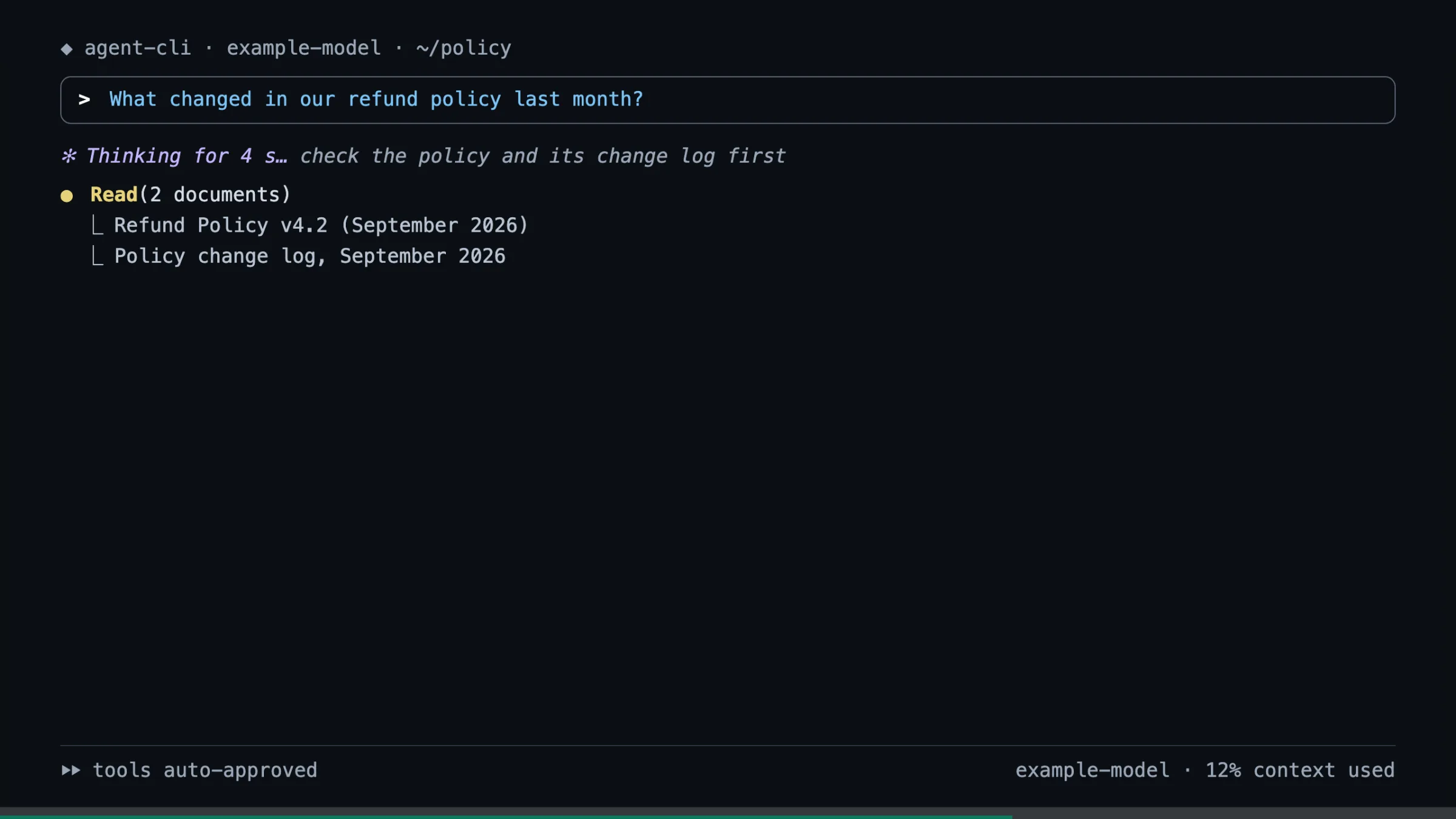
Four slide designs simulate an AI chat and a terminal: a chat with behind-the-scenes lanes, a chat with rows that open on a click, a plain terminal and an agent terminal. Each can show its parts step by step as you press Next, and each has a larger-text option.
The Inspector and the action bar
The Inspector (⌘P) shows the current slide as the audience will see it. Its options are grouped into sections for the layout, the title, the slide, steps and polls, with a row of shortcuts to each section at the top.
A setting that depends on another appears only while it applies. The List style control always shows the style the slide actually uses.
The action bar above the editor holds buttons for layout, icons, images, slides from other talks, tables, charts, diagrams, the Inspector, presenting, handouts and publishing. A second group covers everyday editing: undo, redo, new slide, promote and demote heading, and lists.
When the window is narrow, buttons move into a menu at the end of the bar. You can turn the bar off in Settings → Workspace.
Slides that are easier to read
Versions 0.35 and 0.37 give slides more space, clearer headings and bigger icons.
Titles
Top titles are smaller. Bold, italic and code in titles show wherever the slide is shown, with bold in the accent colour. The title looks Kicker, Label and Tab can be set for one slide or the whole talk. A slide with too much on it gets an amber mark on its heading line instead of shrinking its text.
Timelines
Stops have more space between them, sit on one clean line, and have bold labels.
Lists
Sidebar titles line up. Icons are bigger and centred on their item, and a faint dotted line separates the items.
Cards and icon rows
Cards and icon rows use the normal text size, with bold headings and bigger icons. To fit a slide, they reduce the spacing before they make the text smaller.
Numbered lists
Numbered lists use the icon-list layout, with the number in a square by default. You can switch to a plain or a styled number in the Inspector.
Section slides
Section divider slides no longer print the word “SECTION” above the title.
Statement slides and quotes beside the sidebar
Statement slides get more line spacing and more room around the text. A quote beside the sidebar loses its panel, and its quote mark hangs in the margin. The section name on subsection slides lines up with the title.
Keyboard shortcuts for writing
Every button has a keyboard path, and every shortcut is listed in the cheat sheet (⌘/). Commands in the command palette can be given a key of your own.
- ⌘⇧P
- Command palette
- ⌘P
- Inspector
- ⌘L
- Layout picker
- ⌘I
- Insert icon
- ⇧↵
- New paragraph in a quotation
- Enter twice
- Leave a quotation
- ⌘⇧↑ ⌘⇧↓
- Move slide or item up or down
- ⌘S
- Search slides
- ⌘⌥P
- Pathways
- F5
- Present from the start
- ⇧F5
- Present from this slide
- ⌘/
- All shortcuts