
Getting started
Install the app, write a short talk, and present it. This takes about ten minutes. The app’s own Guide and an example vault help you learn the rest.
1. Install TalkWeaver
macOS (Apple Silicon)
- Download TalkWeaver-mac-arm64.dmg.
- Open the
.dmgand drag TalkWeaver to Applications. - Open TalkWeaver from Applications. The build is signed and notarised by Apple, so it opens normally.
Intel Macs are not supported yet.
Windows
- Download TalkWeaver-windows-x64-setup.exe and run it.
- The Windows build is unsigned, so SmartScreen warns on first launch. Choose More info, then Run anyway.
A few macOS-only features are not available on Windows: searching text inside images and some media tools. The Windows installer is built and tested automatically against a stand-in for Cloudflare. Publishing and going live with a real Cloudflare account has not been tested on Windows.
2. Write your first talk
On first launch, TalkWeaver asks you to pick a folder for your talks. Any folder works. Each talk is a sub-folder with an outline file in Markdown. If you would rather look around first, the first-launch screen offers an example vault; see the Guide and the example vault below.
Start a new talk from the app and type an outline like this one:
# Why outlines work

## The idea

### The outline is the source of truth
{statement}

Everything else is a view of it.

### How it works
{process}

- Write
- Render
- Present

## Questions

### Thank you
The single # line is the talk’s title. Lines with ## start sections, and lines with ### are slides. A layout in curly brackets under a heading, such as {statement}, chooses how that slide looks.
The slides update as you type. To try other layouts, put the cursor on a slide and press ⌘L. To see the slide and its options, press ⌘P for the Inspector.
⌘/ lists every shortcut. ⌘K lists what you can do at the caret.
3. Present it
- Press F5 to present from the start, or ⇧F5 to present from the slide you are on.
- In the presenter view, press F5 to open the audience window on a second display.
- Move with → and ←. Press P to start the timer.
- Press ? to see the presenter shortcuts, and Esc to close an overlay.
While you present, press D to draw on the slide and I to show a pointer on the audience screen.
To let the audience follow on their phones, answer polls, or see the talk on a venue computer, publish the talk and go live with G. Publishing uses your own Cloudflare account, which you connect once in Settings → Cloudflare; the steps are below. The venue screen and live audience page explains what the room sees.
4. Learn the rest with the Guide
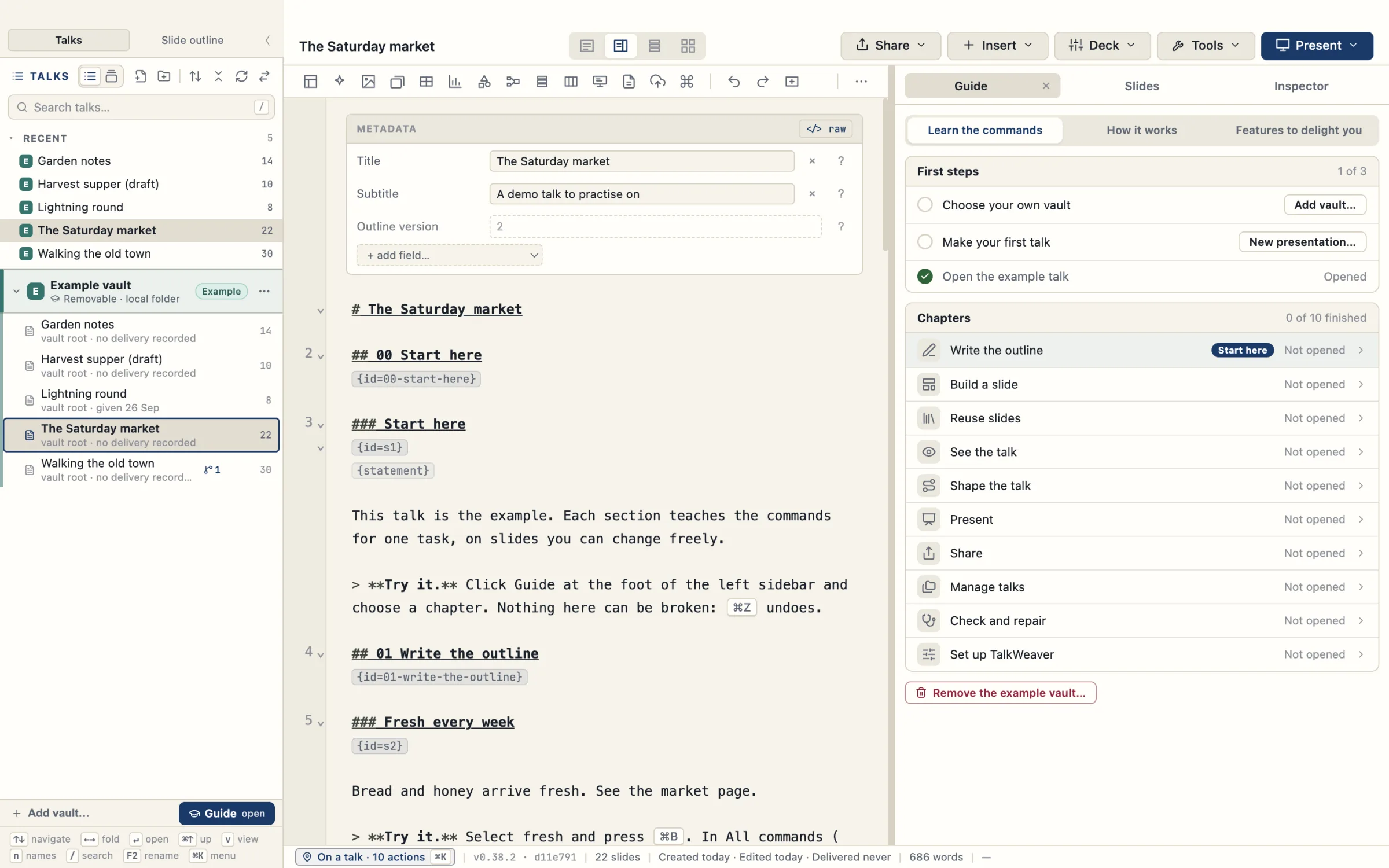
A Guide button at the foot of the Talks panel, beside Add vault…, opens a Guide tab in the right-hand pane, next to Slides and Inspector. The button is on the Talks tab of the sidebar; the Slide outline tab does not have it. It starts with three steps: choose your own vault, make your first talk, and open the example talk. Below them are three sections:
- Learn the commands has ten chapters: Write the outline, Build a slide, Reuse slides, See the talk, Shape the talk, Present, Share, Manage talks, Check and repair, and Set up TalkWeaver. A chapter ticks off each command as you use it.
- How it works explains the ideas behind the app. It is summarised below.
- Features to delight you lists features with where to find each, and ends with How you connect, and what each needs. It is summarised below.
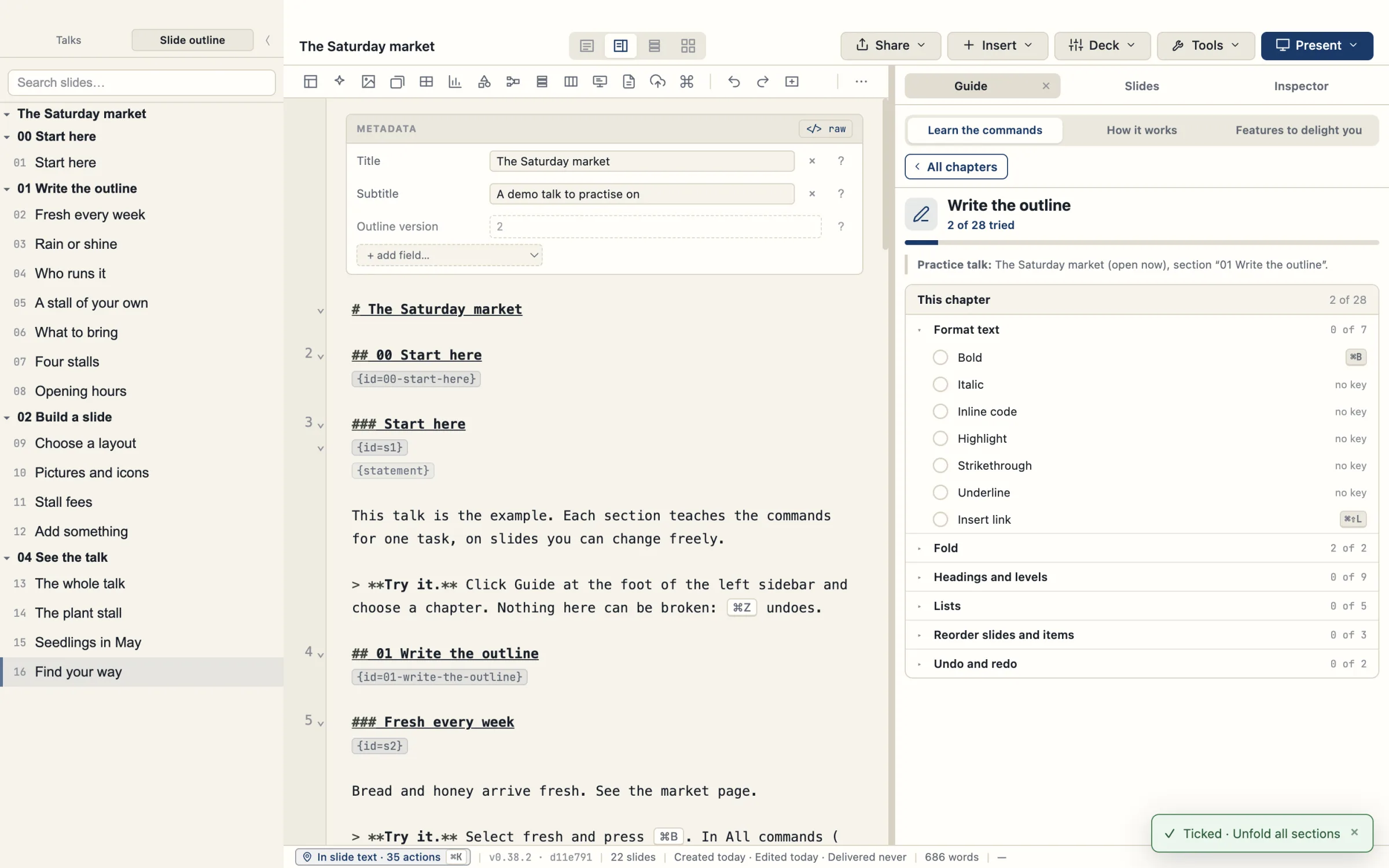
A switch in Settings hides the Guide button once you have finished. Settings → Get started and the command palette still open the Guide.
The example vault
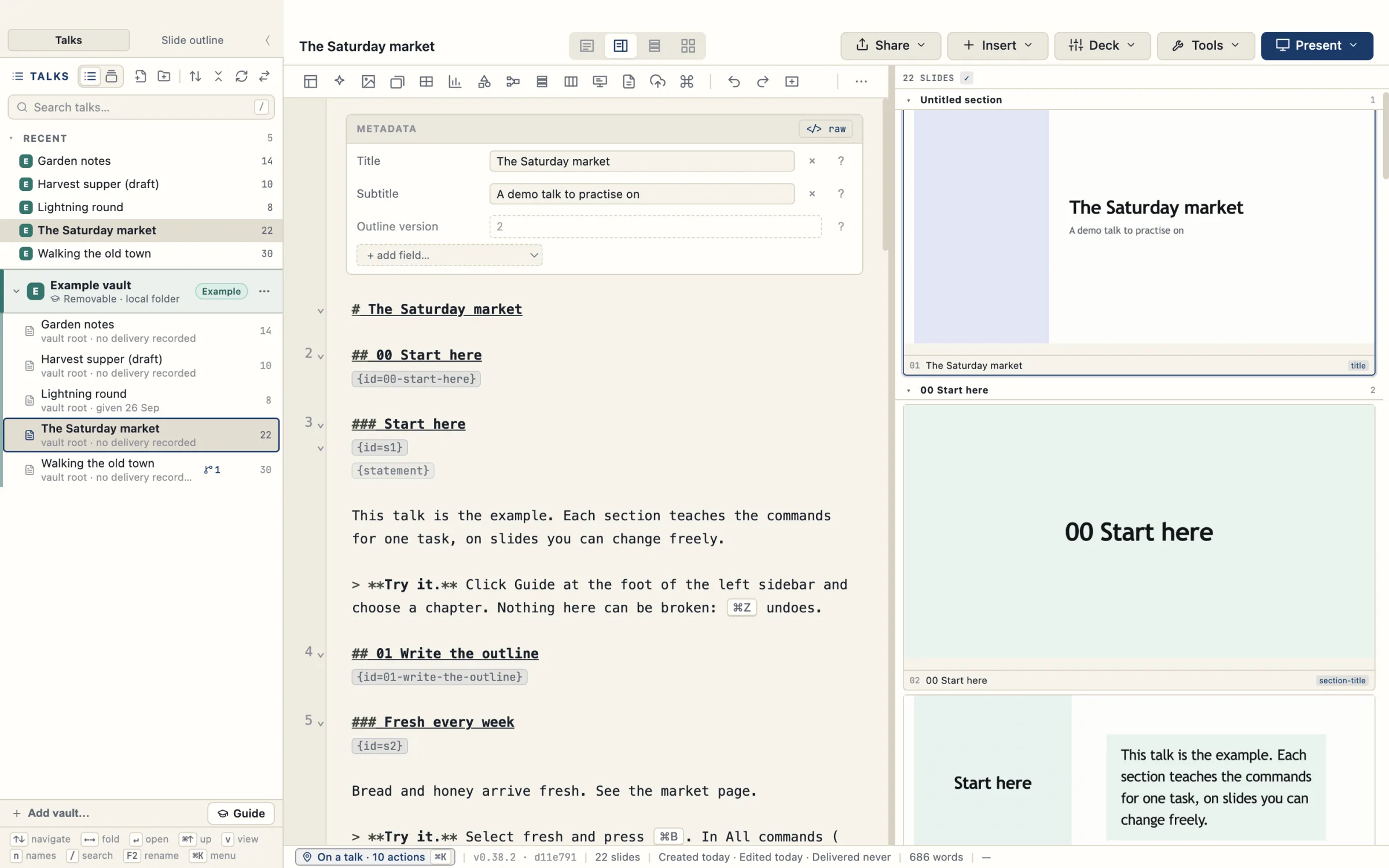
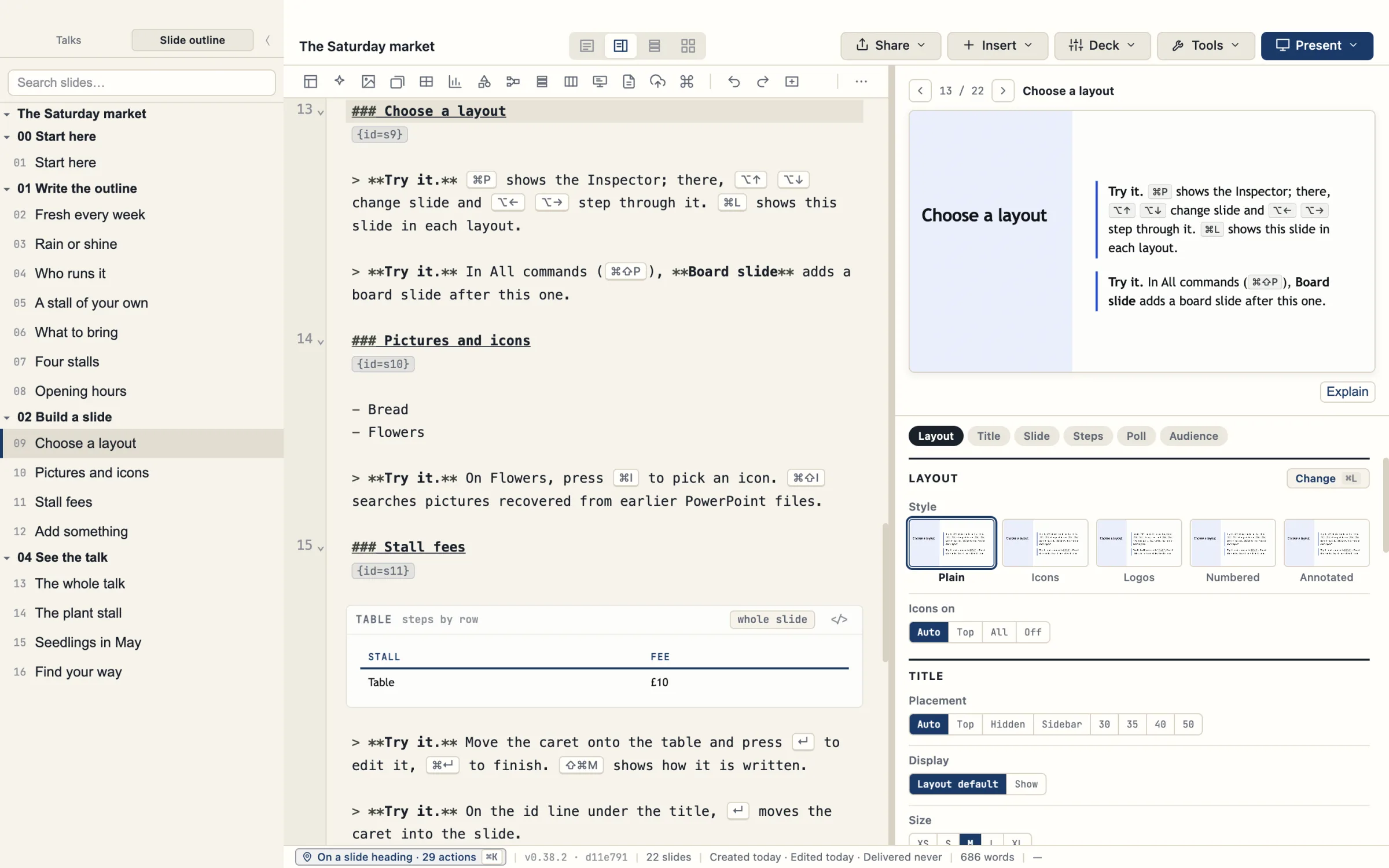
The first-launch screen offers “look around first”. It writes five example talks to Documents/TalkWeaver/Example vault: The Saturday market, Garden notes, Walking the old town, Lightning round and Harvest supper (draft). Each has an Example badge. Their practice slides tell you what to try, with the keys shown as key caps and a “Try it” line in bold.
Remove example vault asks once and shows what will move to the Bin. It touches nothing outside the example folder. Settings → Get started brings the example vault back as a fresh copy, with your progress kept.
In the presenter, a Guide column beside Next and Notes shows the Present chapter. The “Guide · Present” button in the bottom bar, beside Outline, opens it, and C shows or hides it.
The demo vault
The demo vault is a separate download, TalkWeaver-demo-vault.zip, attached to the 0.41.0 release. It holds twelve small talks that show the features at work: layouts, emphasis, audio and video steps, embedded pages, pre-work, polls, and the chat and terminal slides. It is not the example vault, which TalkWeaver writes itself from the first-launch screen and which has five talks.
- Unzip the download somewhere you keep documents, such as
Documents. - In TalkWeaver, open the Talks panel and choose Add vault….
- Choose Choose a folder… and pick the unzipped
TalkWeaver demo vaultfolder.
The talks appear in the Talks panel. TalkWeaver writes a small settings file inside the folder. You can copy a slide or a whole talk from the demo vault into your own vault.
Set up Cloudflare for publishing and going live
Publishing a handout, going live and sharing a talk for comments run in your own Cloudflare account. Settings → Cloudflare takes one Cloudflare API token and sets all three up, with no command line.
- Open Settings → Cloudflare. The screen says how to make the token and which permissions it needs.
- Paste the token and save it. TalkWeaver checks what the token can do and shows the account it is connected to.
- For publishing handouts, choose Create talkweaver-handouts. This makes the site in your Cloudflare account. When the row reads Ready, it shows the site and the web address of your handouts.
- For going live and sharing, choose Set up going live. TalkWeaver uploads the live service (polls, questions, reactions and Share for comments) to your account itself, and updates it when a newer TalkWeaver carries a newer one.
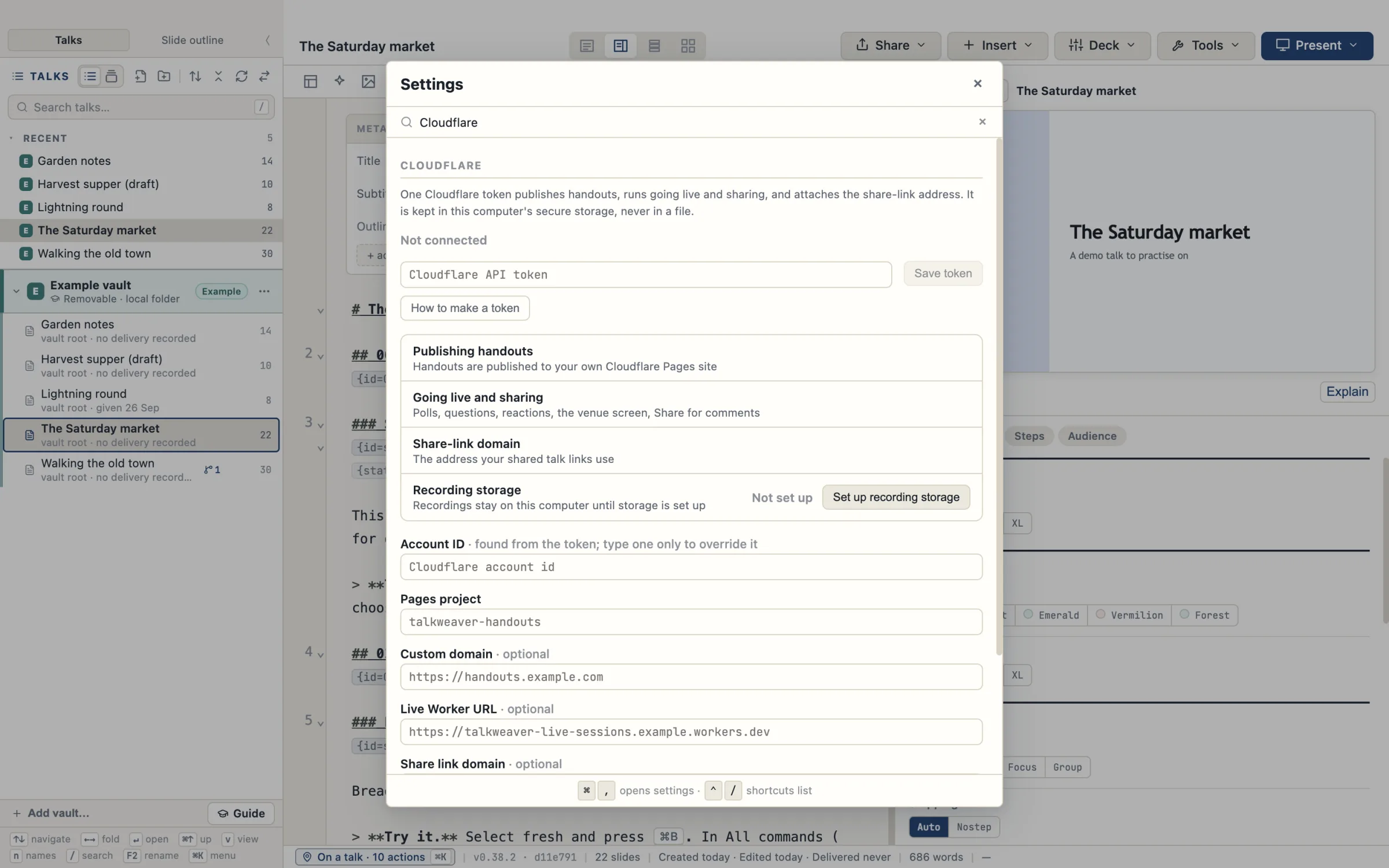
Share links can use your own domain. When your handout site has its own domain, the screen suggests share. followed by that domain, with a Use button. Recording storage has its own row and its own access keys on the same screen.
The token and the keys are kept in the computer’s secure storage (the Keychain on macOS, Windows protected storage), not in a settings file. When a publish cannot start, a sheet names what is missing and offers the one button that fixes it, or Save as a file instead.
Going live is set up on each computer. A second computer that has the same Cloudflare token in Settings → Cloudflare reads Set up on another computer on the Going live row, with the button Set up going live on this computer. Pressing it adds a key for that computer, and both computers can go live. Read more about going live from a second computer.
Set up by a coding agent
A coding agent can do the same from the command line with TalkWeaver setup, without opening a window. setup status --json reports the same states as the screens. A token is read only from a hidden prompt or from standard input, never from an argument. Quit TalkWeaver first: while it is open, every setup command stops and changes nothing. The set-up guide for agents is inside the app.
On Windows, the Cloudflare set-up and the secure storage are tested automatically against a stand-in for Cloudflare. A real publish and go-live with a real account has not been tested on Windows.
How TalkWeaver works
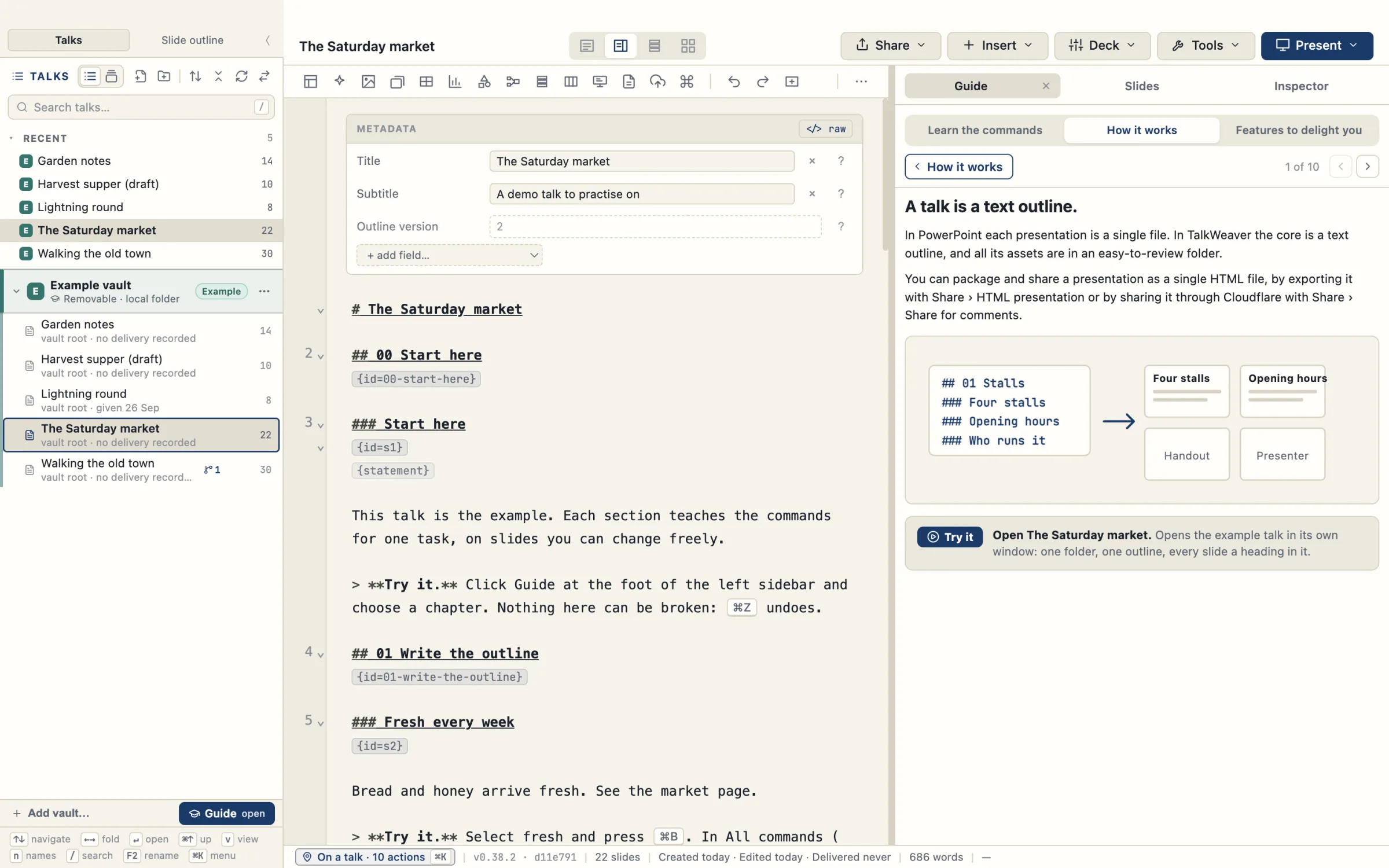
The Guide’s How it works section has ten topics, each with a short text, a picture and a Try it button. They are:
- A talk is a text outline. Each talk is its own folder on disk with one Markdown outline in it. Slides, the handout, the presenter view and the venue screen are all made from it. You can export the talk as one HTML file or publish it as a handout. There is no canvas.
- A vault is a folder of talks. TalkWeaver also keeps delivery records and slide history in the vault. You can have several vaults.
- Headings become slides. A word in braces under the heading picks its layout:
{statement}under a heading makes it a statement slide. The outline stays plain text. - You choose a layout for each slide. ⌘L shows your own slide in each layout. A slide that cannot fit is flagged, never shrunk.
- A slide keeps its identity. Reuse it in another talk and TalkWeaver knows where it is used and keeps its versions.
- A pathway is a shorter version of a talk. A pathway is a ticked list of slides from the same talk, such as a 20-minute version of an hour-long talk, so you improve a slide once.
- Presenter and audience are separate. Notes and the clock are yours. Speaker notes never go into the deck, the handout or anything shared.
- Every delivery is kept. A run through the presenter can be saved as a delivery, rehearsal or recording, with its audio, polls and questions attached.
- No TalkWeaver account or server. Publishing, going live and sharing run in your own Cloudflare account.
- The handout is made from the outline. Share › Handout builds a handout from the talk’s outline, and Share › Publish to Cloudflare puts it online at a link you can give out. The handout and the slides are built from the same outline, so they match each time you build them.
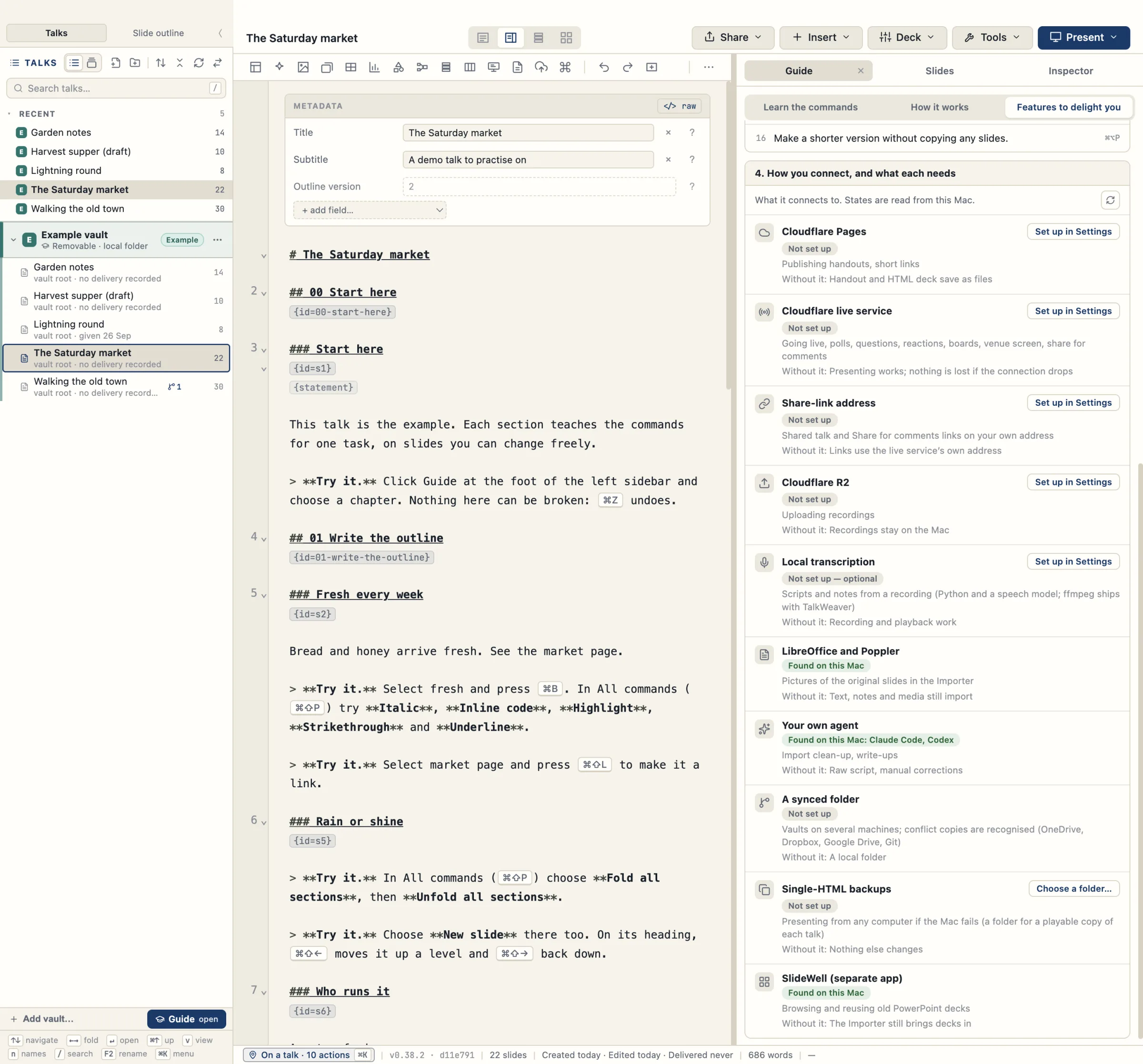
How you connect, and what each needs
This is the last section of Features to delight you in the Guide. Everything works without a connection except the features that need one. The Guide reads this Mac and shows, for each of the ten connections below, whether it is set up.
- Cloudflare Pages publishes handouts and short links. Without it, a handout and an HTML deck save as files.
- Cloudflare live service is for going live, polls, questions, reactions, boards, the venue screen and share for comments. Without it, presenting works and nothing is lost if the connection drops.
- Share-link address puts shared-talk and Share for comments links on your own address. Without it, links use the live service’s own address.
- Cloudflare R2 uploads recordings. Without it, recordings stay on the Mac.
- Local transcription makes scripts and notes from a recording. ffmpeg ships with the app, and Settings → Transcription has one row that says whether transcription is set up and what is missing. Without it, recording and playback work.
- LibreOffice and Poppler give the Importer pictures of the original slides. Without them, text, notes and media still import.
- Your own agent (Claude Code, Codex or Gemini CLI, found on this Mac) helps with import clean-up and write-ups. Without it, you have the raw script and make corrections by hand.
- A synced folder (OneDrive, Dropbox, Google Drive or Git) lets you keep vaults on several machines, and conflict copies are recognised. Without it, vaults are local folders.
- Single-HTML backups keep a playable copy of each talk in a folder you choose, so you can present from any computer if your Mac fails.
- SlideWell is a separate app for browsing and reusing old PowerPoint decks. Without it, the Importer still brings decks in.
Live features need a Cloudflare account. Set it up inside TalkWeaver in Settings → Cloudflare.
If something goes wrong
Please open an issue on GitHub and describe what you did and what happened.