
Presenting
Every deck comes with a real presenter view. You can draw on a slide, point at it, step through emphasis and pictures, run interactive pages, bring up the talk’s QR code from any slide, put countdowns, links and QR codes on screen while you speak, and build a handout page.
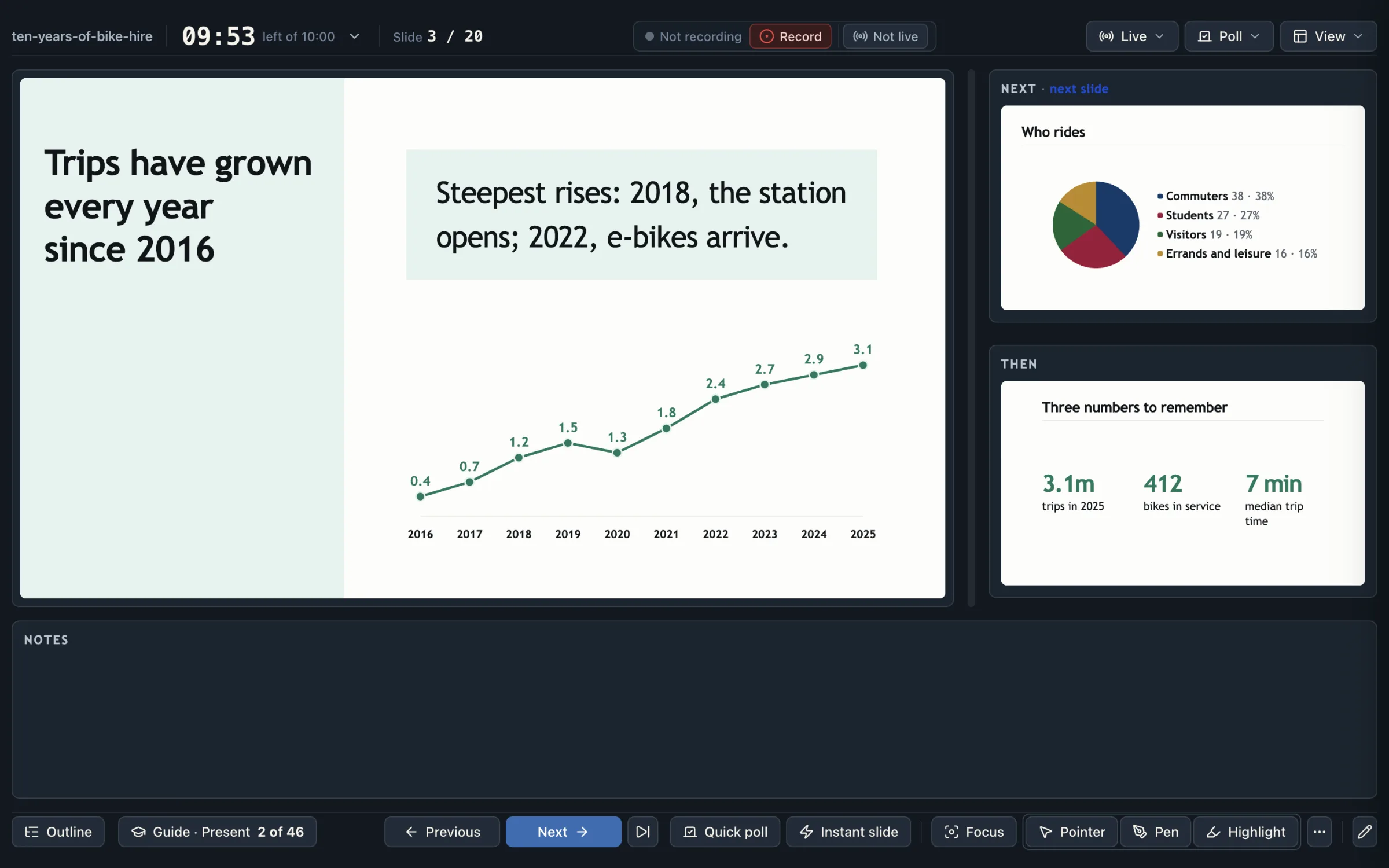
A presenter view with notes and a clock
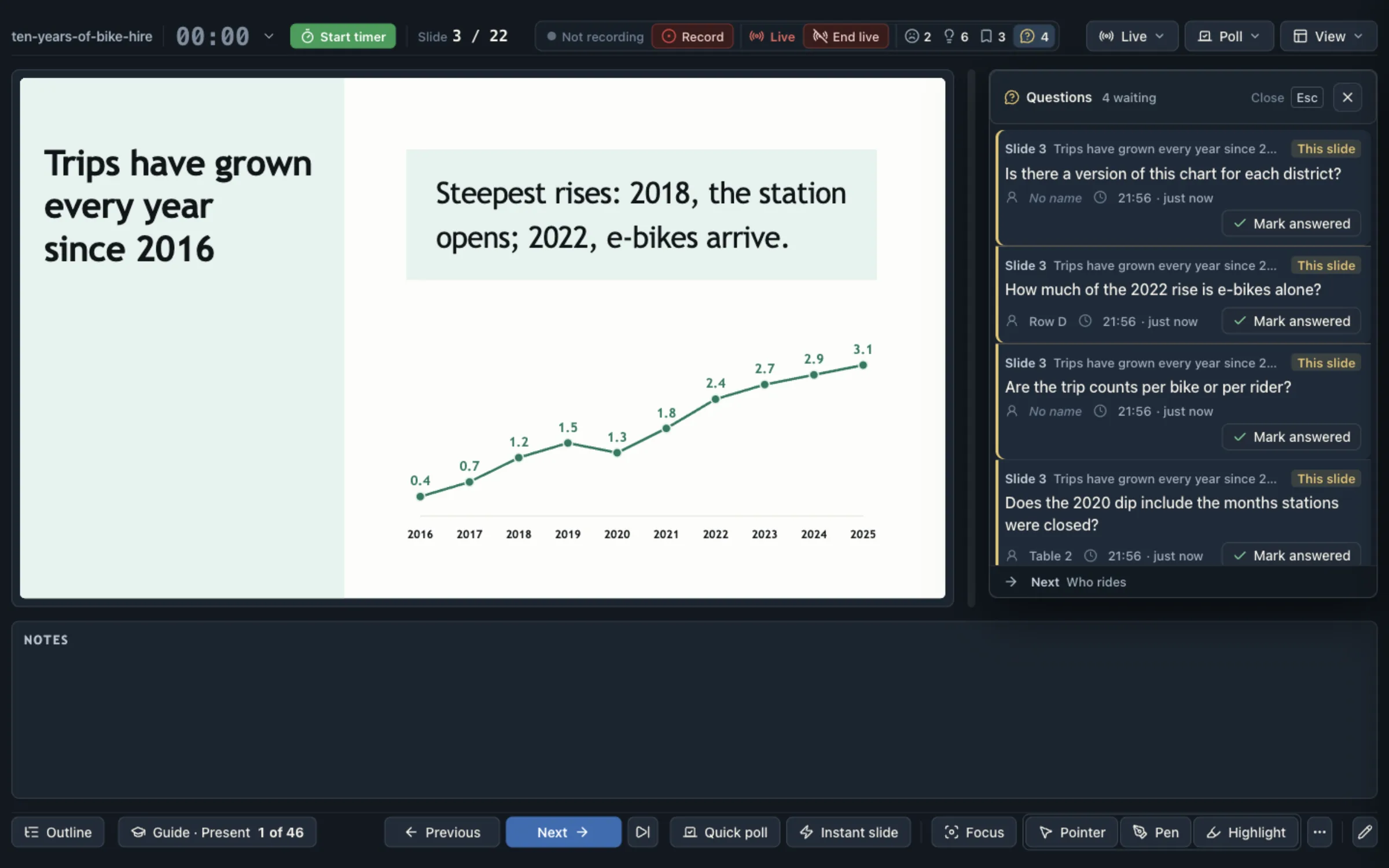
The presenter view shows your notes, a clock and the next slides in a window separate from the audience display. F5 in the presenter view opens the audience window on a second display.
The timer starts when you press P. You set the talk’s length with T, and the clock changes colour as you approach the end.
You can step through a slide’s content with reveal (R) and focus (F), highlight text (H), and open a searchable outline of the talk (O) to jump anywhere. B takes you back to where you jumped from.
Because the deck is one HTML file, it also plays on a computer that does not have TalkWeaver.
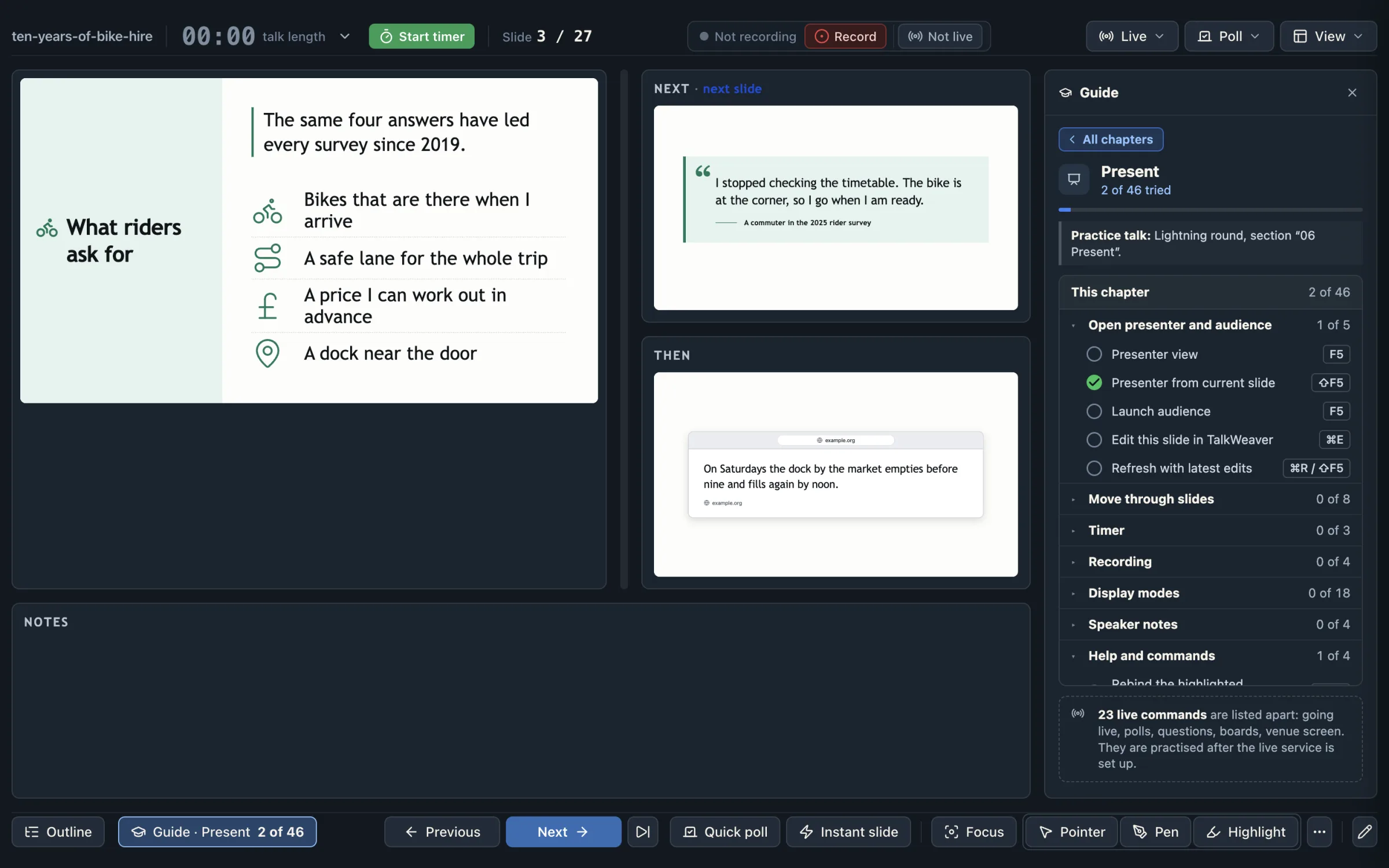
The Guide column
The presenter window has a Guide column. C shows or hides it, and the Guide button in the bottom bar, beside Outline, does the same. The column shows the Present chapter and ticks commands as you use them. The key can be changed in the keyboard sheet.
A bigger slide in the presenter view
Notes sit under the slide by default, so the slide you are presenting is larger.
You can turn the notes off, move them to a sidebar, or show them as a teleprompter. The teleprompter is a band above the slide or a column under the camera. You scroll it with J, or it scrolls on its own at a speed you set.
The notes placement is one setting for all your talks, and you can override it for a single talk. Notes under the slide hide while a poll is open.
The pen
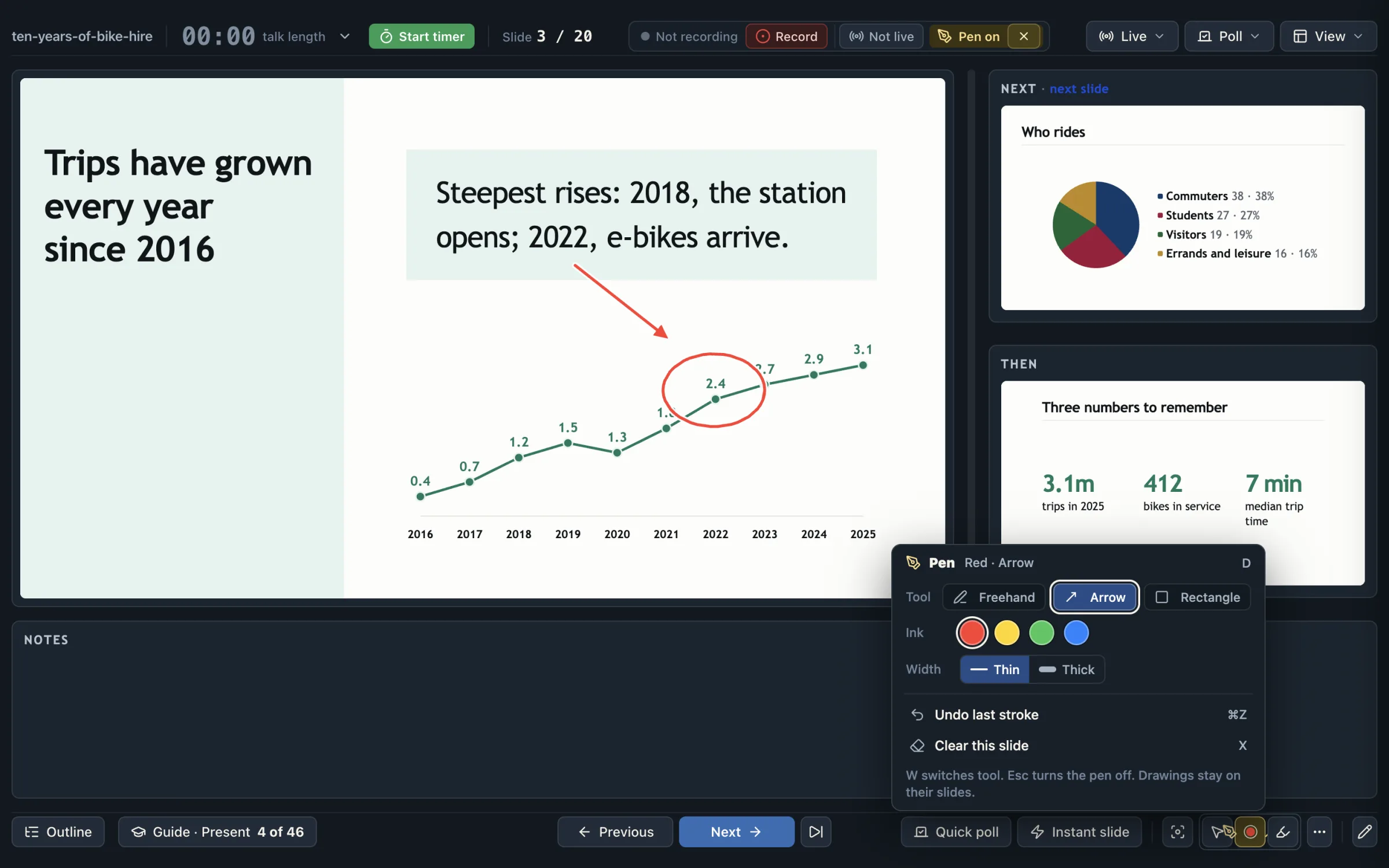
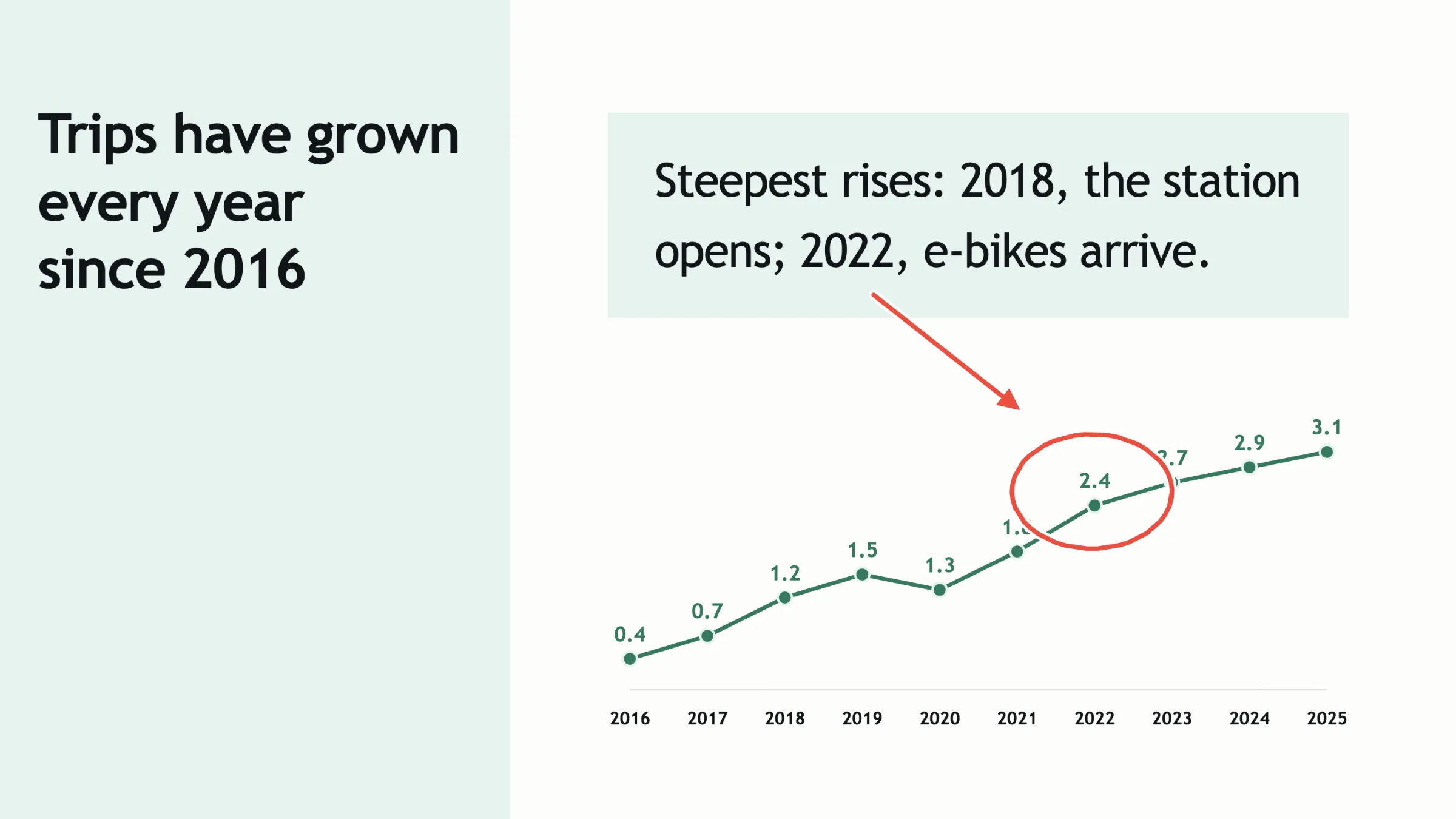
Press D in the presenter to draw on the current slide. The drawing appears on the audience and venue screens as you draw. You can also draw on a zoomed picture.
W steps through freehand, arrow and rectangle (⇧W steps back). Hold Shift for a straight arrow or a square, and press Esc to cancel a shape mid-drag. ⌘Z removes the last stroke, X clears the slide and ⇧X clears every drawing in the talk.
Drawings stay on a slide when you move away and come back. They are not saved in the talk. When you record a talk, the recording keeps them, and replay shows each one when you drew it.
The pointer
Press I, or the Pointer button, and a red ring follows your mouse over the Current pane on the audience screen.
Emphasis, pictures and audio, one step at a time
Bold, highlighted and underlined phrases can light up one at a time as you press Next. Step through images enlarges each picture on a slide in turn, then shows the whole slide again.
Audio files play on a slide, and a video or sound can start as one of the slide’s Next steps. ~~struck~~ and ++underlined++ text shows on slides in every view.
A talk can show only pictures and files inside its vault, not files from elsewhere on your Mac.
Interactive pages on slides
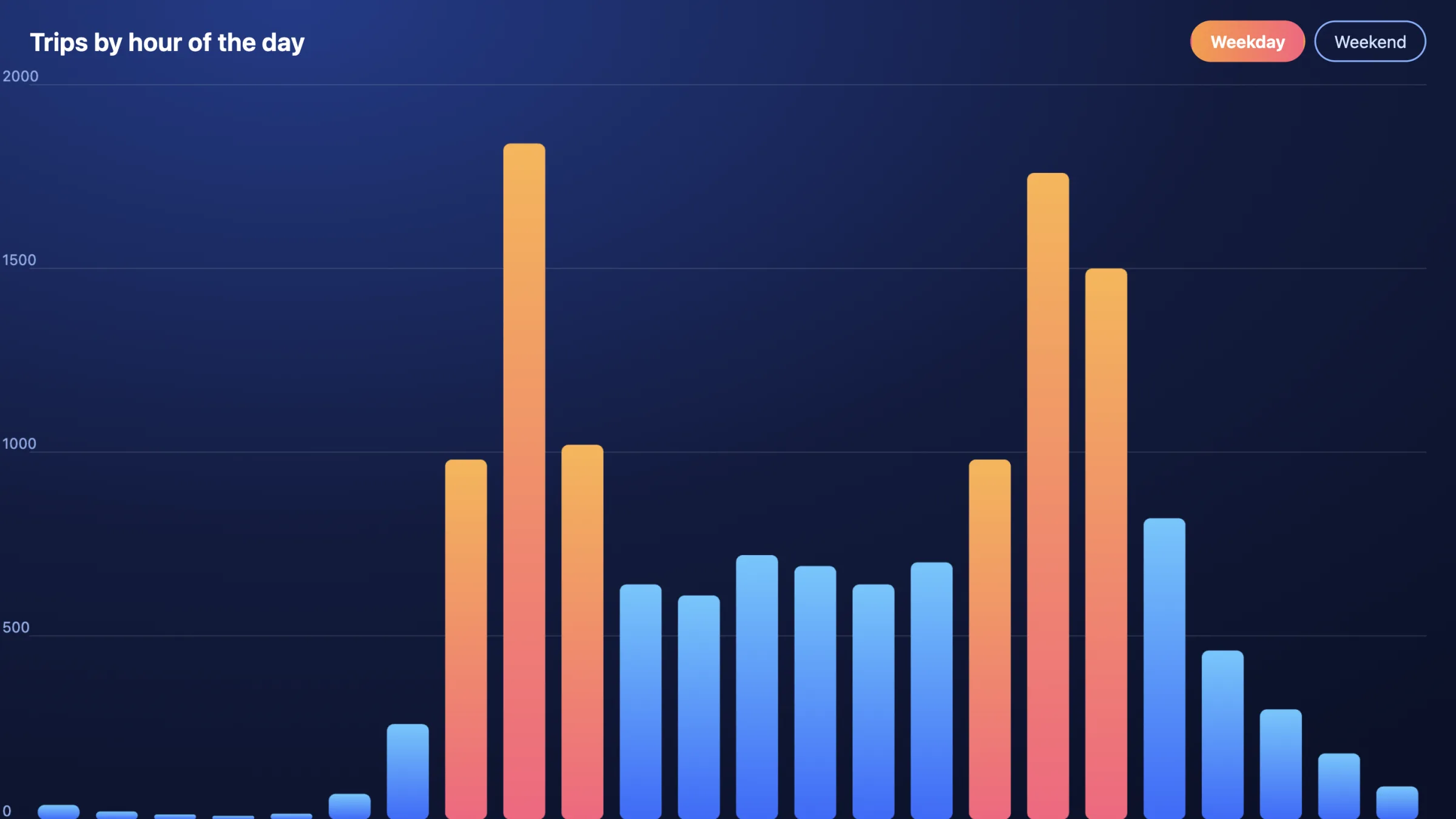
An HTML page in the talk’s folder, added with [Embed: …] or [Simulation: …], runs on its slide in a sandbox cut off from the app and your files. In thumbnails, the Next preview, handouts and replay it is a labelled box.
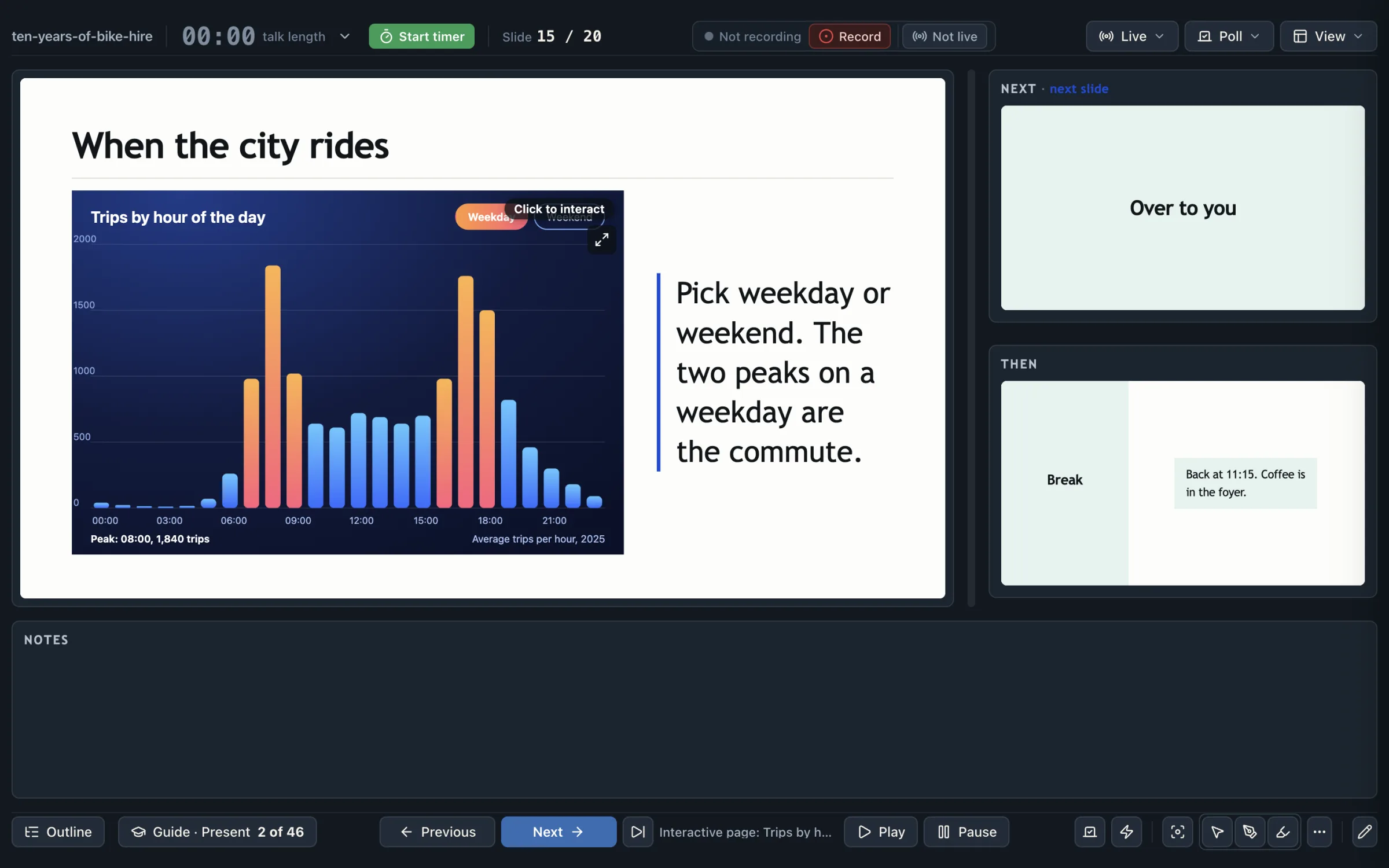
In the presenter, the Current pane shows the whole slide with the page working in its place. Click the page, or press E, to use it; your scrolling, clicks and typing are copied to the audience screen. Esc gives the keys back to the slides.
Z, the button on the pane, or the command palette makes the page cover the whole slide on both screens, like a zoomed picture. A page beside text takes 70% of the slide’s width; the Inspector’s Page setting changes that to 60% or 80% for one slide. Websites and videos from the web are not covered yet.
The QR code from any slide
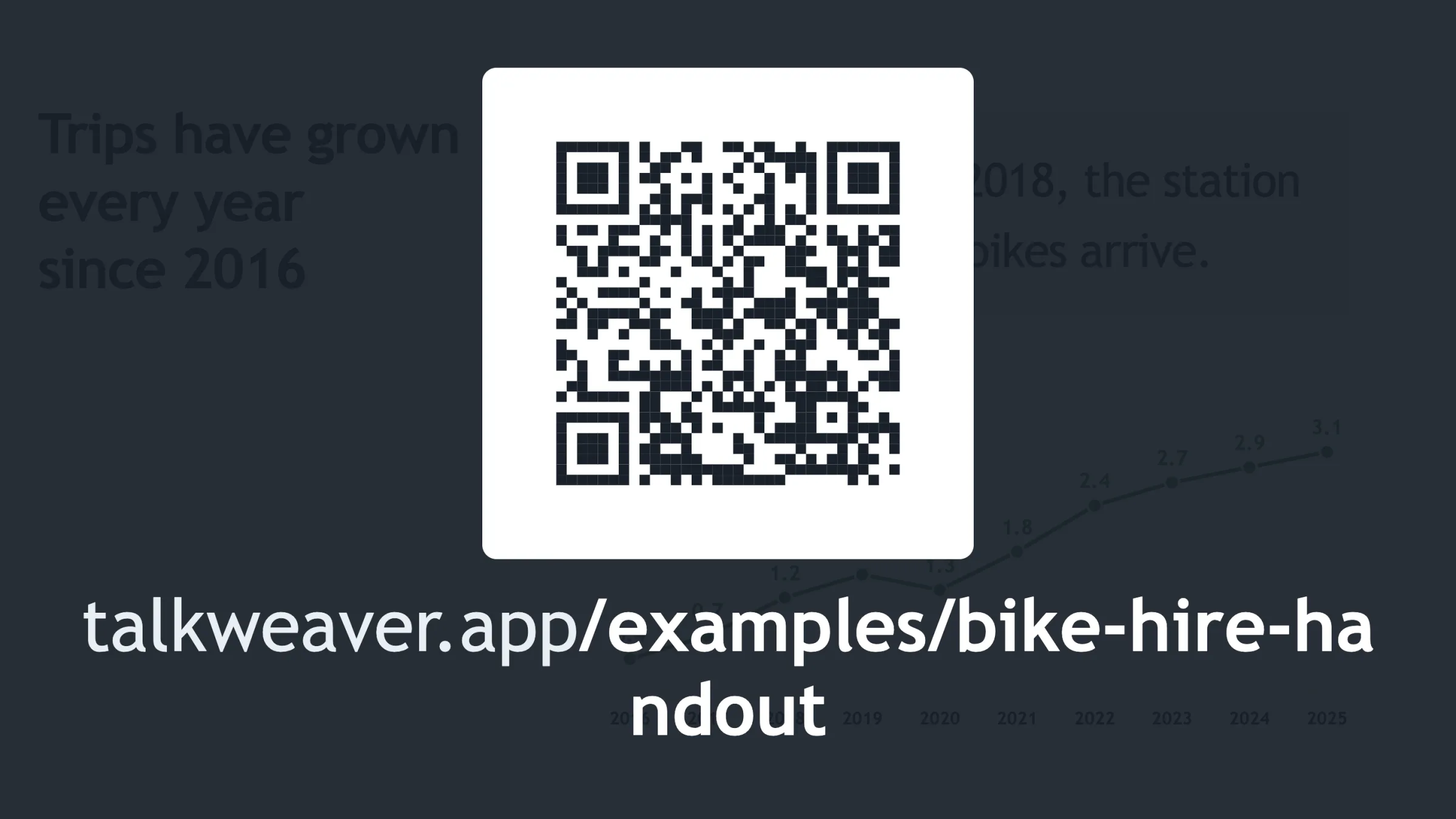
When someone asks for the slides, one key shows the talk’s QR code and link full screen, on the big screen and on the venue screen. It does not appear on audience phones.
While you are live, the QR code takes people to the live talk. When you are not live, it takes them to the published handout. U shows it, and Esc returns you to the slide you were on.
QR codes made from a link
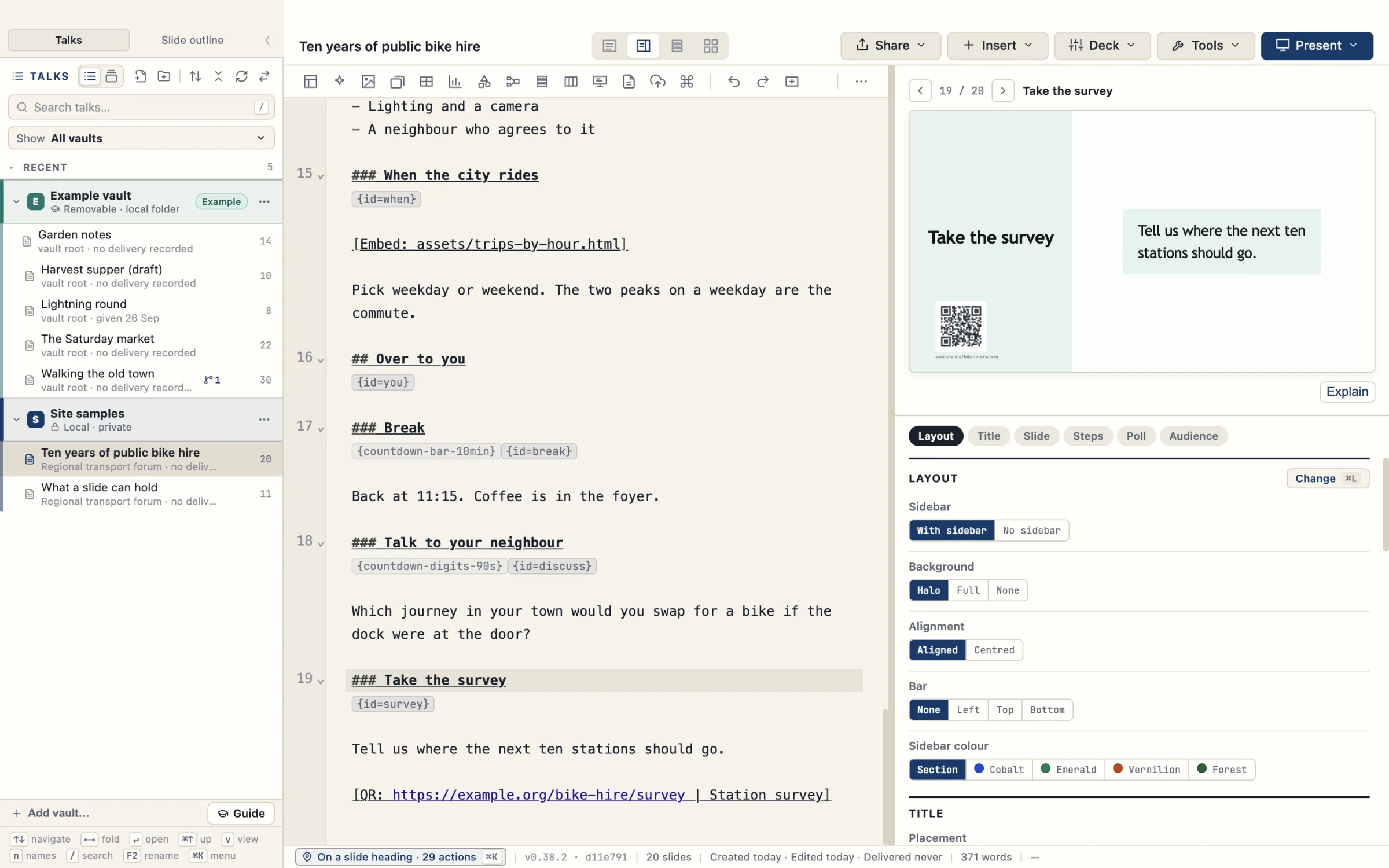
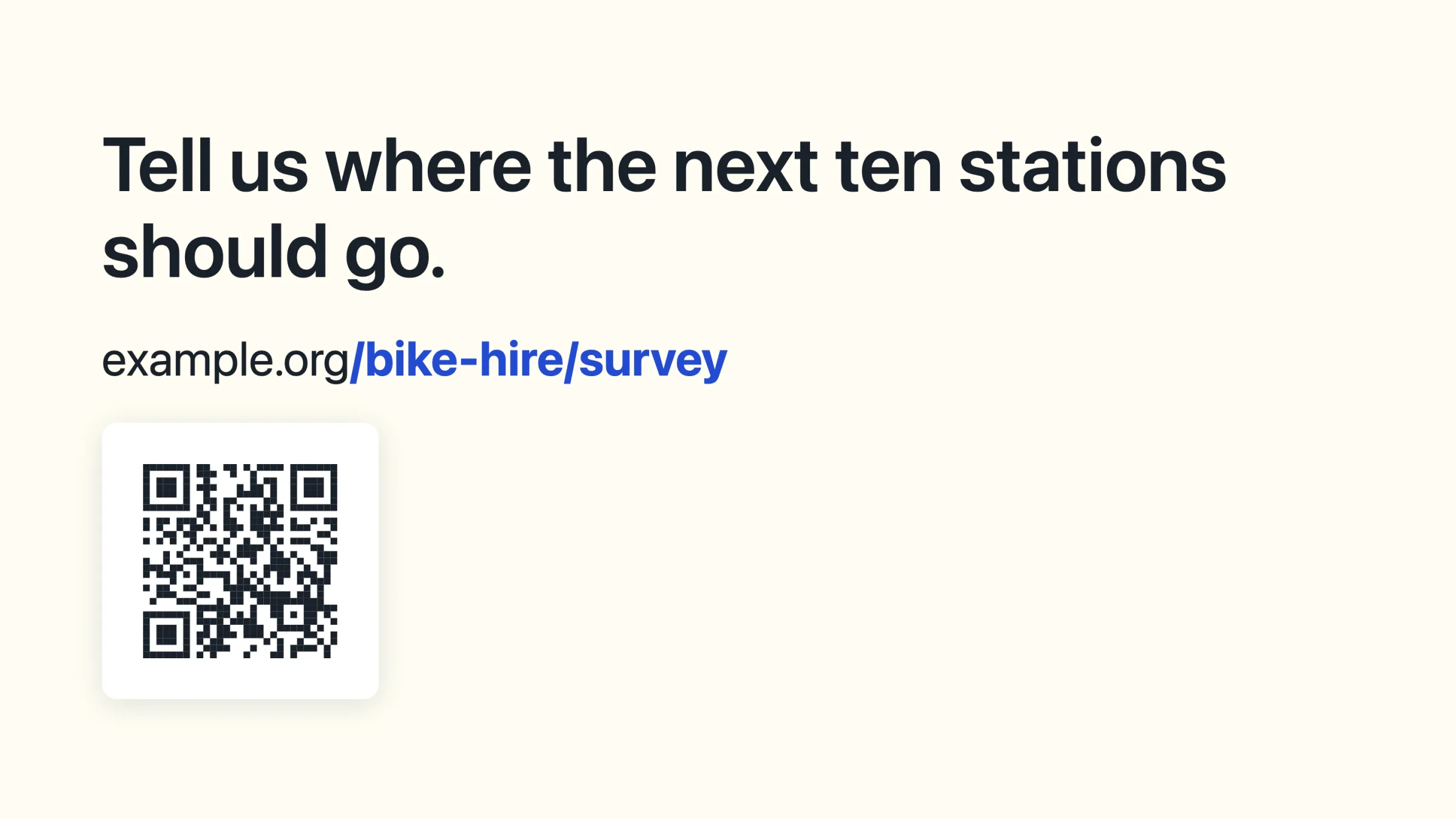
Write a link on a line of its own as [QR: https://example.org/bike-hire/survey | Station survey] and the slide shows a QR code for it in the bottom-left corner, with the address in small type under the code. Insert › QR code in the editor adds the line for you.
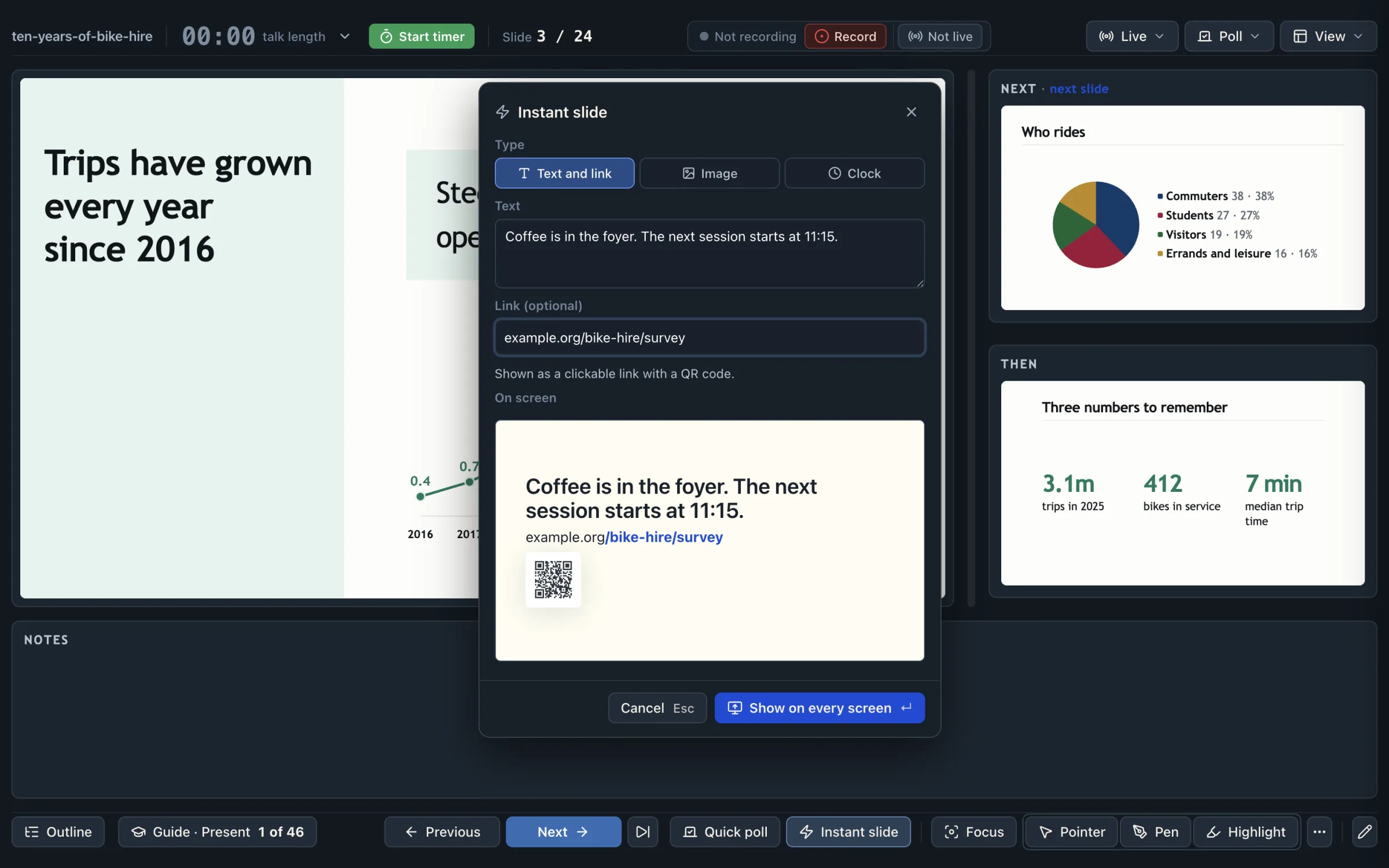
During a talk, the Instant slide composer in the presenter does the same for a link typed under the text: the link appears as a clickable link with a QR code, on every screen.
Instant slides during a talk
Press ⌘V in the presenter view to show whatever is on your clipboard: a link, some text or a screenshot. A “Show this?” preview appears first, and ↵ puts it on screen.
The Instant slide button at the foot of the presenter (⌥⌘I) opens a composer with three tabs: Text and link, Image and Clock. It shows a preview of the slide, and Show on every screen puts it up. A link is shown with its own QR code, so people can open it on their phones. The Clock tab shows the current time or a countdown.
Instant slides appear on every screen, including audience phones. → takes you back to the slide you left.
After the talk, the Run in History lists every instant slide you showed. “Add to talk” puts one into the talk after the slide it followed. See what happens after the talk.
Countdown and break slides
A countdown can be a slide in the outline or an instant slide.
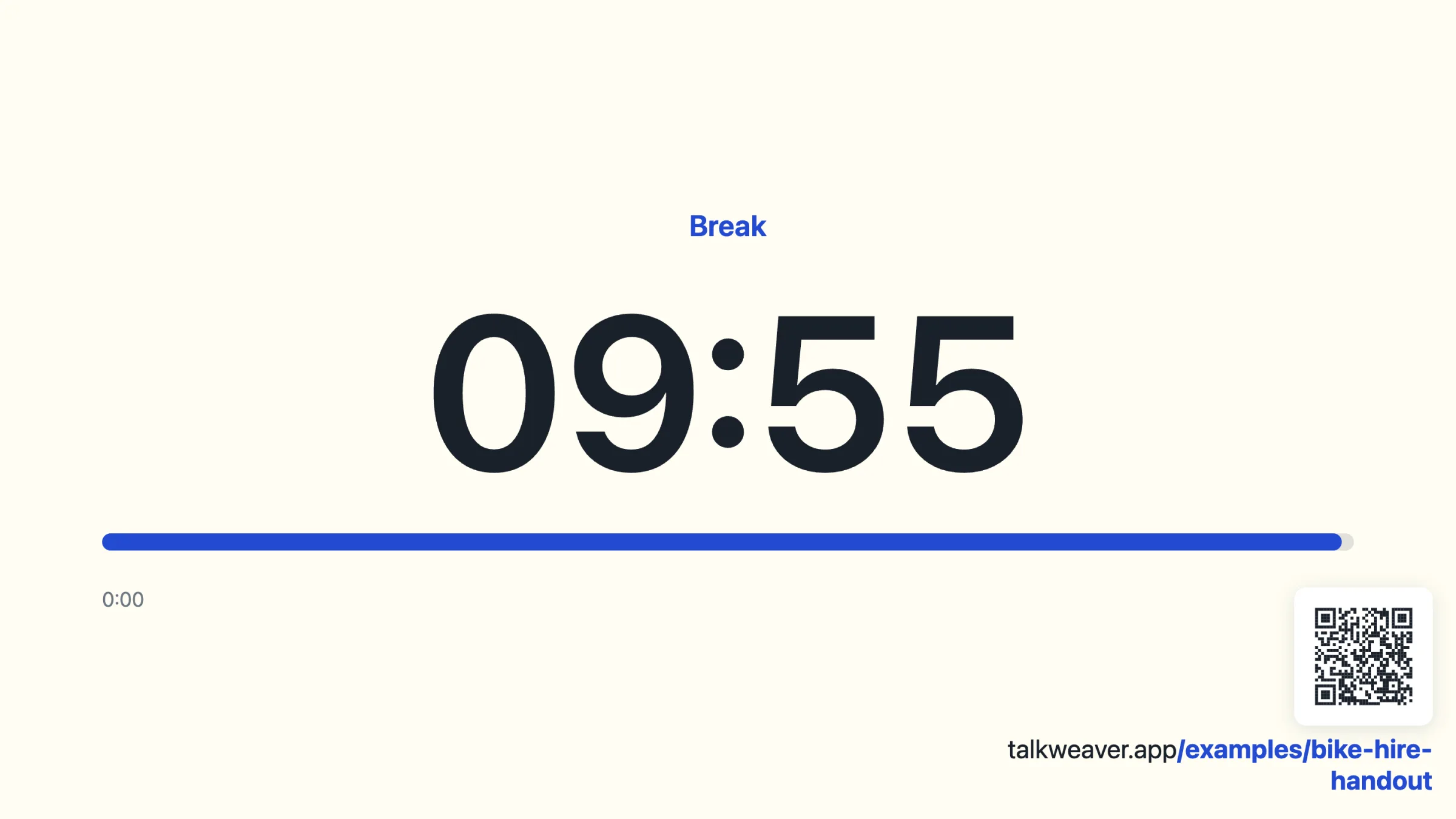
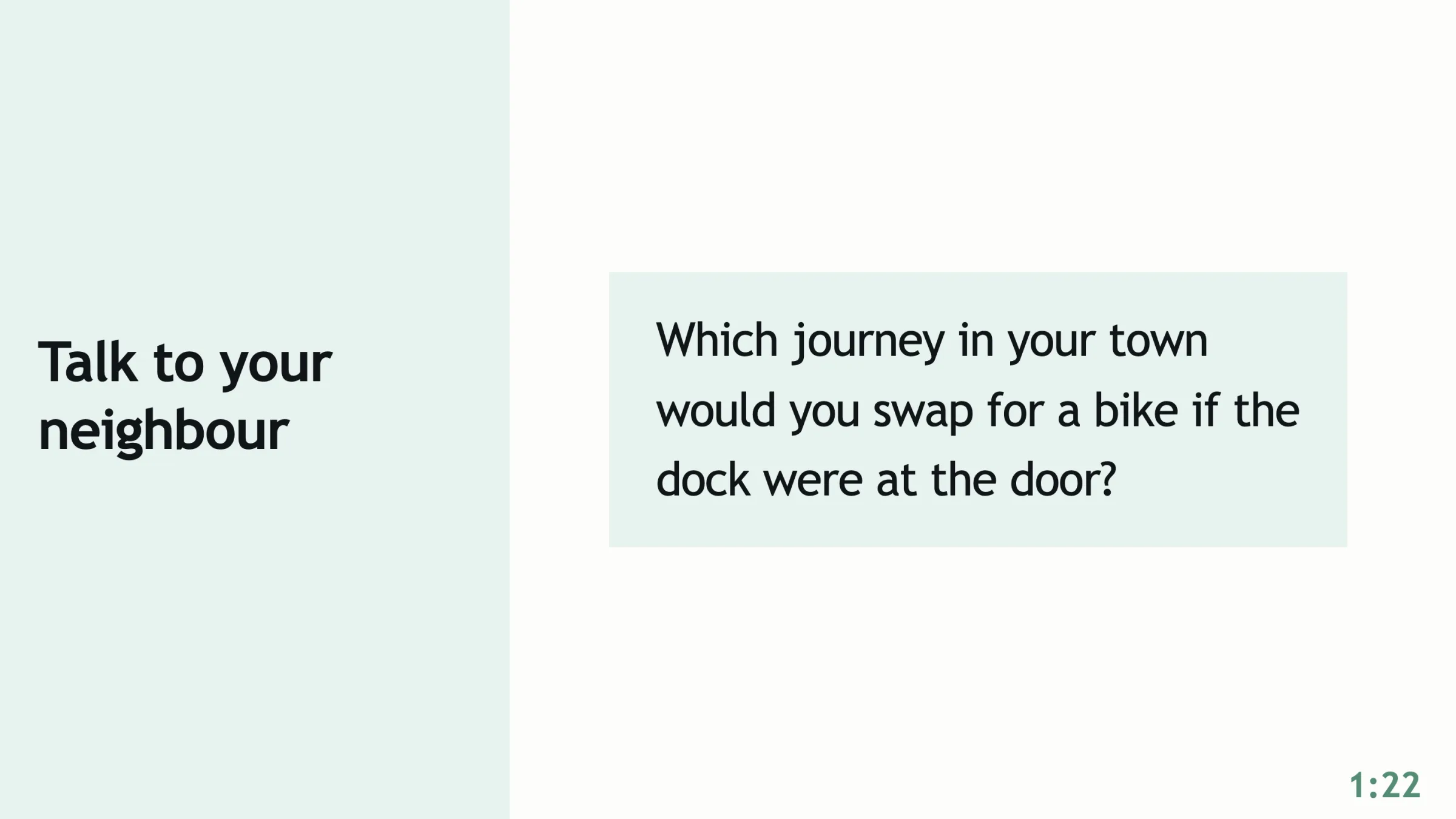
In the outline, a word in curly brackets under the heading sets it: {countdown-digits-90s} counts down 90 seconds as digits, and {countdown-bar-10min} counts down ten minutes with a progress bar. The slide’s text stays on screen, and with the digits style the time left runs in the bottom-right corner. Insert › Countdown is in the editor’s Insert menu.
In the presenter, Instant slide › Clock › Countdown makes one on the spot. You pick 1, 2, 3, 5, 10, 15 or 20 minutes, an optional label (Break, Discussion or Group work, or your own words) and a sound at the end: none, a chime or an alarm. The countdown shows large digits over a progress bar.
First and last slides from the metadata
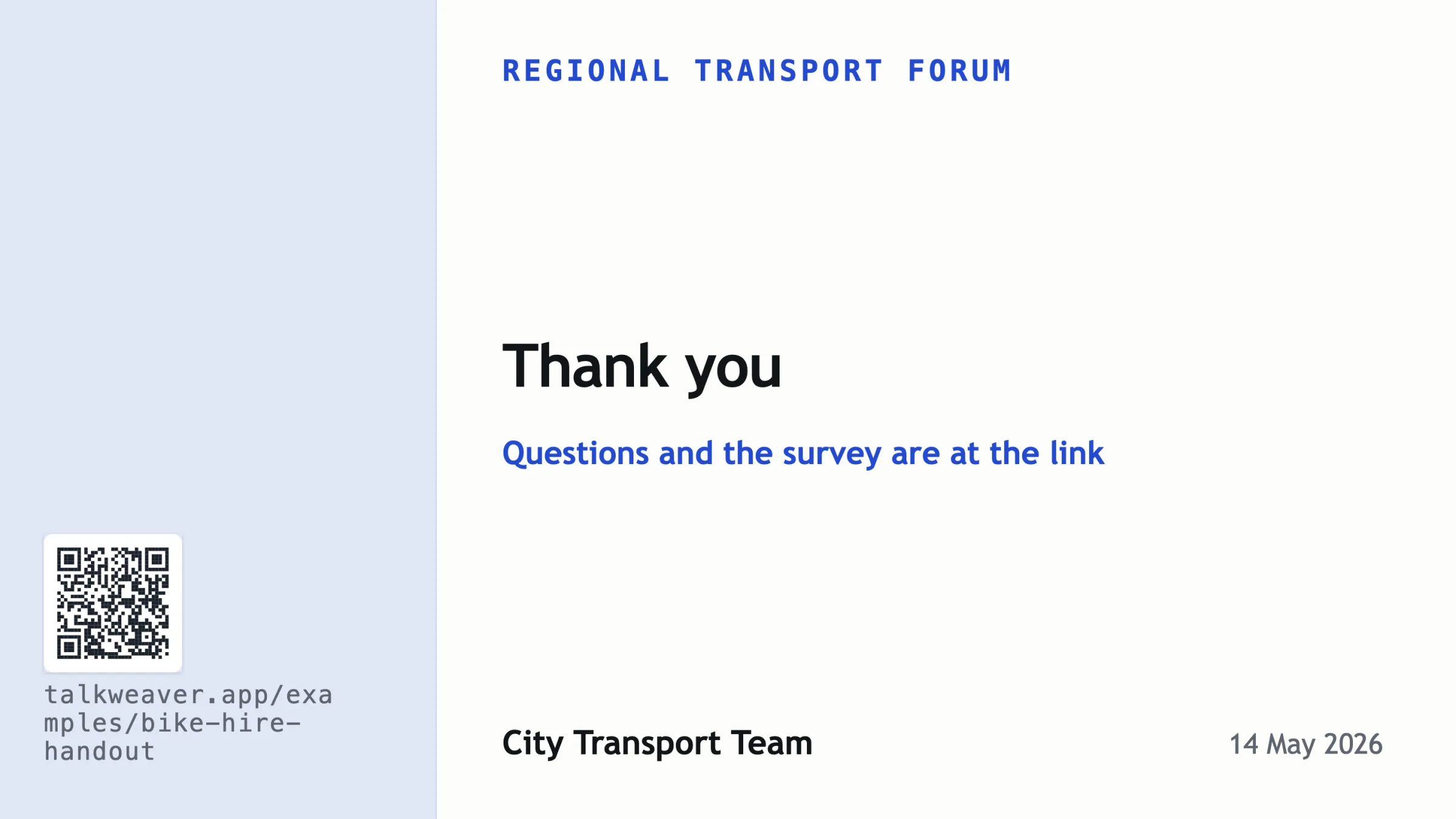
The talk’s metadata has fields for Title, Subtitle, Event, Author, Talk date, Title colour, Handout URL and Call to action. TalkWeaver builds the first slide from them: the event above, the title and subtitle, the author and the date. The last slide says Thank you with the Call to action under it, and the author and date. Neither slide is written in the outline.
When the Handout URL is set, both slides show its QR code and address in the left band.

A sample handout page
Share › Handout builds a handout from the outline as one HTML page in the talk’s folder, and shows it in Finder. The status bar reads Built with the file name. Nothing is published.
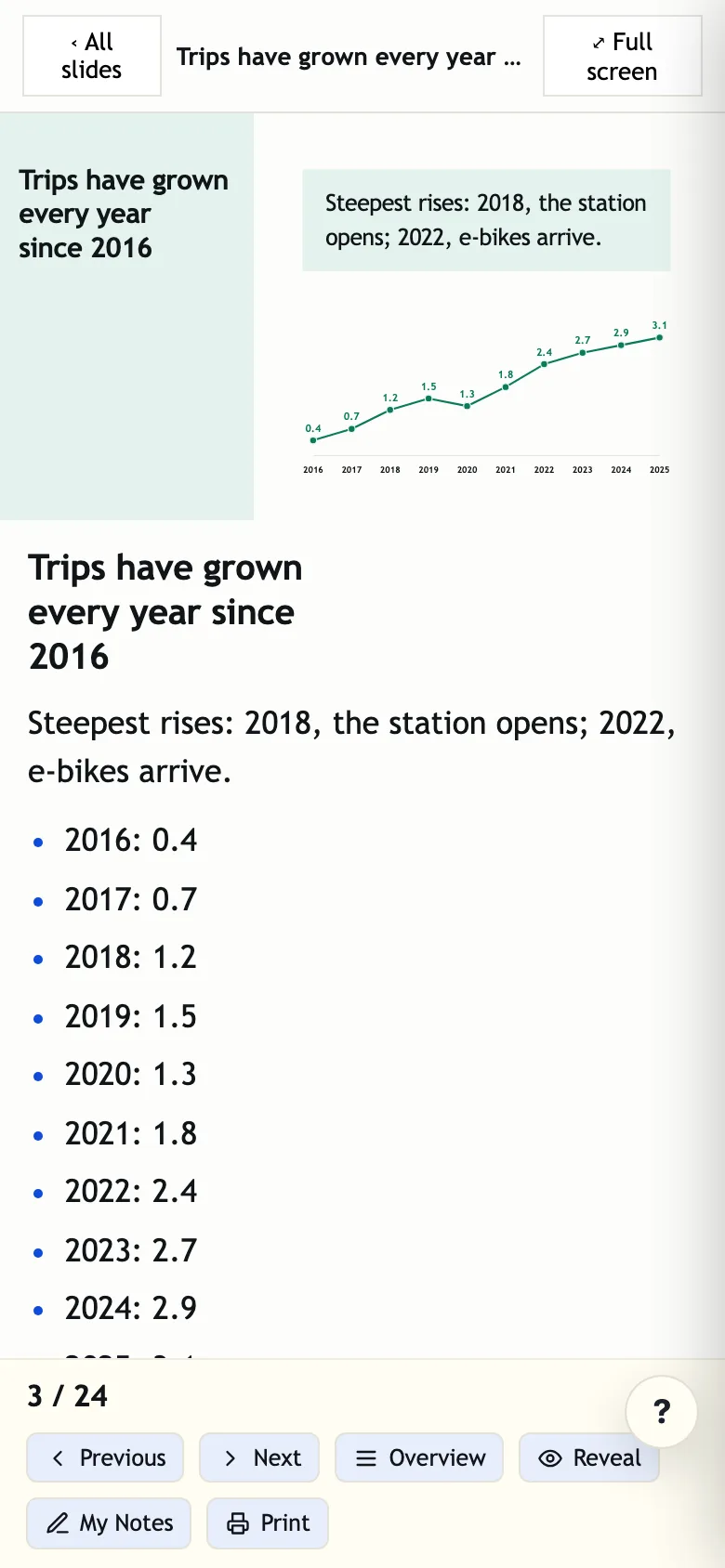
Opened in a browser, the page shows the slides with Previous and Next buttons, an Overview, Reveal, My Notes and Print. The Overview is a searchable list of the slides, grouped by section, and its Previews button shows each slide as a picture. A line of marks lists what a reader can add to a slide: Note, Bookmark, Puzzled, Helped, Question and Poll answer. On a phone the slides run down the page under My Notes.
See an example handout: the handout of this sample talk, built with Share › Handout and hosted on this site.
The handout page you publish to Cloudflare is covered in a handout for each delivery.
A sample HTML export
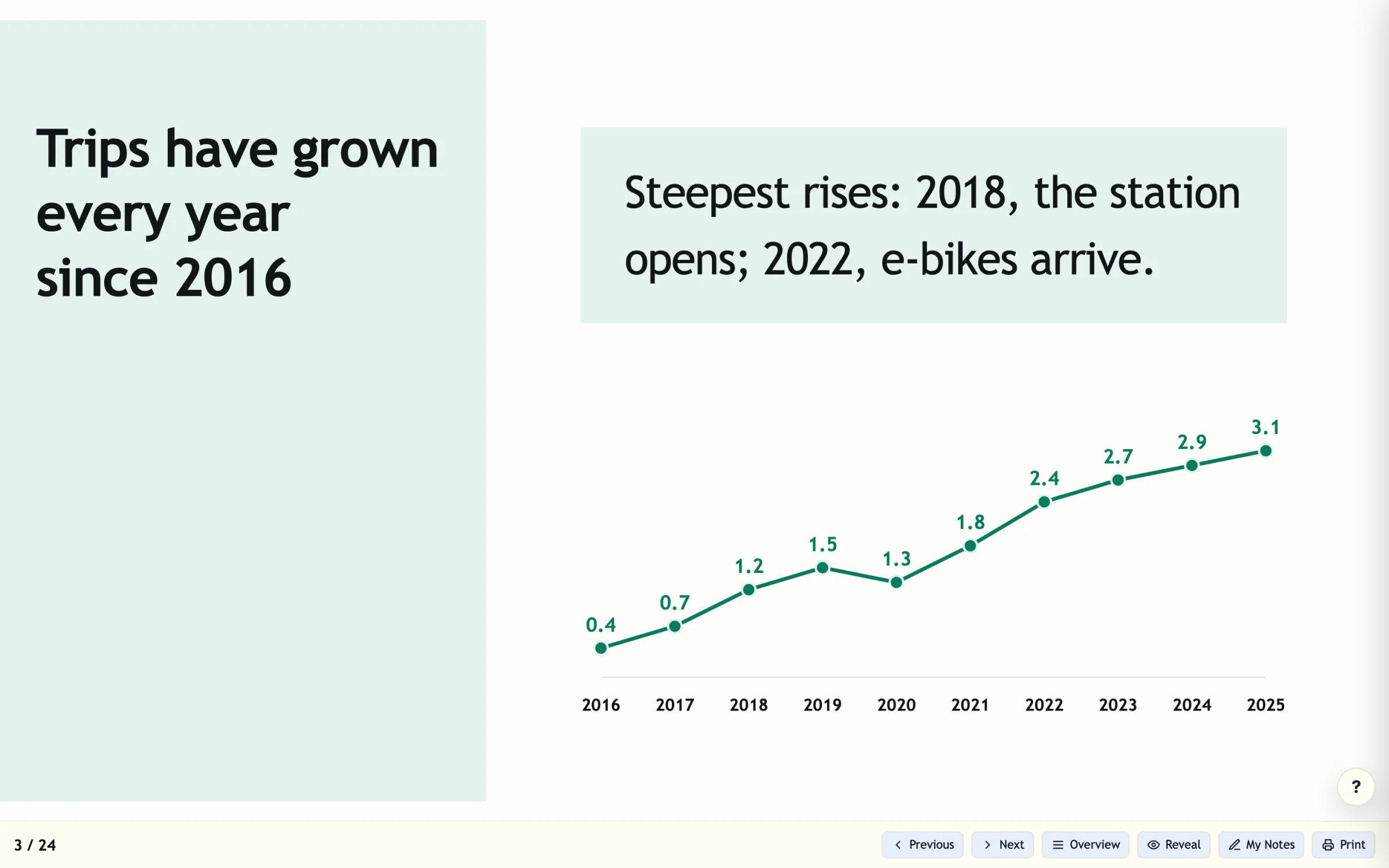
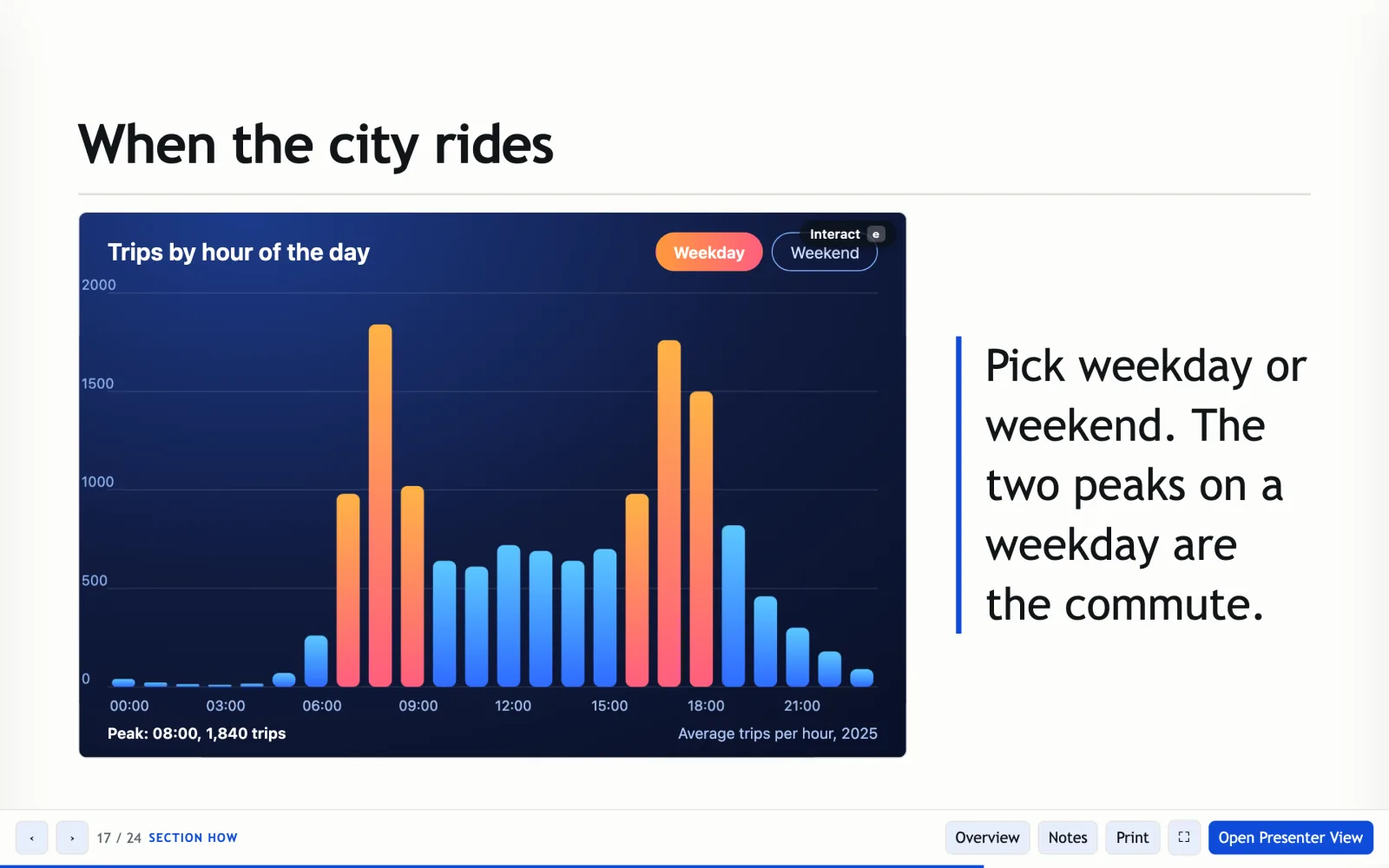
The example is the sample talk exported with Share › HTML presentation. It is one HTML file of about 5.6 MB that opens in any browser and made no network requests when tested. The arrow keys, Space, Home and End move between slides, Overview lists the slides with a search box, and the charts, pictures and the QR code are drawn on the slides. The embedded page is interactive once you click Interact, and Open Presenter View opens a presenter window with a clock.
Recording and Studio
The presenter’s top bar shows whether you are recording and has a Record button, beside the live state. A recording is kept with the Run for that delivery. It is saved on your computer first and uploaded only when you ask.
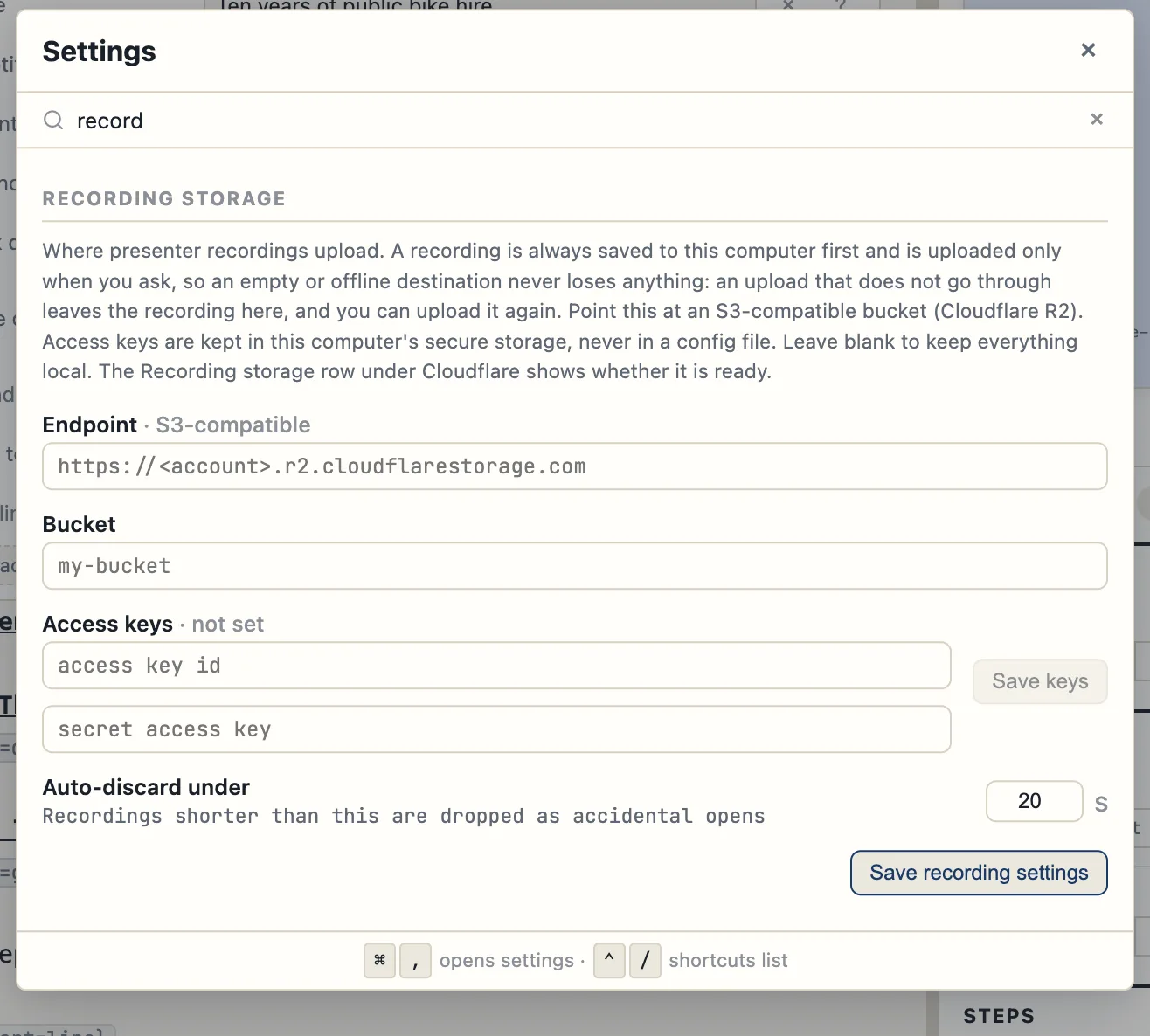
Settings › Recording storage takes an S3-compatible endpoint (Cloudflare R2), a bucket and access keys, which are kept in the computer’s secure storage. An Auto-discard setting drops recordings shorter than a set time, 20 seconds by default, as accidental opens. Leave the fields empty to keep everything on your computer.
Tools › TalkWeaver Studio plays a recording back with the slides in step. Record the room and Studio cover both in full.
Instant polls and feedback during a live talk
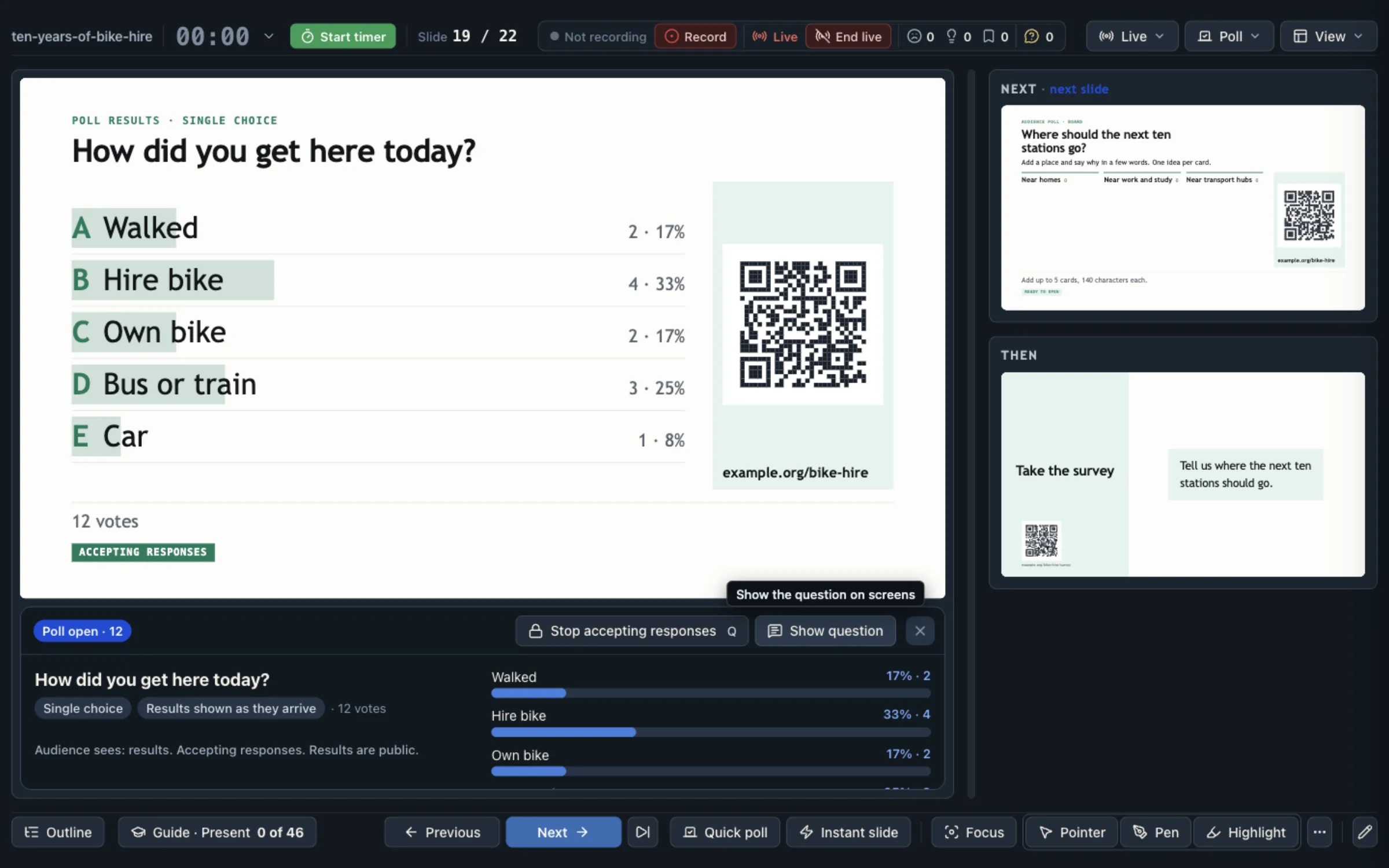
The presenter’s Poll menu composes a quick poll without a prepared slide (K), opens or closes the current poll (Q) and reveals the results (⇧Q). It shows the poll panel and has board controls: close the board to new cards, freeze it, show it full screen or pop it out into its own window. It also has Open questions, and the switches Allow slide questions (phones show Ask) and Allow slide reactions (phones show reactions).
The Live menu has the Go live button, the audience window, the join link and venue screen, the talk’s QR code and the instant slide commands. Questions and reactions work while you are live. Before you go live, a quick poll can be composed but not opened: the panel reads “Live session is not accepting controls”. Venue screen and live audience covers going live.
Presenter shortcuts
Press ? in the presenter view to see every shortcut.
- → Space
- Next
- ←
- Previous
- O
- Searchable outline
- B
- Back from a jump
- S
- Skip the next slide
- P
- Start or pause the timer
- T
- Set the talk’s length
- R
- Reveal mode
- F
- Focus mode
- H
- Highlight text
- Z
- Image and video gallery; full-slide page
- D
- Pen
- W
- Next pen shape
- X
- Clear the slide’s drawing
- I
- Pointer
- E
- Use an embedded page
- G
- Go live or end live
- Q
- Open or close a poll
- K
- Compose a quick poll
- ⌘V
- Show the clipboard as a slide
- ⌥⌘I
- Compose an instant slide
- U
- Show the talk’s QR code
- Esc
- Close an overlay