
TalkWeaver Studio
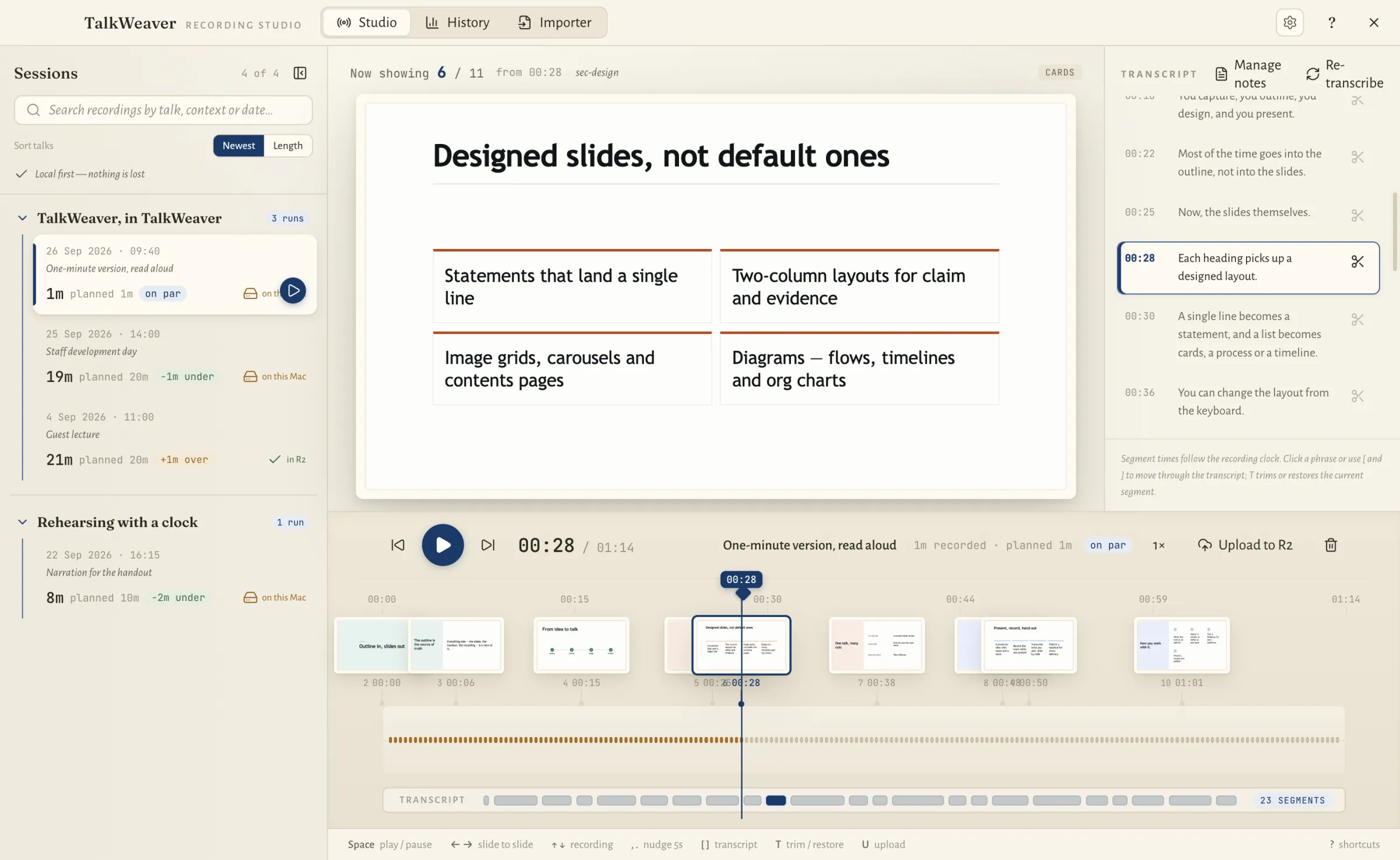
Studio is where you listen back to a talk. The recording plays with the slides in step, and the transcript sits beside it so you can find, trim and reuse what you said.
Opening Studio
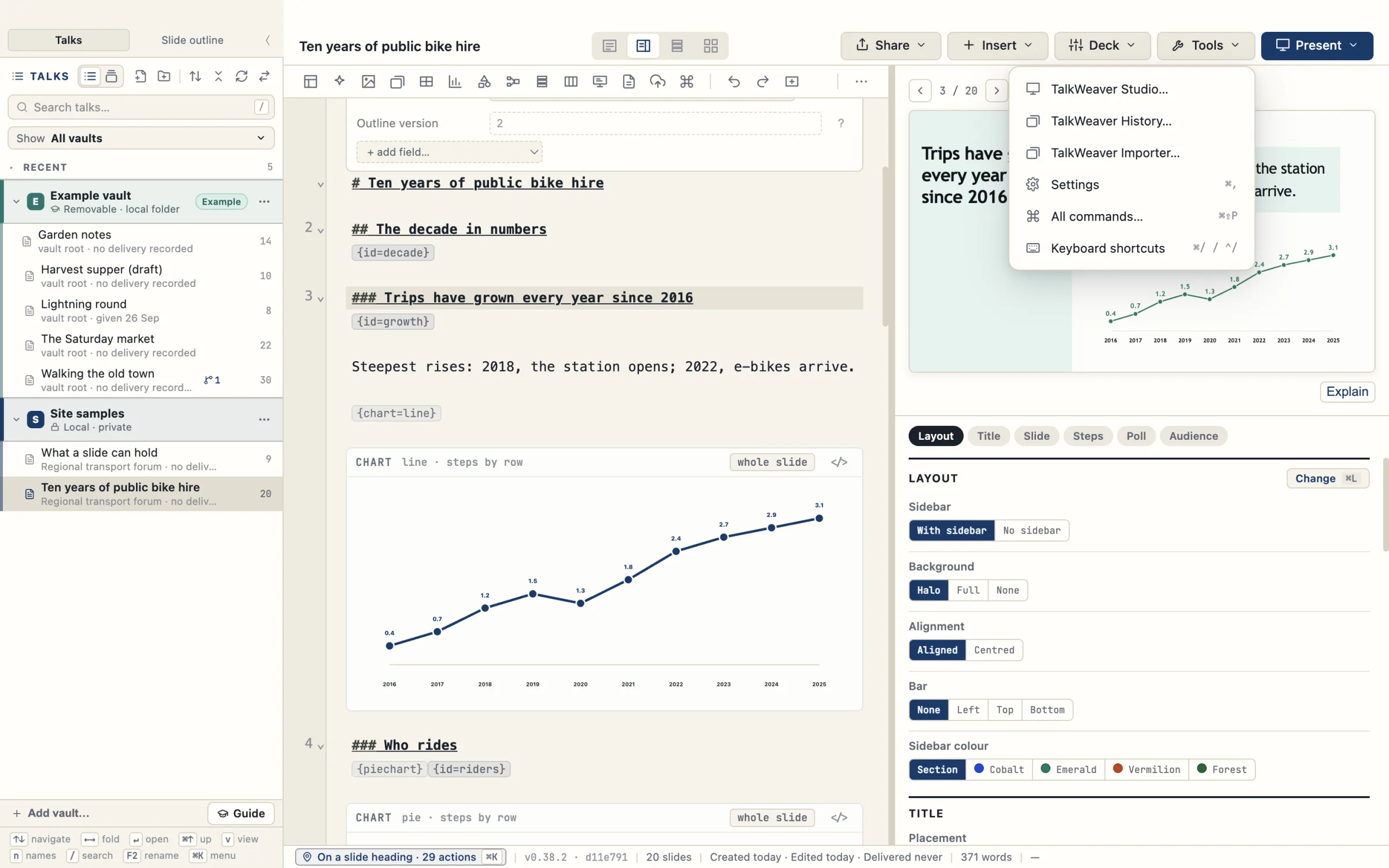
Choose Tools → TalkWeaver Studio… in the TalkWeaver window. You can also open the command palette with ⌘⇧P and type “Studio”, or press ↵ on a recorded talk in History.
Studio, History, the Importer, Sessions, Published pages and Work files share one Tools window. The tabs at the top switch between them, and Esc closes the window.
The recording with its slides
You record from the presenter view (see Record the room). Every recording appears in Studio, grouped by talk, with its date, what the occasion was, how long it ran and how that compares with the time you planned.
When you play a recording, Studio shows the slide that was on screen at that moment, including builds and highlights. A timeline of slide thumbnails runs under the player, so you can jump to any slide.
Transcript and trims
The transcript is lined up with the recording. Click a phrase to play from there, or move through it with [ and ].
T trims the current segment, so playback and exports skip it. Trimming never changes the audio file, and T again restores the segment. Re-transcribe runs transcription again. Transcription runs on your computer.
From recording to text
Manage notes turns a recording into text you can use. The Script is what you said, slide by slide, either as spoken or tidied into sentences and paragraphs. Notes are a readable write-up of the talk, drafted by an AI assistant from material TalkWeaver prepares, which you approve section by section.
Where recordings are kept
Recordings are saved on your computer first. Upload to R2 copies a recording to your own Cloudflare R2 storage, one recording at a time and only when you ask. You add the storage details in Settings under Recording storage.
Deleting a recording moves it to the Trash.
Studio shortcuts
Press ? in Studio to see every shortcut.
- Space
- Play or pause
- ← →
- Previous or next slide
- ↑ ↓
- Previous or next recording
- , .
- Back or on five seconds
- [ ]
- Previous or next transcript segment
- T
- Trim or restore a segment
- U
- Upload the recording
- Esc
- Close