
TalkWeaver History
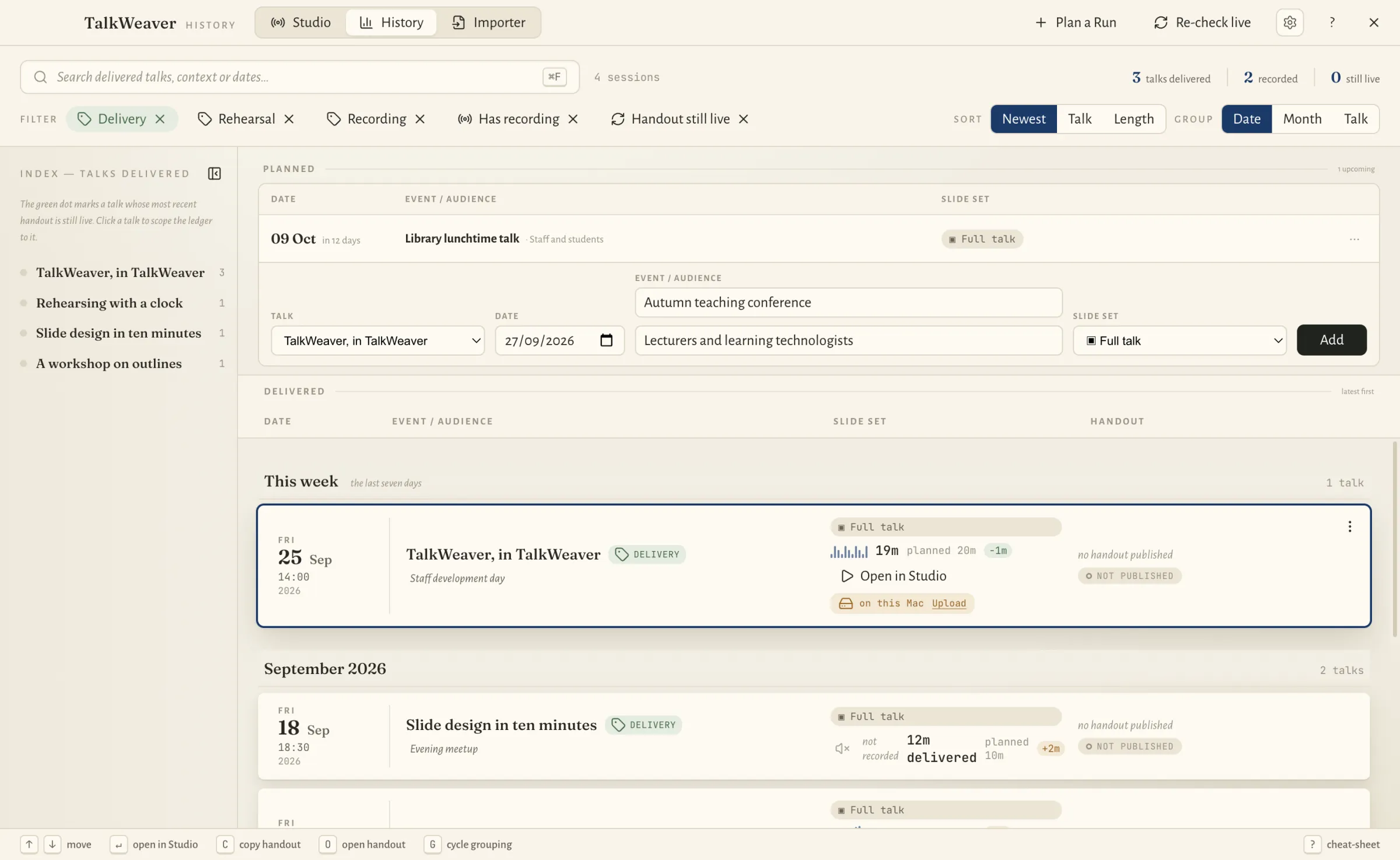
History is the record of every talk you have given: when and where, how long it ran, whether it was recorded, and whether its handout is still online.
Opening History
Choose Tools → TalkWeaver History… in the TalkWeaver window, or open the command palette with ⌘⇧P and type “History”. History opens in the Tools window, next to Studio and the Importer.
How a talk gets into History
Each time you go through a talk in the presenter view, TalkWeaver keeps the timings as a Run. When you finish a real run-through, it asks whether to keep the Run in History and what kind it was: a Delivery to an audience, a Rehearsal, or a Recording made to produce audio or text.
History shows Deliveries unless you ask for more. Rehearsals and Recordings are one click away in the filters, and you can change a Run’s kind later.
Find any talk
The summary at the top counts the talks you have delivered, how many were recorded and how many handouts are still online. The index on the left lists each talk, and clicking one narrows History to it.
You can search by talk, event or date, filter to talks with a recording or a handout that is still online, sort by date, talk or length, and group by date, month or talk.
Plan a Run
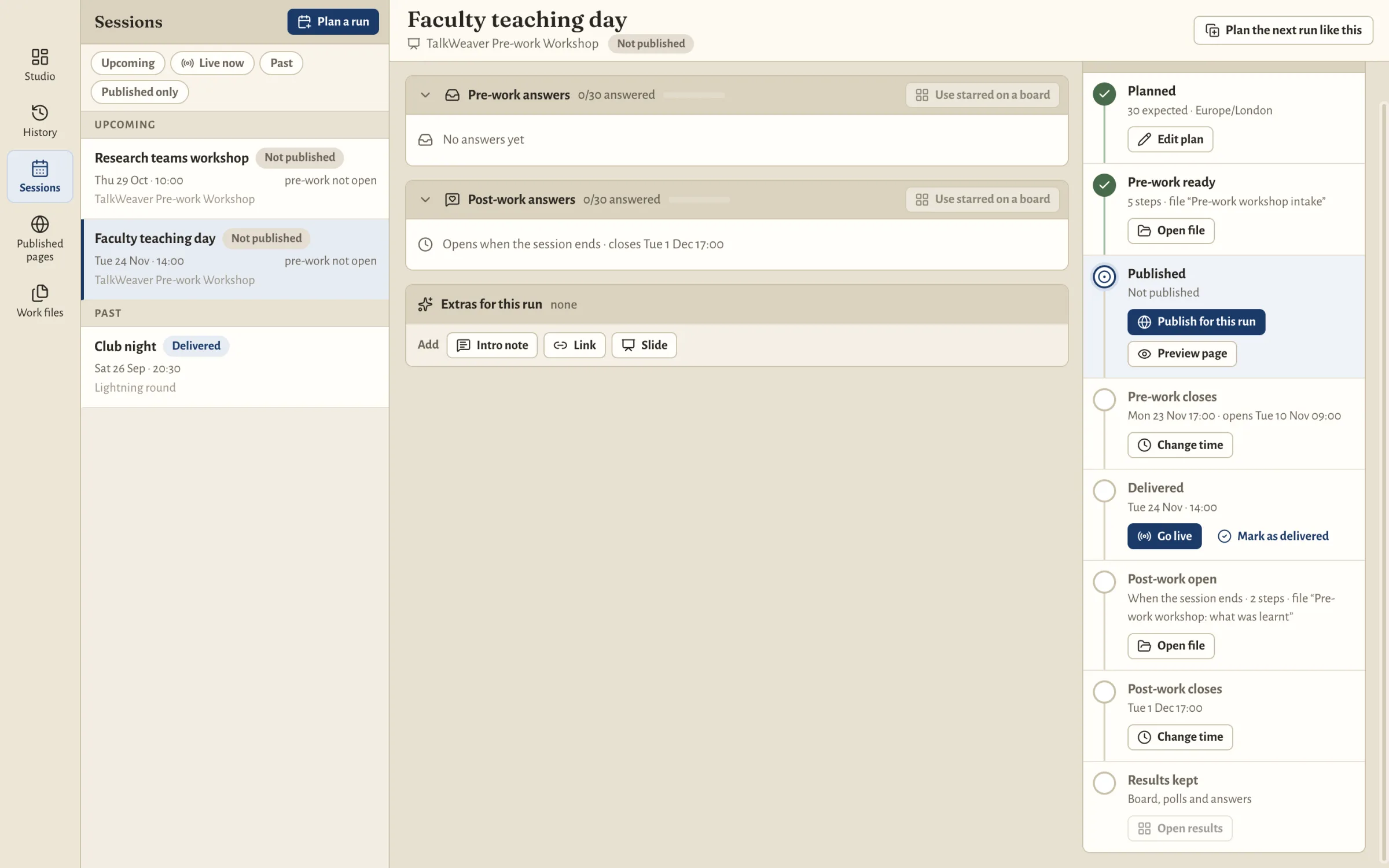
A future talk is planned with Plan a run (⌘⌥N), not in History. The slides can be the full talk or one of its Pathways. When you save, the planned Run opens in Sessions.
Sessions
Sessions (⌘4) is another view in the Tools window. It lists every planned and delivered Run, with the filters Upcoming, Live now, Past and Published only. History no longer publishes or unpublishes Runs: that is done from the Run’s page in Sessions. Pre-work and post-work are described under Pre-work and post-work.
Handouts and recordings for each Run
Each Run shows its handout. You can copy its link or open it. Re-check live checks whether published handouts are still online.
A Run with a recording has an Open in Studio link. The recording is kept on your computer until you upload it.
History also lists the instant slides you showed during a live talk, so you can add them to the talk. See the record of a live talk.
History shortcuts
Press ? in History to see every shortcut.
- ↑ ↓
- Move through the list
- ↵
- Open the recording in Studio
- E
- Edit the event or occasion
- C
- Copy the handout link
- O
- Open the handout
- G
- Change the grouping
- ⌘F
- Search
- Esc
- Close