
What TalkWeaver does differently
TalkWeaver is built around a text outline. Each section below names something it does that most presentation software does not, says where it is in the app, and links to the feature page that covers it.
Outline first
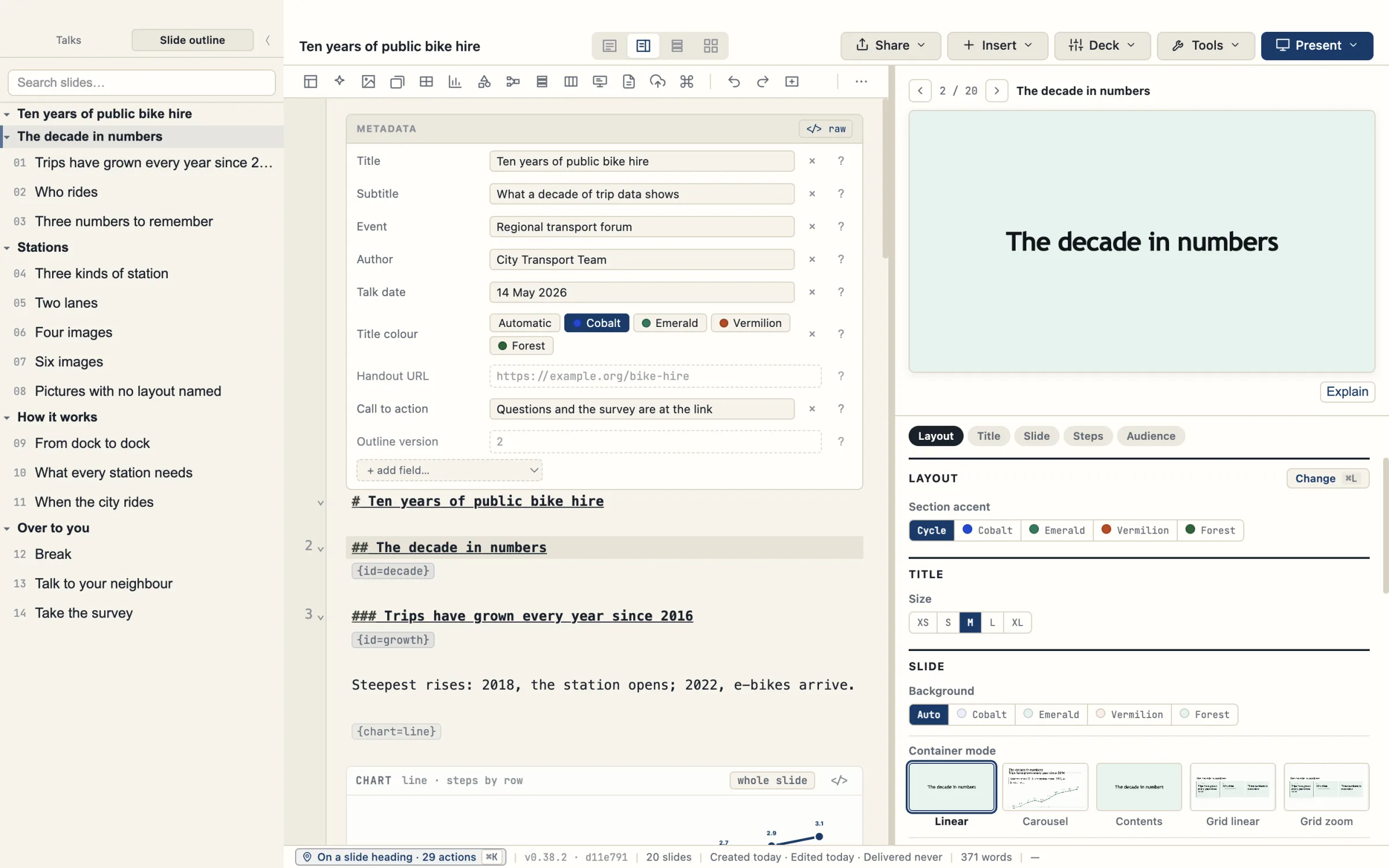
A talk is a text outline in its own folder, and every picture, sound and video it uses sits in that folder. You can open it in Finder like any other folder. The slides, the handout, the presenter view and the venue screen are all made from the outline.
A heading with two hash marks starts a section, and TalkWeaver makes a title page for it, as in the picture below.
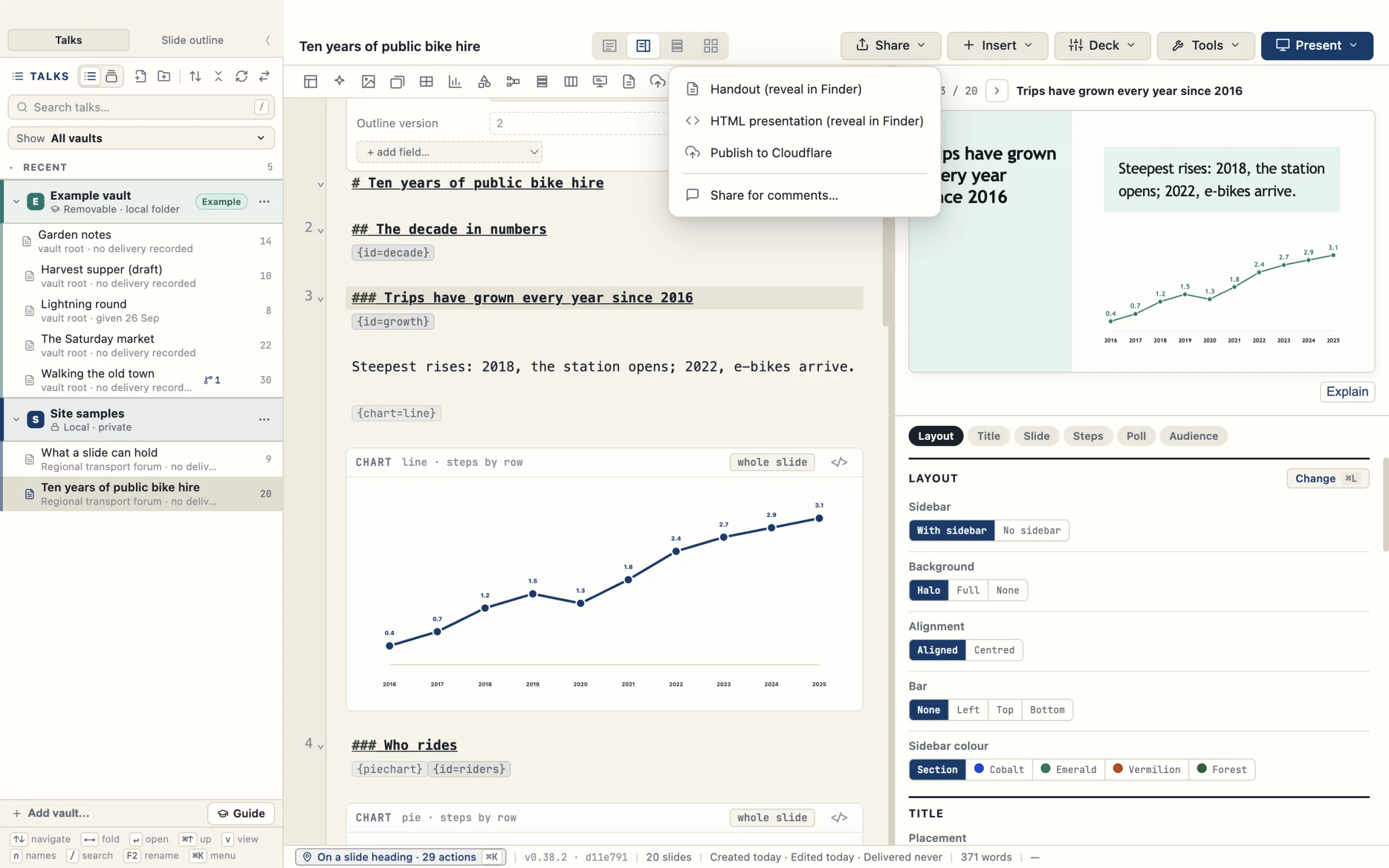
You can package a talk as a single HTML file with Share › HTML presentation, or share it through Cloudflare with Share › Share for comments.
Layouts built from the outline
Each heading in the outline becomes a slide, and a word in curly brackets on the line under it, such as {statement}, picks its layout. You type the headings and the slides are made from them.
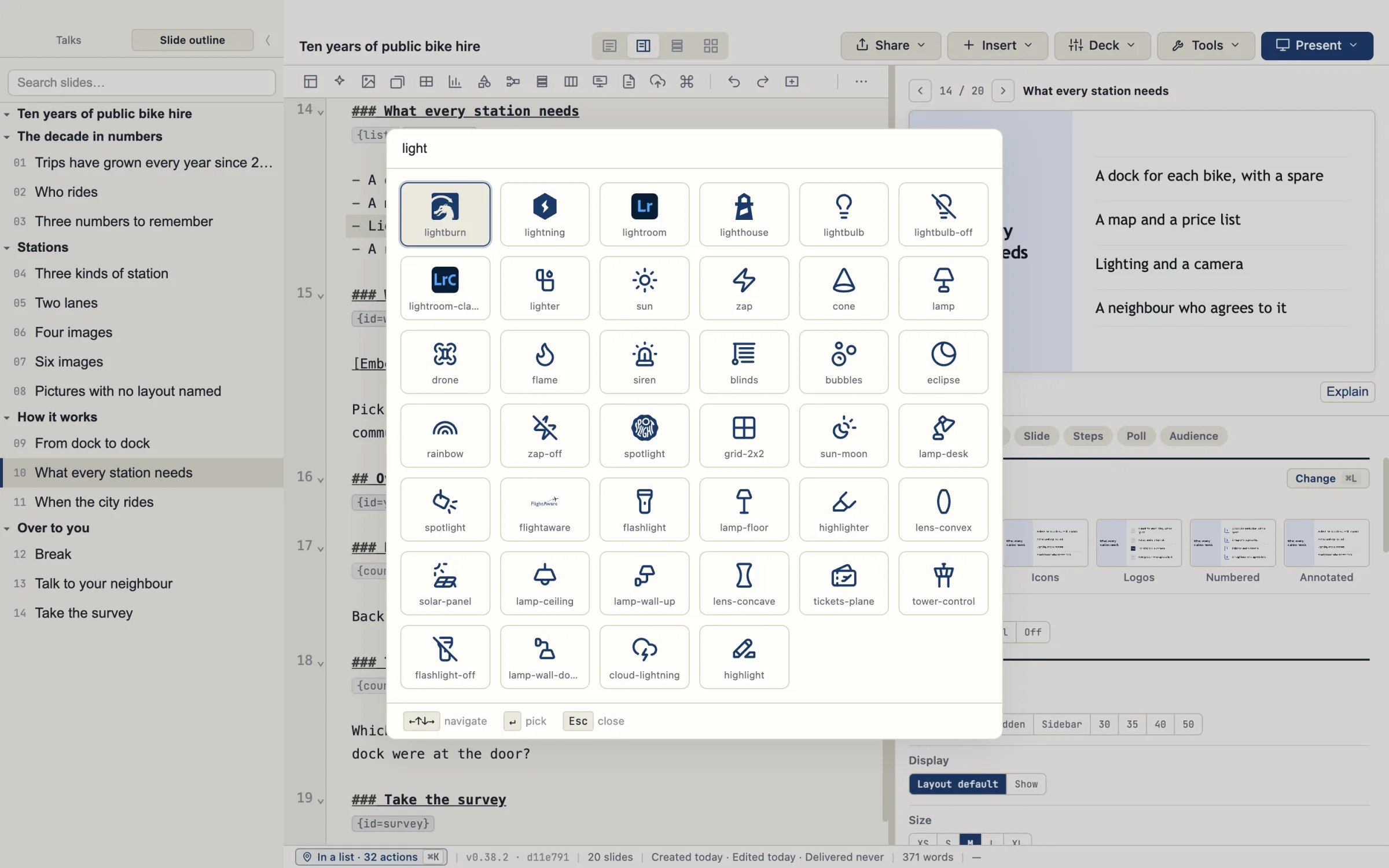
Press ⌘L to see your own slide in each layout and pick one. A slide whose text does not fit its layout is flagged, and the text is not shrunk to fit.
No positioning of images
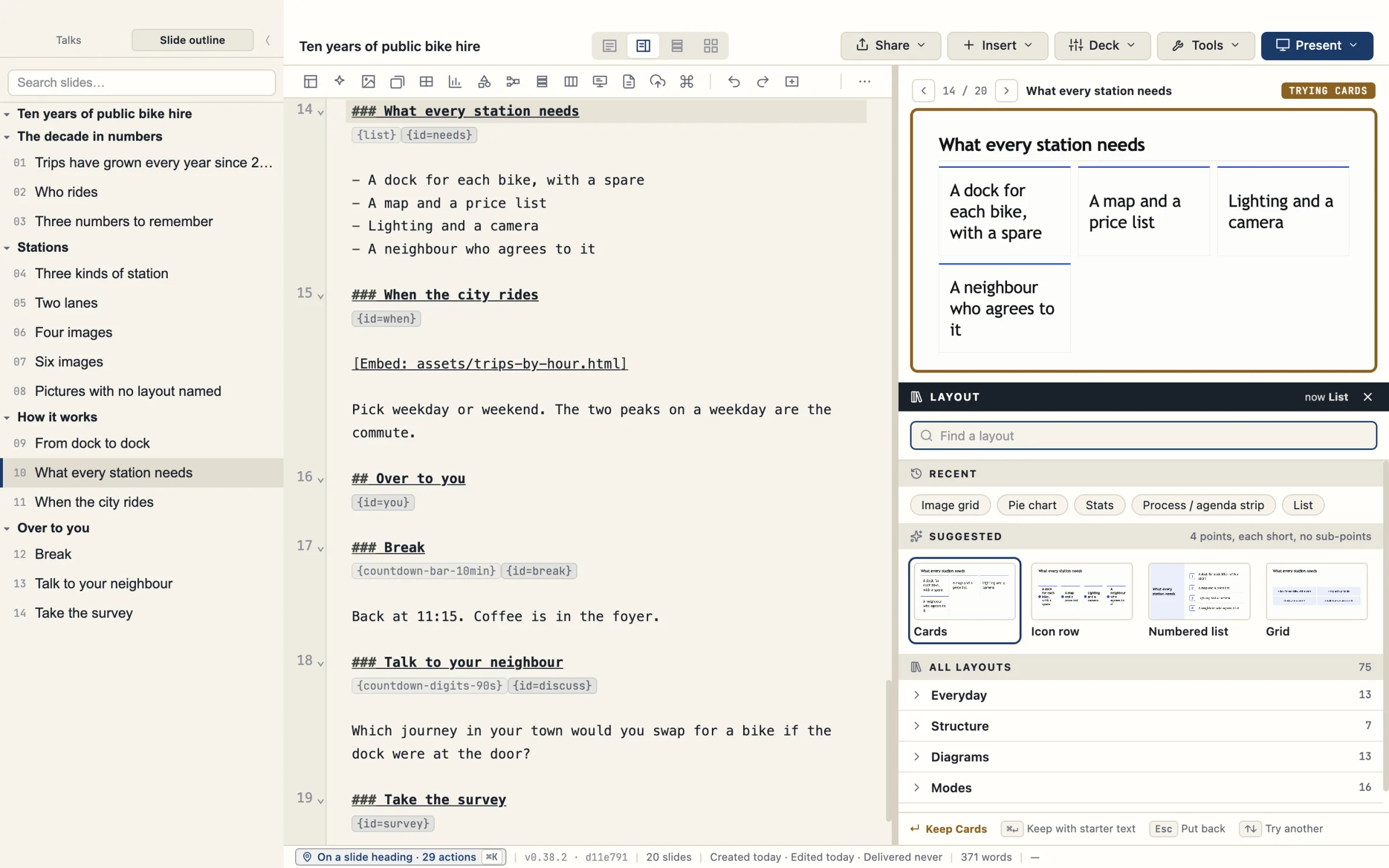
You do not position images. The layout places them, in image grids, carousels, window frames and beside text. You choose the layout, and the picture follows it.
Several screenshots on one slide sit in one row in window frames. The action bar above the editor has a button for images.
Built-in icons
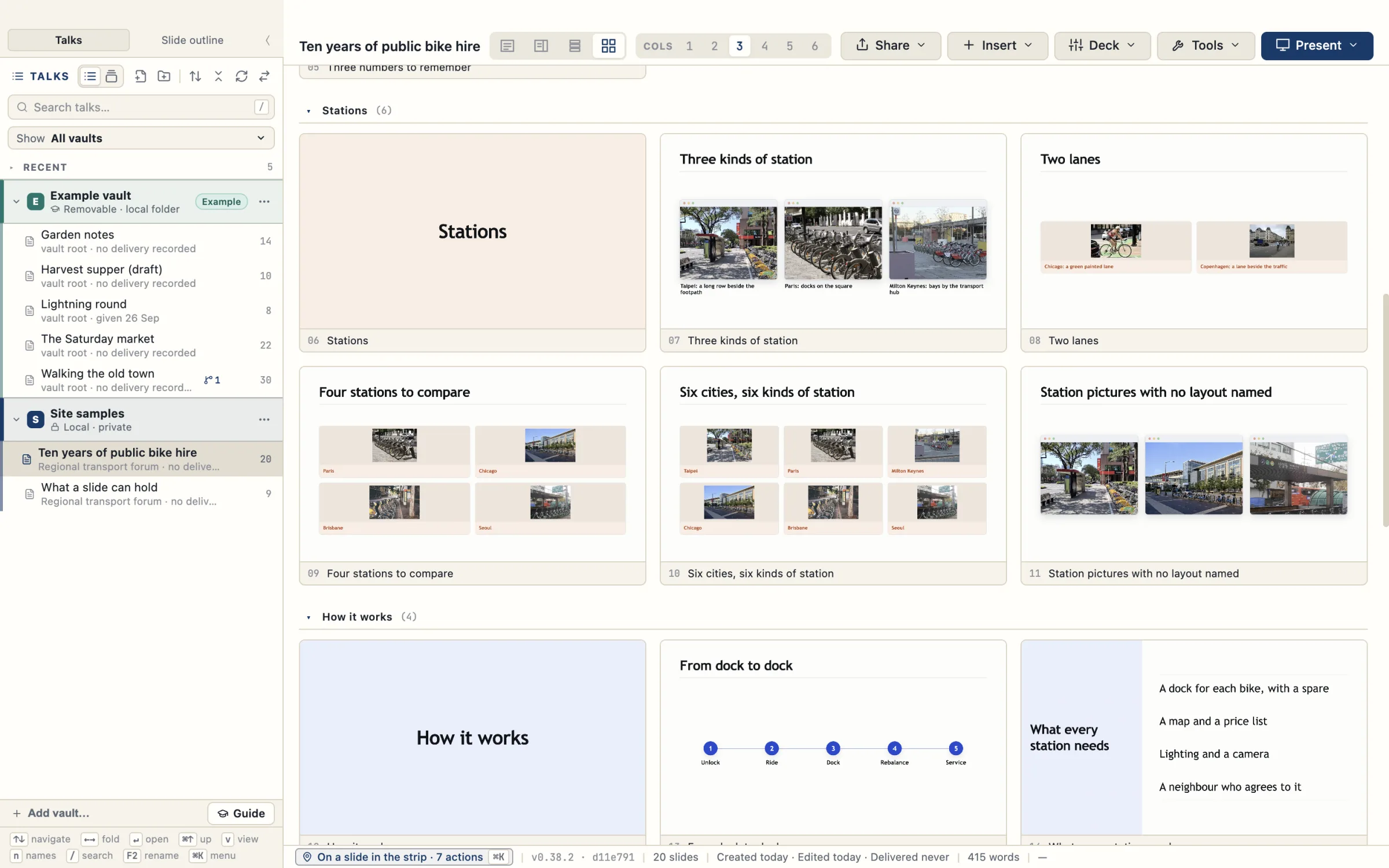
⌘I opens the icon picker, which searches a built-in set of icons and brand logos and pins the one you choose to the list item where the caret is. Icon lists and cards show the icon beside each item.
The action bar above the editor has an icons button, and the icon rows and cards keep their icons at a readable size.
Search across every talk’s slides
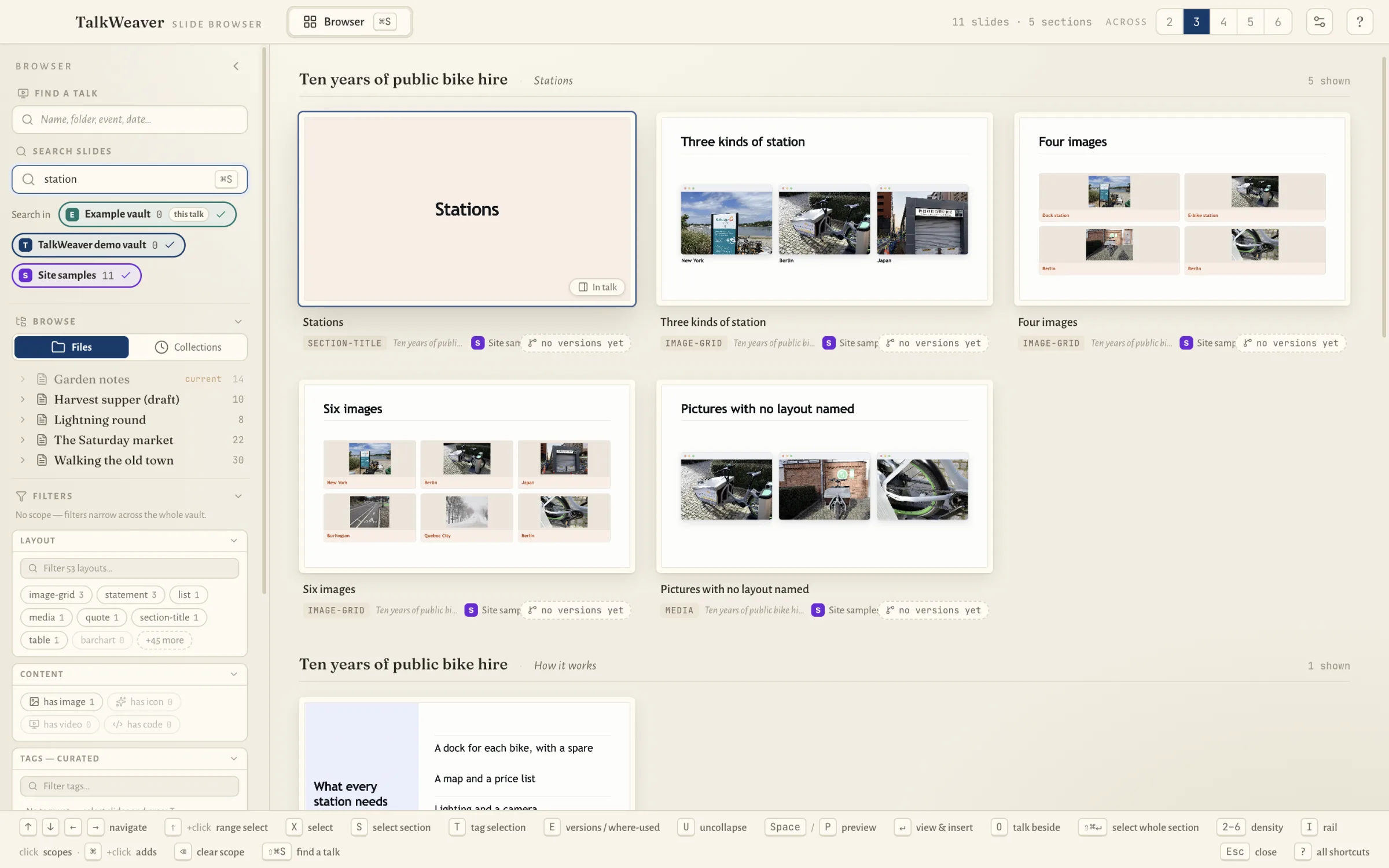
⌘S searches the slides of every talk in every open vault at once, and inserts the one you pick into the talk you are writing. ⇧⌘S opens the same picker with the cursor in Find a talk.
Slide search also covers the text inside images on macOS.
Polls and live presenting
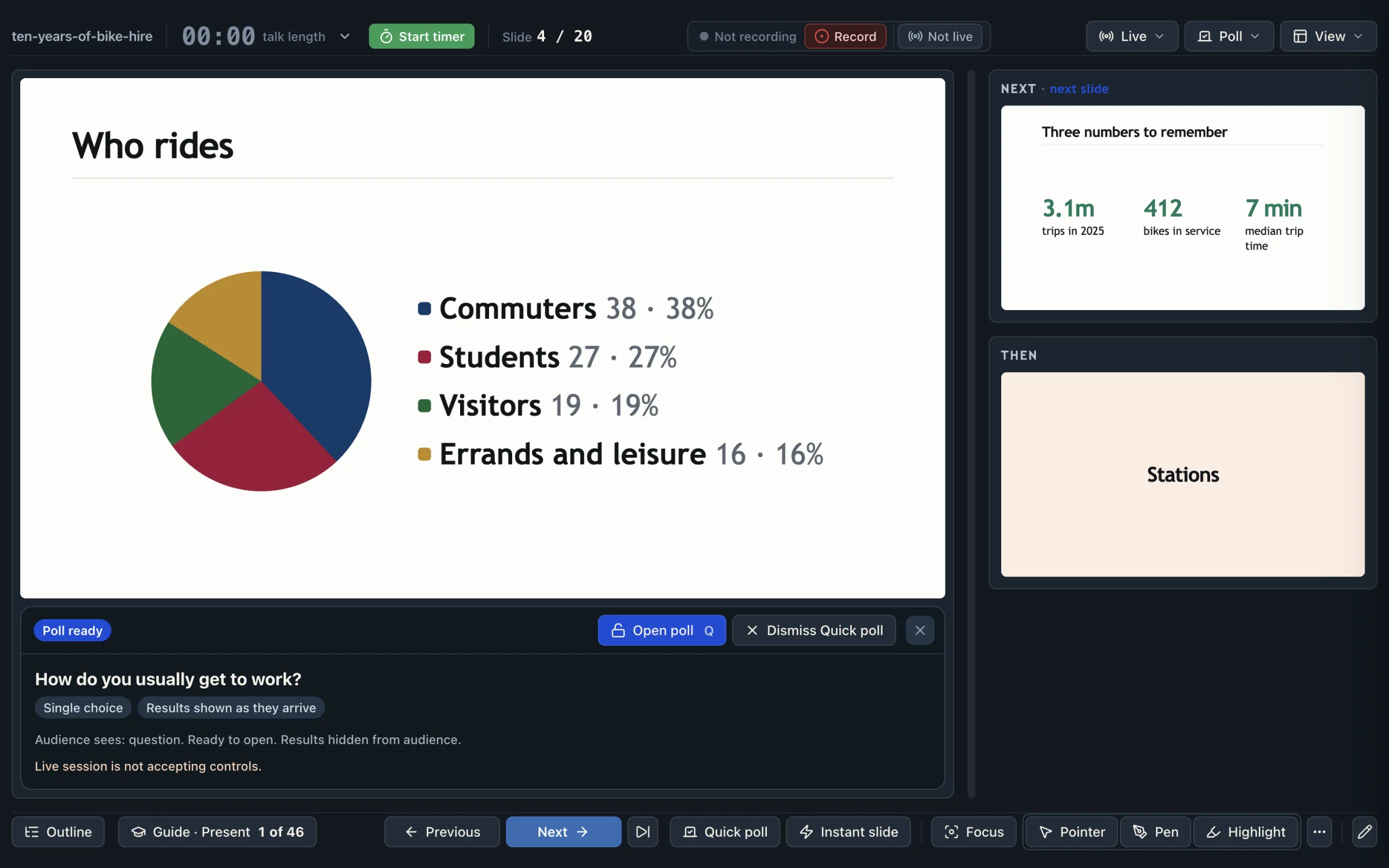
You write polls in the outline: single choice, multiple choice, open answer, rating, ranking and matrix. Q opens a poll for the room, and K opens a quick poll without a prepared slide.
When you go live, the audience follows on their phones, and a venue computer can show your slides from a link. Live features run in your own Cloudflare account, which you set up in Settings → Cloudflare.
Control while you present
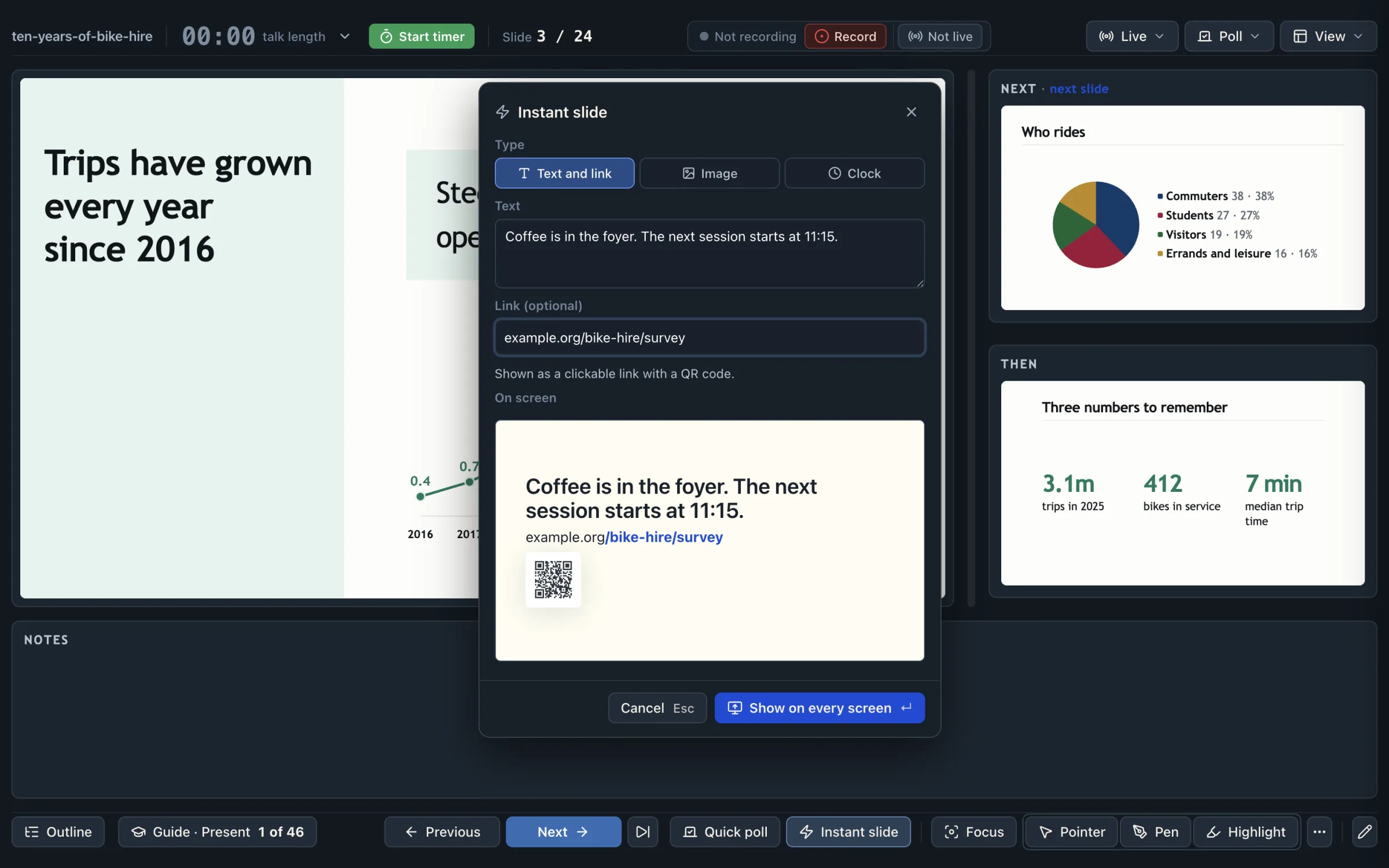
The first and last slides are made from the talk’s metadata, and a link written as [QR: …] becomes a QR code. In the presenter you can put an instant slide on every screen, with text, a link and its QR code, or a countdown for a break or a discussion. Polls and questions from the room need a live session.

Sharing
A talk can be exported as a single HTML file that runs in any browser. Share › Handout builds a handout from the outline, and Share › Publish to Cloudflare puts it online at a link you can give out.
Share › Share for comments sends a colleague a private link, and their notes and proposals arrive in a Feedback rail beside your editor. Publishing and sharing run in your own Cloudflare account, and TalkWeaver has no server of its own that holds your talks.
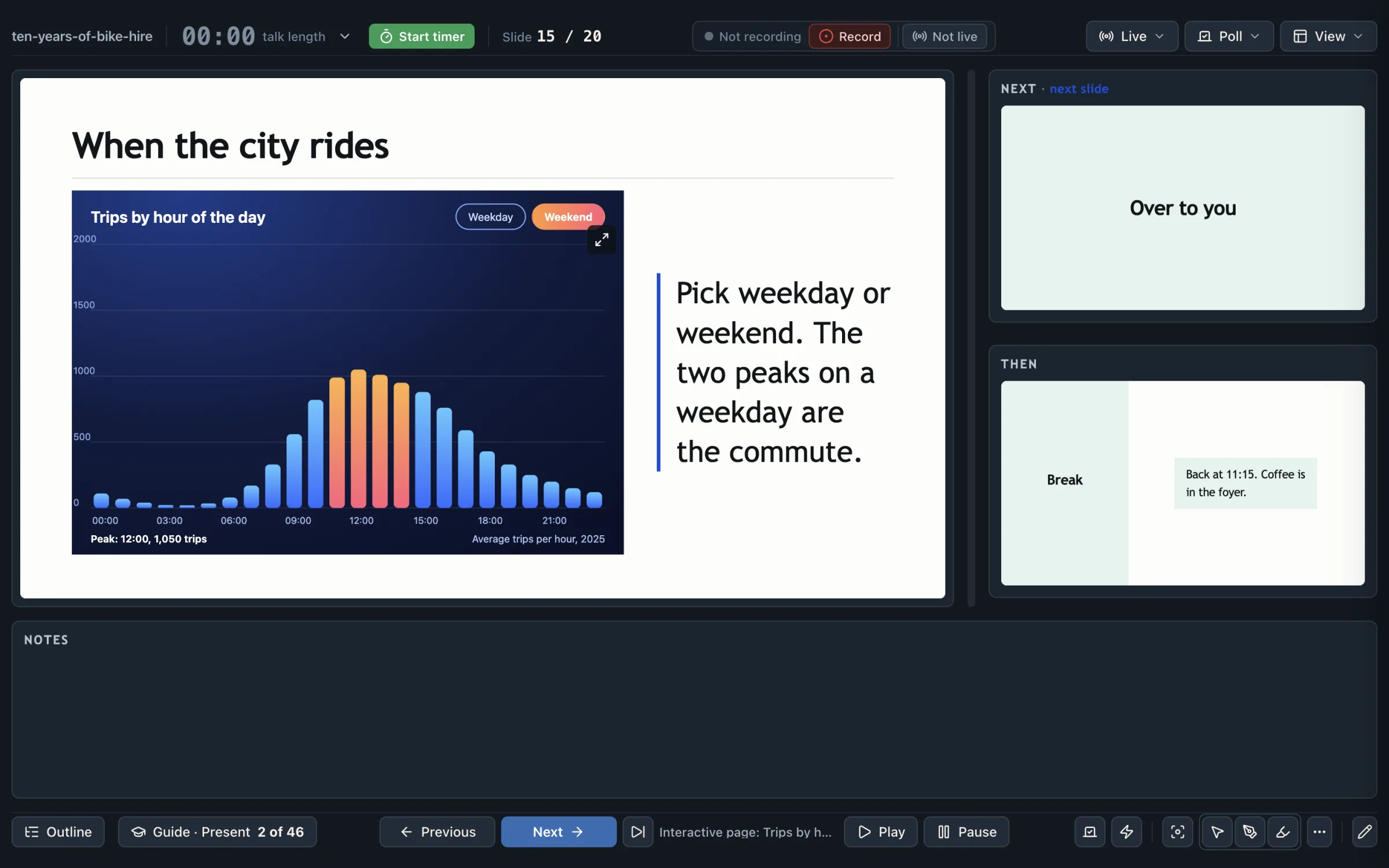
The example is the sample talk exported with Share › HTML presentation. It is one HTML file of about 5.6 MB that opens in any browser and made no network requests when tested. The arrow keys, Space, Home and End move between slides, Overview lists the slides with a search box, and the charts, pictures and the QR code are drawn on the slides. The embedded page is interactive once you click Interact, and Open Presenter View opens a presenter window with a clock.
Reuse and tracking of old slides
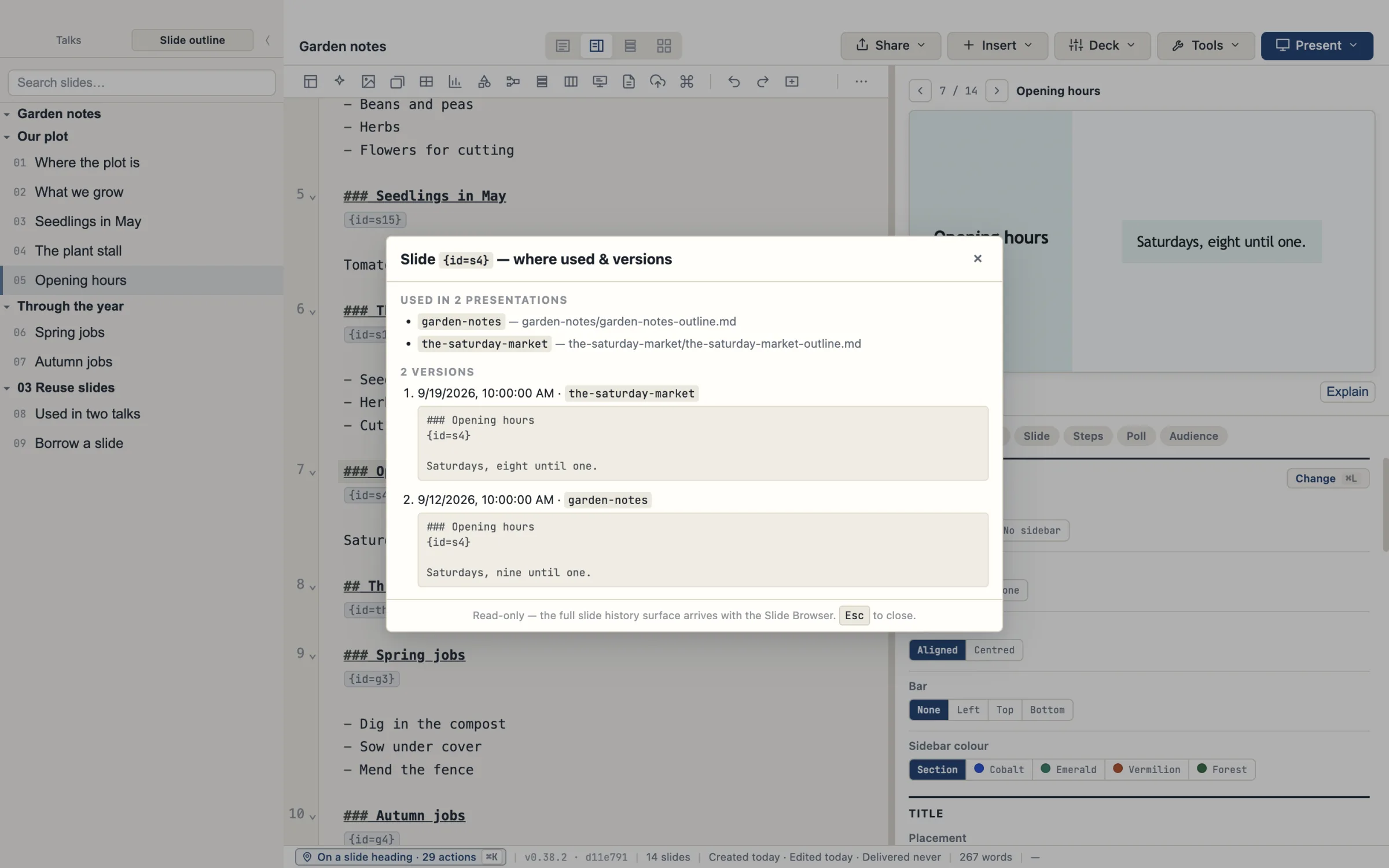
When you reuse a slide in another talk, TalkWeaver records where it is used and keeps its versions. A Pathway is a ticked list of slides from the same talk, such as a 20-minute version of an hour-long talk, and a slide you improve is improved in every Pathway that includes it.
Press ⌘⇧U on a slide, the command Where used and versions, to open a sheet that lists every talk using it and its saved versions.
The Importer turns PowerPoint decks into outline slides you can reuse the same way.
Visuals and rich interactive pages
The Insert menu makes a table, chart, mindmap or diagram from plain text. An HTML page kept in the talk’s folder, added with [Embed: …] or [Simulation: …], runs on its slide in a sandbox cut off from the app and your files.
Four more slide designs simulate an AI chat and a terminal, with their parts shown step by step.
Built-in recording
Recording starts from the presenter view with ⇧R, and the recording is kept with the Run for that delivery, together with its polls and questions. Tools › Studio plays it back with the slides in step.
If the title slide has been up for at least a minute and you move to slide 2, a small notice offers to start recording.
Agent friendly
A talk is a Markdown file in a folder, so a coding agent can read and edit it like any other text file. TalkWeaver setup sets up Cloudflare, recording storage and transcription from the command line, without opening a window.
The set-up guide for agents is inside the app, and the token is read only from a hidden prompt or standard input, never from an argument.