
Export a video, captions and chapters
Export an edited Run as an MP4 video. In the same step you can save captions, a chapter list to paste into YouTube, and a sound-only file. Files save where you choose. Nothing is uploaded. You can also print the slides or the handout on paper.
Export the video and extra files
- Open Tools › TalkWeaver Studio… and select the recorded Run.
- Play the Run to check your edits. The export follows them.
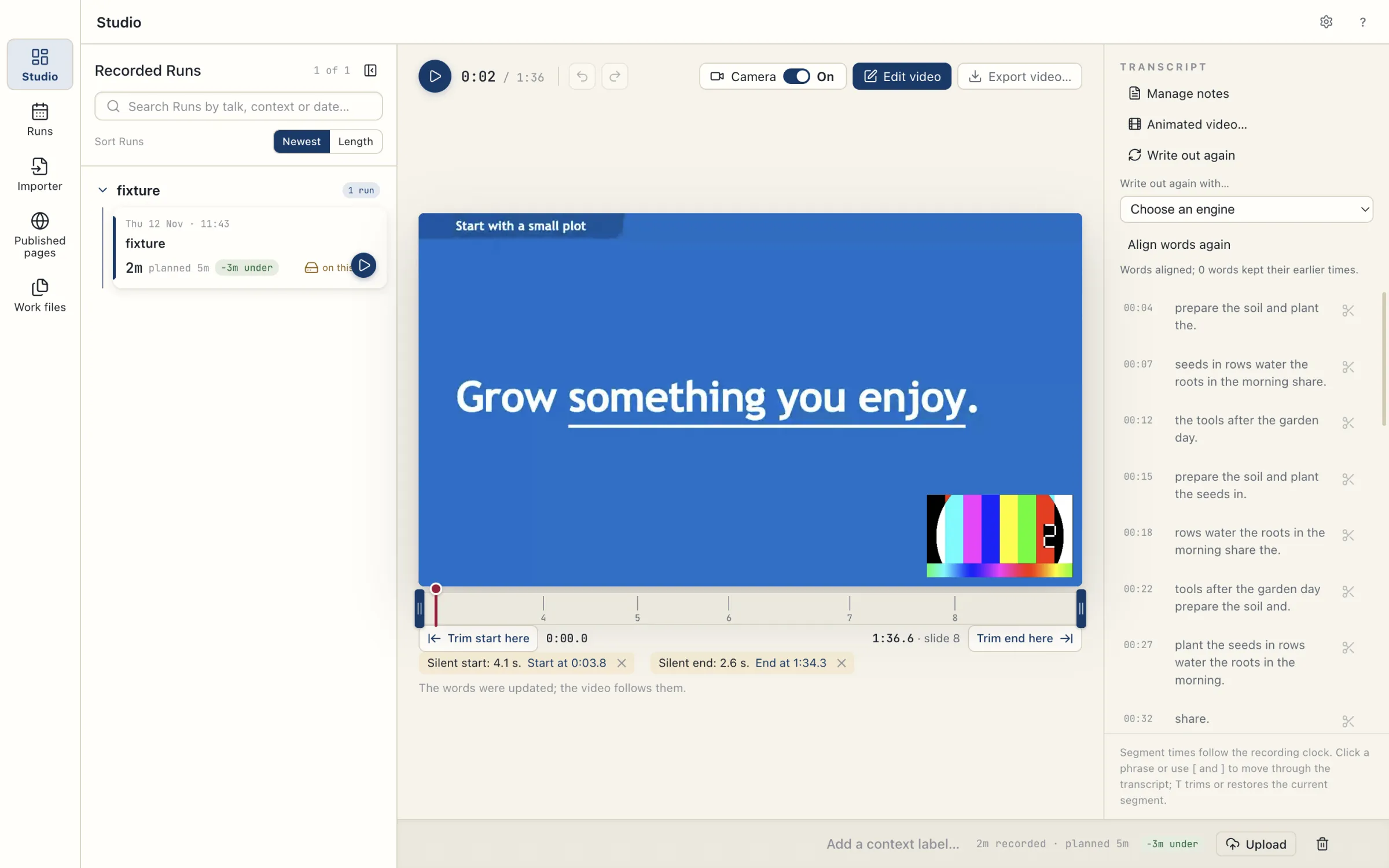
- If the Run has a camera layer, set the Camera switch in the player toolbar to On or Off. On puts your camera in the video, where each slide’s face position says: in the bottom-right corner unless you chose otherwise in the editor. Its tooltip reads Your camera is in the video. Click to leave it out. The switch controls the exported video as well as the player. The Export video sheet has no Camera switch.
- Choose Export video… in the Run player, or Export… in the transcript editor.
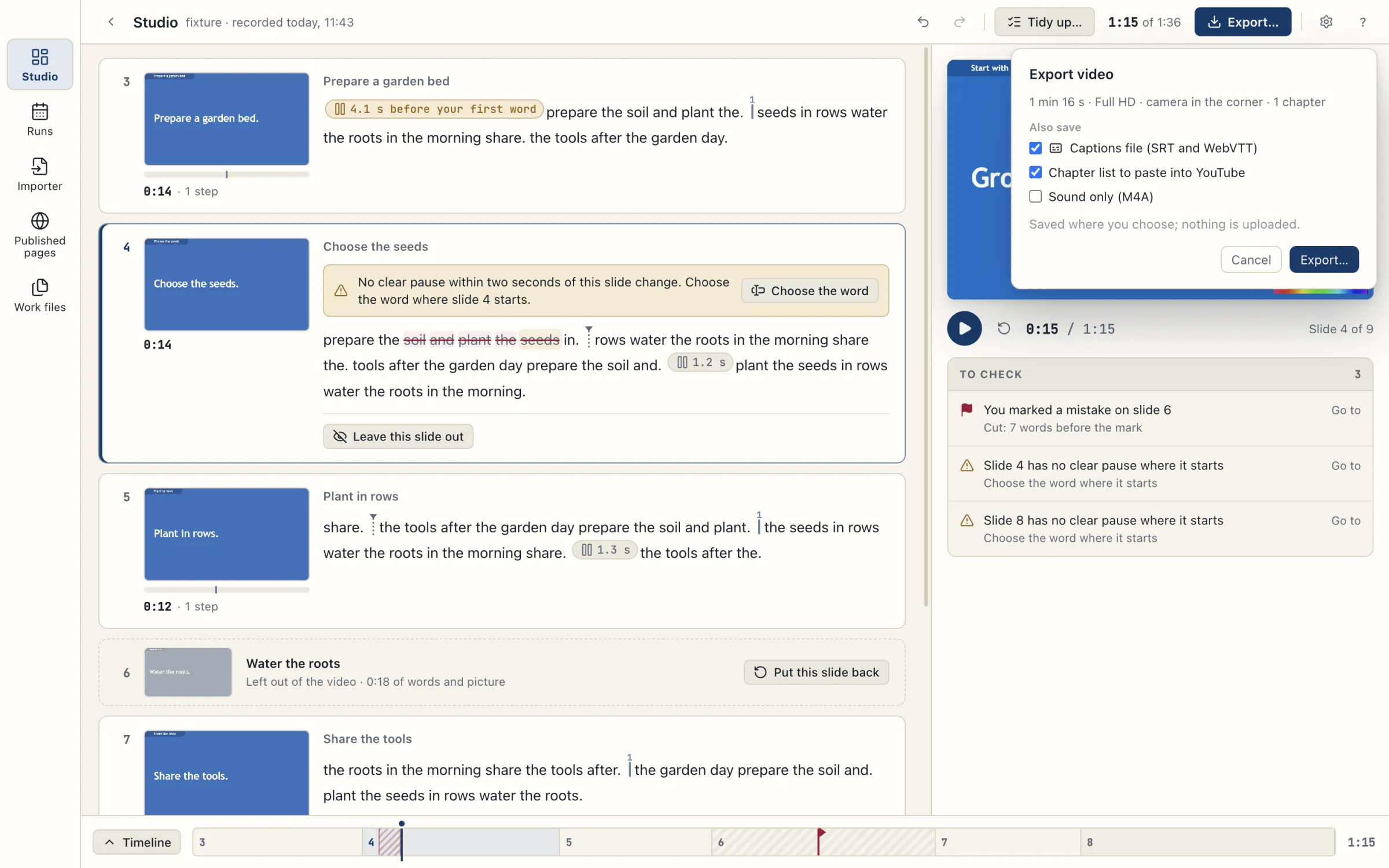
- In the Export video sheet, check the duration, with camera or without camera, and the chapter count.
- Under Also save, choose the extra files you need.
- Choose Export….
- In the save dialogue, choose a filename and a folder. The extra files save beside the video.
- Wait for the progress to finish.
What each file contains
| File | Contents |
|---|---|
| MP4 | The video: Full HD, 1920 × 1080 at 30 frames per second, with chapters. It follows your edits, the face positions, the Look and sound… choices and the Camera switch. |
| Captions file (SRT and WebVTT) | Two separate subtitle files, one in each format, with timings adjusted for your edits. The captions are not drawn onto the video. |
| Chapter list to paste into YouTube | A text list of the video’s chapters with their times. Copy it into the description of your YouTube video. |
| Sound only (M4A) | The edited sound without the picture. A Run that has no picture exports sound directly. |
If your talk has sections, there is one chapter for each section, named by the section’s title as the presenter shows it. A talk without sections has one chapter for each slide, named by the slide’s title. The same names are used in the MP4 and in the chapter list.
While the export runs
The progress sheet shows a percentage. To hide the sheet while the export continues, choose Keep editing. To cancel the export, choose Stop. Only one export runs at a time. The time an export takes depends on the recording and your Mac, and TalkWeaver gives no time estimate.
Print the slides or the handout
Printed slides look as they do on screen, scaled to the paper: one slide per page, in landscape. To keep a PDF instead of paper, choose Save as PDF in the print dialogue.
- Make the file to print. Share › HTML presentation saves the slides as one HTML file, and Share › Handout saves the handout. Each opens in Finder.
- Open the file in your web browser.
- Choose Print in the bar at the bottom of the page. In the HTML presentation you can also press P.
- Wait a moment after the page opens before printing, so that every diagram has been drawn.
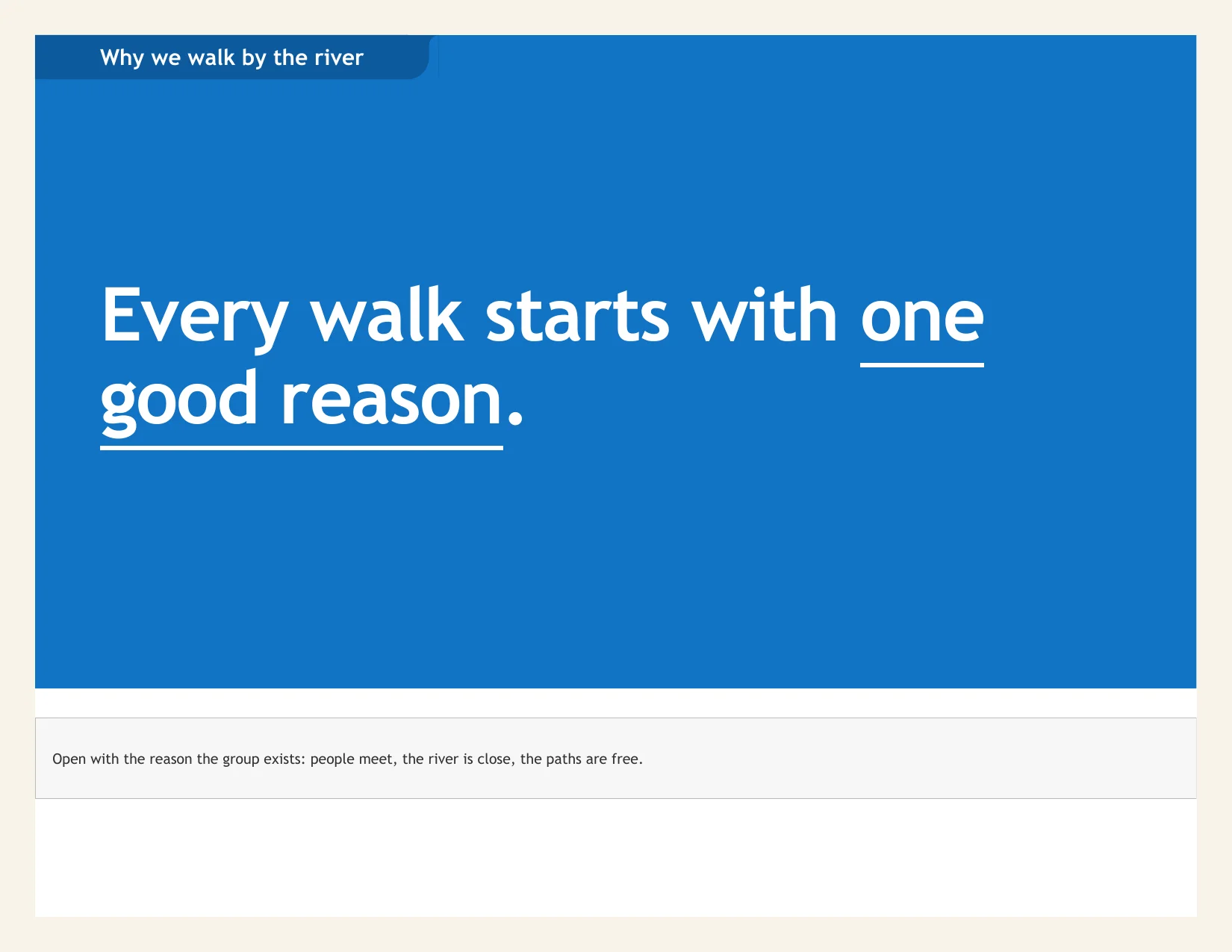
When you print the slides, speaker notes print below their slide. A carousel prints one card per page, with its number, such as “2 / 4”. Mind maps and Mermaid diagrams print even if their slide was never shown. A video prints its poster or its picture, or a note with the video’s name. In the presenter window only the slides print, not the presenter’s controls or notices.
After printing, every slide is as you left it: a simulation keeps its step, a code block its scroll position, a carousel its card, a video its place and a mind map its zoom. If a print is left unfinished, the next key press, click or slide change puts the slides back.
A few slides print differently from the screen where the screen itself loses something: a Classic statement with a side title and a picture stacks its paragraphs under the picture, and an Ocean slide whose label would break inside a word prints in the earlier arrangement.
Known limits
- Captions need a readable transcript. If the words cannot be read, the app can offer Export without captions.
- Without precise word timings, a caption segment that a cut touches is left out of the caption files. The completion message gives the number of lines left out.
- A Run with no picture has no recorded picture to export, so it exports sound only.
- Exports save to the folder you choose. TalkWeaver does not publish to YouTube.
- Printing from the presenter view after you have shown a mind-map slide may leave that one map out. Print from the HTML presentation instead.
- Printing in the first moments after a page opens may show a diagram empty.
- If you print from the browser’s own menu while a live session is moving that window’s slides, and a slide change arrives while the print dialogue is open, the print may use the screen layout.